
Review how to create and add an agent logo to headers and footers in documents
***Move to the bottom of this article to view a recording on this subject***
Verify Login is Associated with Profile
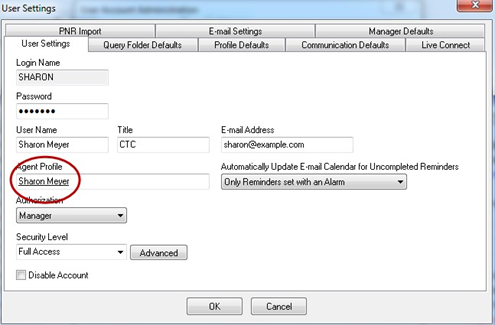
The agent's user login must be associated with an agent profile. If Agent Profile is missing from the user login, the SYSDBA user must login and add it.
- Going to Utilities > User Logins > User List.
- Double click on the user and make sure the Agent Profile field is complete.

Set Up User Level Logos in Headers/Footers
The following can be done by the agent if they have access to the Utilities menu in ClientBase Windows.
- Query and open the Agent profile.
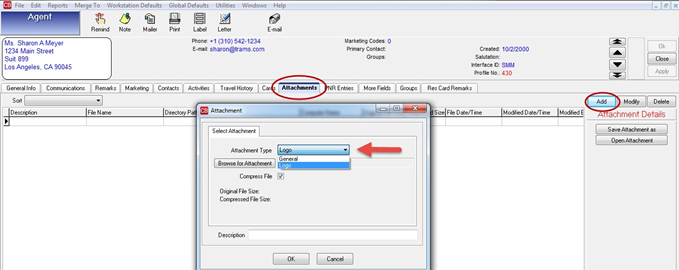
- Click the Attachments tab and Add.
- There are two Attachment Types, Logo and General (for attachments other than logos). Select Logo.
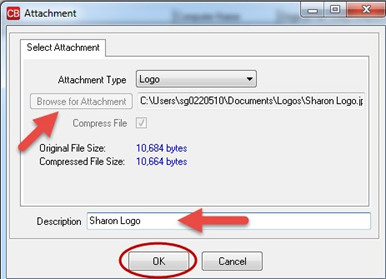
- Browse for Attachment and select the agent's logo image. o Agent's logo image must be a *.jpg, *.jpeg, *.bmp, *.ico, or *.emf type graphic file.
- Make sure it's the correct size before you import it.
- Complete the Description field and click OK to save.
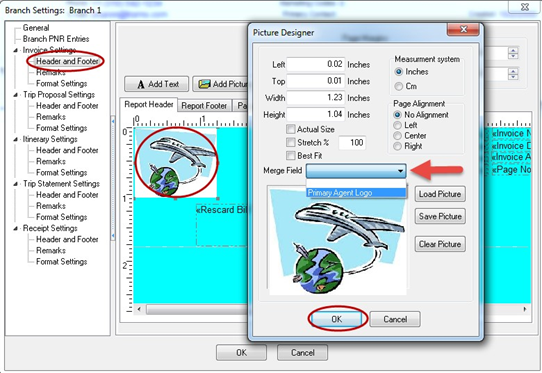
- After saving the agent logo, select the desired Header and Footer (Invoice, Trip Proposal, Receipt, etc.).
- Double-click on the global logo image to open the Picture Designer.
- Do not change the current logo image. Click the down arrow on the Merge Field, select Primary Agent Logo from the drop down.
- Click OK to save.
- Repeat these steps to add the Primary Agent Logo merge field to each Header and Footer (Invoice, Trip Proposal, Receipt, etc.).
- The merge field and current logo should look like the following:
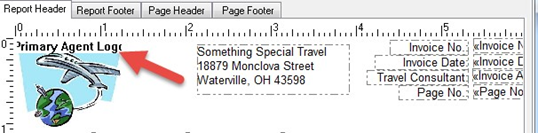
- If a logo exists in the Agent Profile, that logo is merged on to the document as long as the Primary Agent Logo merge field is entered in the Header and Footer. If no logo exists in the Agent Profile, or if the agent's user login does not have an assigned Agent Profile, the agency's usual Header and Footer is used (Branch level or the Global level).
NOTE: The change can be seen by logging in as the Primary Agent. If you are the system administrator, logging in using the SYSDBA login, you will not be able to see the logo change.