Move to the bottom of this article to watch a recording on selling and pulling from inventory.
Selling Inventory
Once a database of inventory records has been setup, agents can connect to this database of inventory while working in the Res Card. To query inventory for a particular client's trip, open a Res Card for that client and select the travelers.
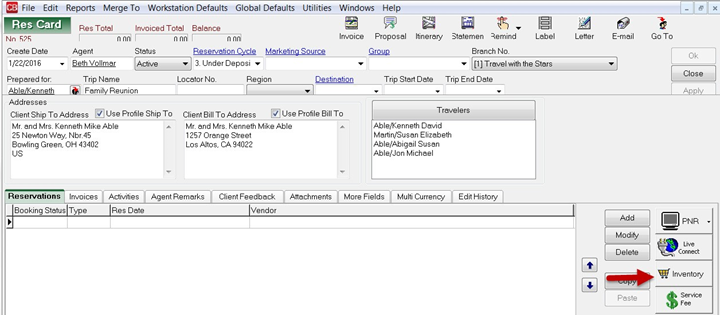
- Click the Inventory
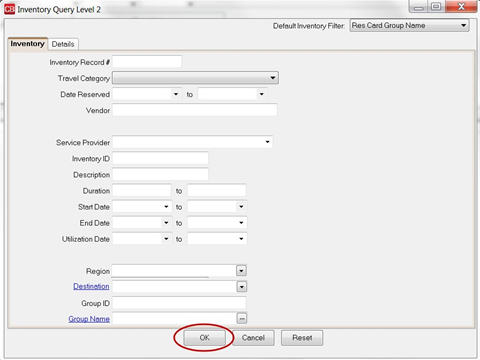
- Enter the criteria you know about your client’s trip needs and click OK to view a listing of the inventory.
You can also query inventory from inside a reservation, but make sure the travelers are correct before you pull (check off those who are going to be in the reservation, and uncheck any traveler that is not going to be in that reservation)
- Click Inventory
- A Level 2 Inventory query screen as outlined above appears to query inventory items based upon the travel needs of the client.
Pulling From Inventory
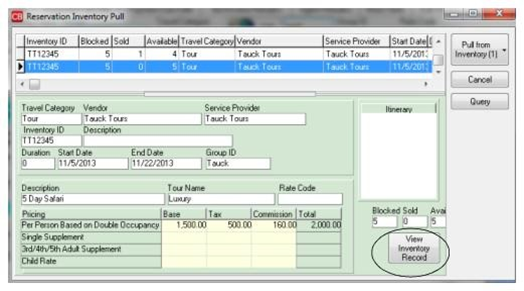
Once your Inventory query criteria has been captured, the system prompts with matching Inventory details and from this results screen, the system now allows you to select any number of Inventory details.
- Select the inventory by placing an X in the box within the column labeled Pull from Inventory. o The Pull from Inventory drop-down has two options: Pull from Inventory and Import to Reservation, and Pull From Inventory and Launch Live Connect which is only available for Sabre Cruise.

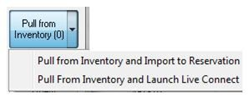
- As you select each Inventory detail desired, the Pull From Inventory button's count is increased accordingly.
- To view more information about any inventory detail, click View Inventory Record at the bottom right hand corner.
- Once all desired Inventory is selected, click Pull From Inventory, and the system imports each inventory detail into a separate reservation record and the available inventory is decreased accordingly.
- Please note that although the system allows for pulling more than one inventory detail at once, each inventory detail is linked to a separate reservation and maintained separately; therefore, each are returned to inventory individually by either cancelling or deleting the reservation.