Manager Login
For increased security and to move toward better compliance with PCI standards, the SYSDBA login now has restricted abilities. It can access the Help menu, access the File menu, reset its own password, and create users with Manager Authorization under Utilities | Setup | User Logins. In order to perform other managerial functions, your agency will need to have a user with the Authorization level of Manager.
Except for Database Backup, which requires SYSDBA, a Manager user can do all the things that SYSDBA could do previously. Some functions, for example, creating or modifying user logins, will prompt the Manager to enter the SYSDBA password before allowing them to proceed. However, they are still logged in under their own user login.
We recommend that each person who uses Trams Back Office has a login with their own name, and that nobody shares a login. It is important that you be able to tell who has accessed the database and made changes.
- To create a new user login:
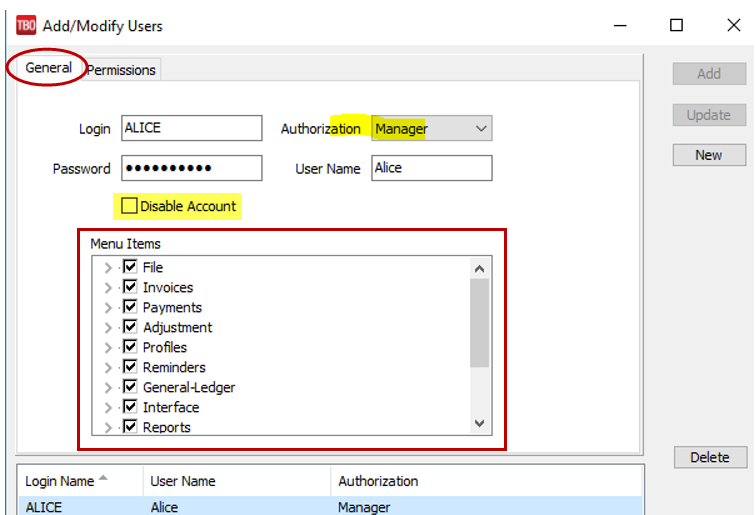
- Login to trams as the SYSDBA go to Utilities | Setup | User Profile.
- Select New and add a Login name, Password and User Name.
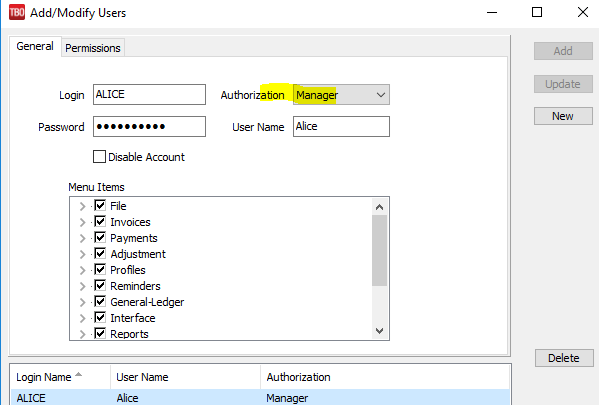
- Select Manager from the Authorization drop-down
- To edit an existing user login:
- Click on the existing User Login to highlight it
- Select Manager from the Authorization drop-down
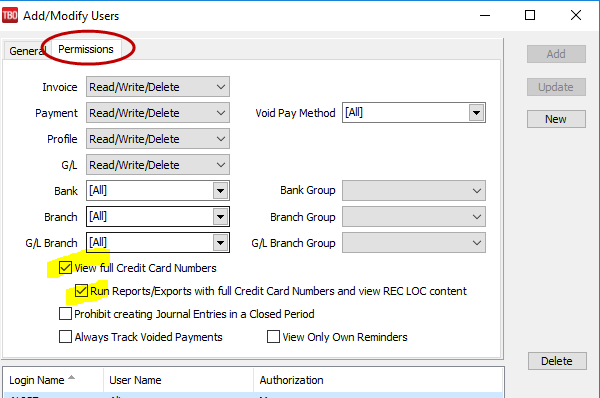
When creating new User Logins, be sure to review the Menu Items on the General Tab and the Permissions tab options. Adjust them according to the tasks the User will be performing. User Logins created in ClientBase Windows are marked as disabled in Trams Back Office and have no Trams Back Office permissions by default.
For download and processing interface processes, the View full Credit Card Numbers permissions need to be enabled on the Ppermissions tab.
Make sure to log out of Trams and sign back in after you update the permissions.