
Scheduled Backup using Windows Task Scheduler
Getting the Parameters for the Automatic Backup
Create a shortcut for the backup process on the desktop.
- Start the Trams Backup Utility. You can click on Start, (All) Programs, TRAMS, and Trams Backup Restore or Start, (All) Programs, Trams Back Office, then Database Backup.
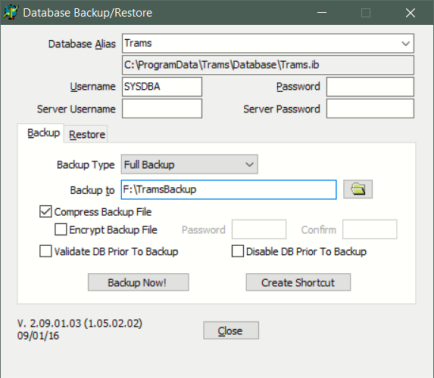
- Make sure the Username is SYSDBA. Enter the appropriate password.
- Currently, nothing should be entered in Server Username or Server Password.
- If the desired backup location is not already displayed next to "Backup to," click on the Folder icon to browse to and select the path you wish to back up to.
- Compress Backup File should normally be checked if you want the backup to be compressed to zip format.
- Click "Create Shortcut"
- At this point, you will have an icon on the desktop named "Backup," plus your alias name. Usually it will be named "Backup TRAMS." When double clicked, it will bring up the same parameters as entered when Create Shortcut was clicked. For the purposes of creating the automatic backup, what we need are these parameters.
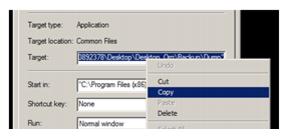
- Right click on this Backup TRAMS shortcut icon on the Desktop and select "Properties".
- If the text in the Target box is already highlighted right click on the highlighted text and select "Copy."
- If not, right click inside the Target box, choose "Select All" then follow step 2 to copy the text.
- Close the Shortcut's properties.
The full copied text will look something like this: "C:\Program Files (x86)\Trams\Common Files\ibbackup.exe" -UserName SYSDBA -EncPwd1 "696D28D2F51DB07CEF" -Alias "TRAMS" "E:\TRAMSBCKUP"
Creating the Scheduled Task in Windows Vista/Windows 7/Server 2008/Server 2012
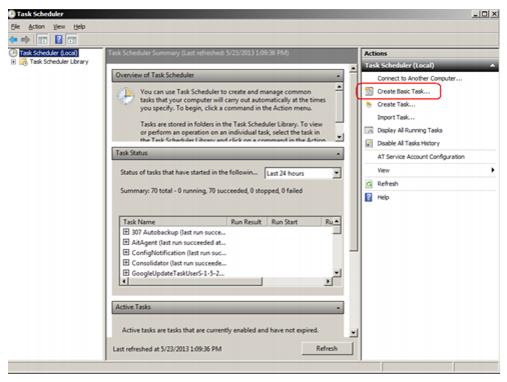
- Open up Windows Task Scheduler
- Click Start, Programs - Accessories - System Tools - Task Scheduler. Also you can click Start, and type "task" into the Start Menu Search box and Select Task Scheduler from the results, or open the Control Panel - Administrative Tools - Task Scheduler.
- Select 'Create Basic Task' from the right hand pane and the 'Create Basic Task Wizard' will open.
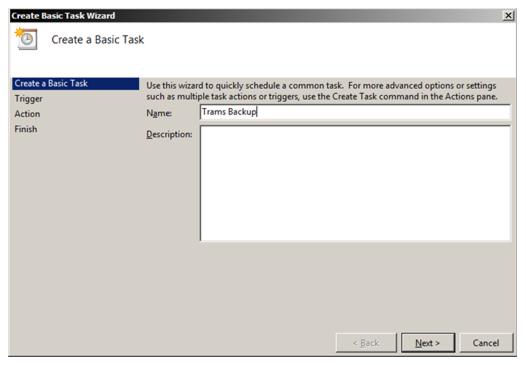
- With the Wizard open, type a 'Name' (example TRAMS Backup) and 'Description' (optional) for this task. Click Next.
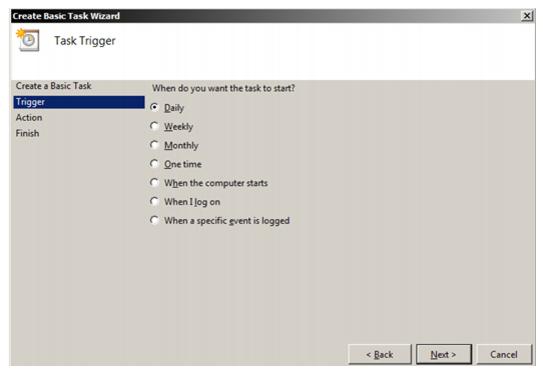
- Select when you would like the event/task to run. Daily would be the most common and logical choice as we recommend a backup be done every day. Click Next.
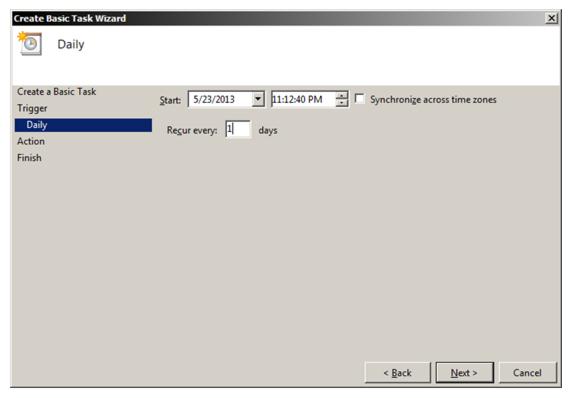
- Select the exact time and date at which you wish the first task to start (each task afterward will run based on your selection in step 3) then click Next. Automated backups are generally run in the evening, rather than during the work day. The computer must be on for the task to occur. Click Next.
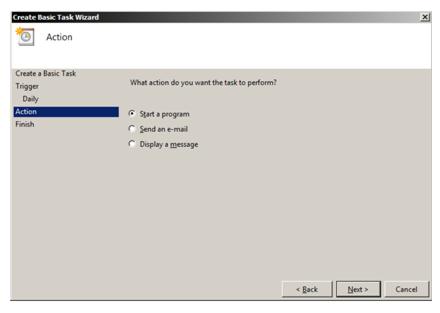
- Leave the action set to "Start a Program" and click Next.
* Note, this next part is a little tricky, please try to follow the steps carefully.
- We copied the command line for the backup in the steps at the beginning of this document. Unfortunately, we need to split it up into the two boxes on this next screen and make a slight change to the Additional Arguments.
- First, right click in the Program/script box and select paste.
- Press the End key on your keyboard.
- Press the Backspace key to delete characters from the end of what you pasted, until you reach ibbackup.exe" and do not delete the quote mark.
- What you should have left is this (or something very similar):

-
- Alternatively, at this step, you could have clicked Browse… and found the ibbackup.exe program under the C drive, Program Files (x86)\Trams\Common Files.
- Next, we need to get the correct portion of that command line into the "Add Arguments" box.
- Right click in the "Add Arguments" box and select paste.
- Press the Home key on your keyboard.
- Press the Delete key (not Backspace) until you reach the first dash symbol, do not delete the dash. Next to the dash should be "UserName."
- With the cursor still at the left side of the box, type "-auto" and a space. What you should see is this:

-
- Click Next.
- Check the box that says "Open the Properties dialog for this task when I click Finish." Click Finish.
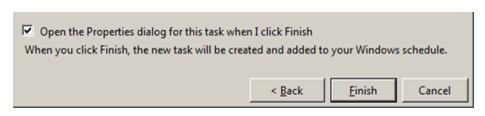
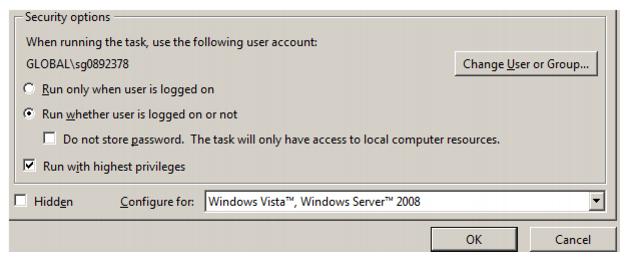
- Check the box that says Run with Highest Privileges.
- Under the Security options, you can have the task run if the Windows user that created the task is logged on, but it would be more common to set it to "Run whether user is logged on or not." If you set this option, when you click on Okay, it will prompt you to enter your Windows password for this user.
Additional Scheduled backup command line options for EUA enabled databases:
-USERNAME <username>
-PASSWORD <password>
-ALIAS <database alias,database alias,...>
-DBPATH <database path>
-AUTO
-RESTORE
-COMPRESS
-VALIDATE
-DBUSERNAME <database username>
-DBPASSWORD <database password>
-ENCPWD <encrypted password>
-ENCDBPWD <encrypted password>
-DUMPFULL
-DUMPINCREMENTAL
-PAGESIZE <4096, 8192, 16384>
-LOGFILEPATH <path for log file>
-EMAILSERVER <email server name>
-EMAILTOADDR <recipient's email address>
-EMAILNOTIFYALL