Documentation
Document production options are pre-set and can be viewed in the supervisor settings. The document header is taken from the information entered in the supervisor settings and can include:
- Company Name and Trading Name
- Phone numbers (including toll free and after hours)
- Fax Numbers
- ABN (for Australia) or GST (for New Zealand) Number
- Licensee name
- Email and Web address
- Prefix and Suffix entries and their position in a document are also set under the Supervisor Log in
All documents, except MS Word itineraries, are available from the Documents heading on the menu bar (or right-click the file window). The Documents menu is context sensitive, meaning the contents on the menu change depending on the current file type open, such as Trip, Client, Debtor etc.
Emailing from CCTE
Many documents can be emailed from CCTE. This option must be set up in the Email tab of the Supervisor login. See Module 2: System Administration in CCTE Finance User Guide.
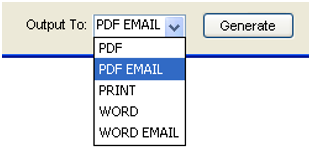
Once this has been setup, the option of emailing in the Output To menu can be seen. In this dropdown menu, the below options may be shown:
Word Email: will attach the document to an email in Microsoft Word format
PDF email: will attach the document to an email in PDF format
To email the document, an email address must exist in the module that you are emailing from. For example, if emailing a receipt from a Trip File, the Trip File must contain an email address in the phone field (see each module Trip/Client/Debtor to see how to add an email address in this guide).
Certain financial documents are able to be emailed upon initial creation, rather than having to save, retrieve and then email.
Stored email addresses can be used to send a new email to that email address via a hyperlink.
Email groups can be setup and email addresses to groups. This assists in enabling automatic pre-selection of addresses when emailing from certain modules in CCTE.
Documents sent can include bcc recipients and include plain text in the body of the emails. It is possible to see if an email was successfully sent from CCTE or not, or was cancelled by the user.
Some documents allow the ‘Output To’ field to be selected as Email from the drop down box. These are:
- Quotes from Segments
- Quotes from Comments
- Statement of Account from Comments
- Statement of Account from Segments
The following financial documents can also be directly emailed on creation:
- Credit Note
- Credit Note Quote
- Invoice
- Invoice Quote
- CCCF Receipt
- Retail Receipt
- CCCF Refund
- Refund to Passenger
- Debtor Receipt
- Refund to Debtor
- Creditor Payment
- Creditor Bulk Payment
- Cheque Requisition
- Miscellaneous Payment
- Miscellaneous Receipt
‘Output To’ drop down box for these documents will allow PDF, PDF Email and Print.
Example of Invoice - “PDF EMAIL” has been selected in the ‘Output To’ selection:
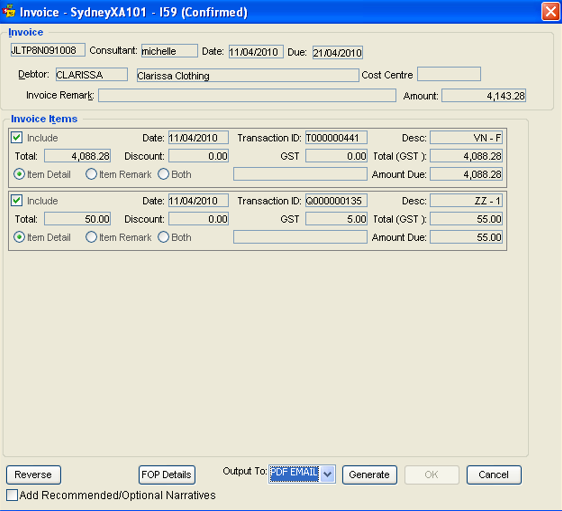
Click Generate
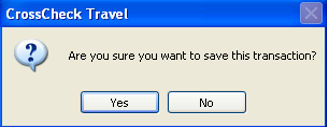
Click Yes
When complete, the next screen will ask if you wish to PDF Email the transaction:
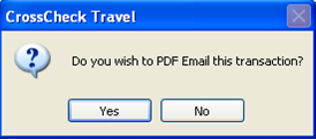
Click Yes
The ‘Select Email Address’ appears, and the PDF invoice is produced in a minimized version attached to the email, to be viewed, if required.
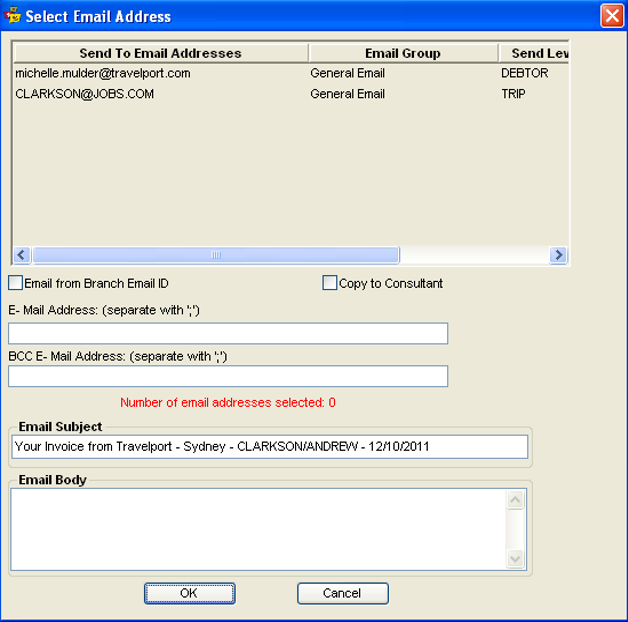
If no Primary email is selected in a Module, the Select Email Address will appear with applicable email address displayed, but neither will be pre-selected:
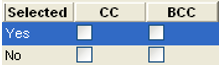
An email address must be selected. Using the scroll bar to move to the right of this screen, it will show which email is selected, and if it is a cc or a bcc.
Once selected status will change to Yes:
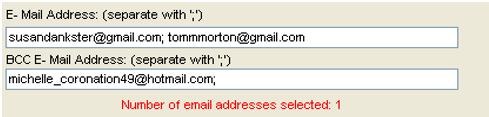
The Select Email Address pop up has been enhanced to include the ability to advise if one of the pre-filled email addresses is BCC.
The email can be sent from Branch Email ID, and a copy to Consultant as well.

The email can be sent to additional recipients. If more than one, these are separated with a semi colon.
A free format BCC email address may also be added.
Email subject will automatically populate, similar to below:
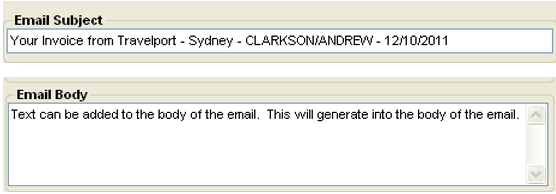
Click OK
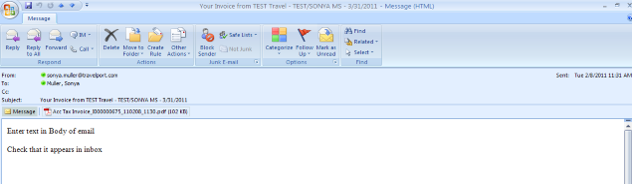
Email will generate with plain text in the body of the email, an attachment to the PDF document, and an automatic subject line.
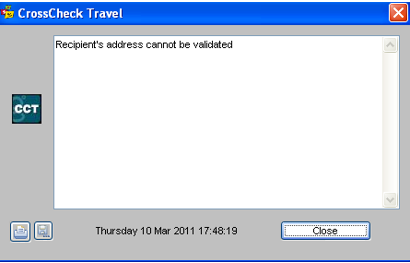
An error will appear should email be invalid.
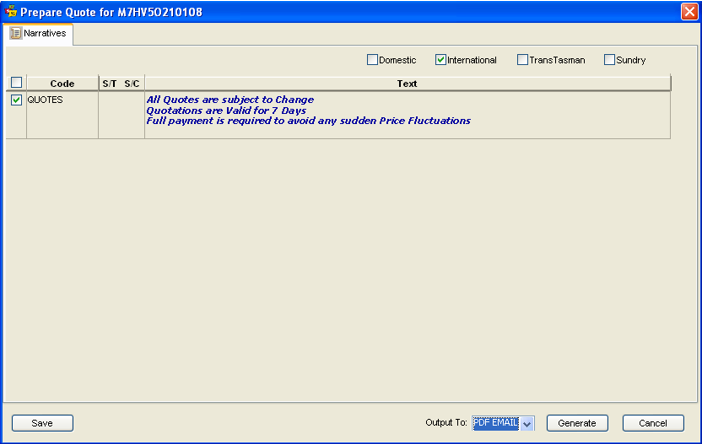
If Narratives have been set up for the document to be emailed, this screen will display on Generate.
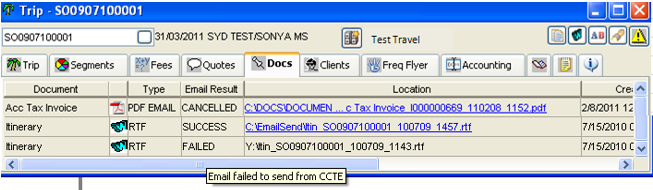
In the ‘Docs’ tab of the Module that the financial document was emailed from, a record will show of the document creation as well as confirmation that the email was sent from the CCTE application. The DOCS tab will record that the WORD EMAIL or PDF EMAIL was sent.

On the DOCS tab for every module, in addition to advising if a document email was a SUCCESS, FAILED or CANCELLED – mouse over messages should display as per the below screenshots:
This can be activated in CCTE Set Up by the Supervisor. When the consultant double clicks on the hyperlinked email address within the CCTE application, an email will open with the ‘To’ address pre-populated with the email address that has been double clicked on.
Note: This has only been tested to work successfully with Microsoft Outlook.
If it is not compatible, an error pop up will display when the CCTE user attempts to double click on an email address hyperlink: “CCTE does not support your local email client. This function can be deactivated in set up”.
See CCTE Finance User Guide, and Manager should see CCTE Security Guide (available to Management only should be requested from your Account Manager).
Once the above setting has been saved, the CCTE User will see that stored email addresses in the CCTE application are hyperlinked.
Note: Email addresses stored as part of the Docs tab for any of the modules will not display as a hyperlink.
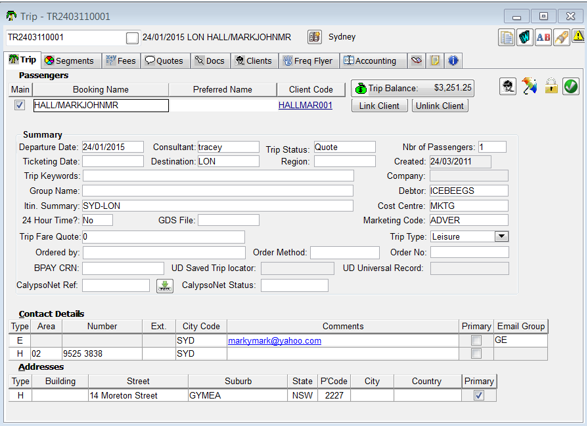
When the email address is double clicked – a new email will open.
This functionality allows the Agency to specify a group of email recipients, rather than just a single email address, for certain financial documents.
Email Groups
In order to cater for this, Email Groups can be created. There is a default email group (GE = General Email), which all email addresses will automatically belong to prior to creating additional groups.
- The Email Group Codes will be available for selection against the email addresses stored within CCTE
- Only a single Email Group will apply per email address
- If a single email address needs to belong to more than one email group, it needs to be added again, and linked to the additional group
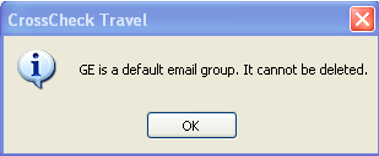
It is not possible to delete the default GE General Email group, below is the message that appears if you try:
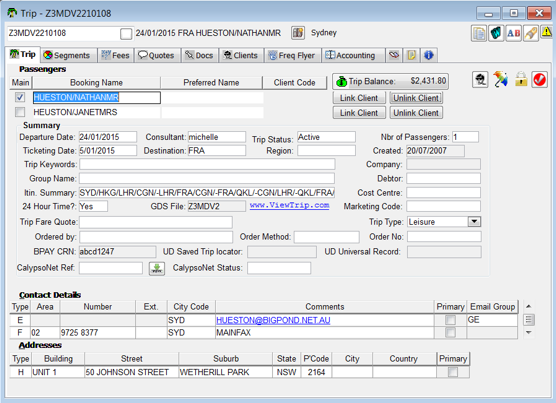
The email group code that an email address belongs to, will be displayed in the email contact line. An additional column appears to the right of the phone field, and only becomes active for email addresses. The default will always be GE.
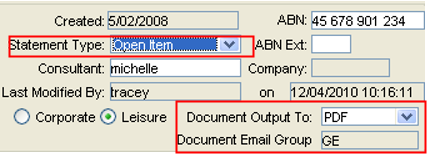
When PDF EMAIL is selected, the “Statement Email Group” or “Document Email Group” becomes active. The default is GE.
The Debtor module settings control the Debtor documents, namely Debtor Open Item, Debtor Balance Brought Forward, and Debtor CCCF Statements.