Skip To:
Quotation using Segments
Quotation using Comments
Statement of Account
Proforma Invoice/Credit Note
Creditor Documents
Debtor Documents
Client Documents
Quotations can be created using either segment information or comments attached to each quote. This choice is selected from the Documents – Quotation menu.
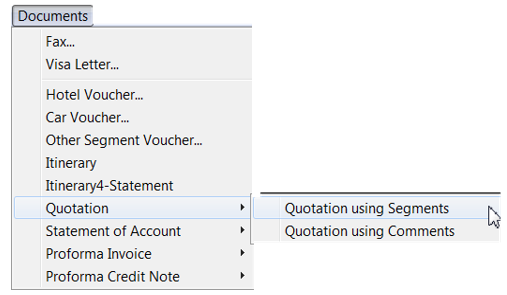
Quotation using Segments
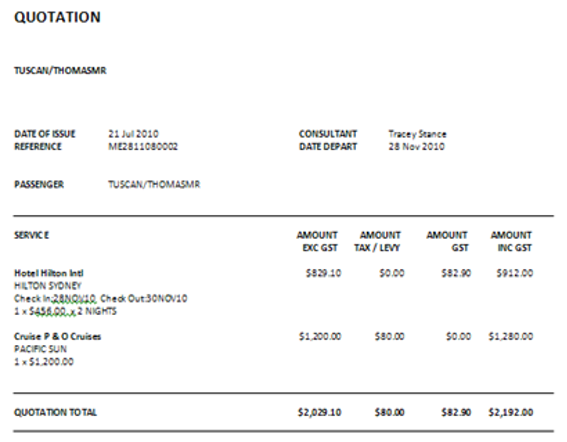
This option creates a quote document using segment data, plus any information added in the Description field and marked as printable, on the Quote screen.
Quotation using Comments
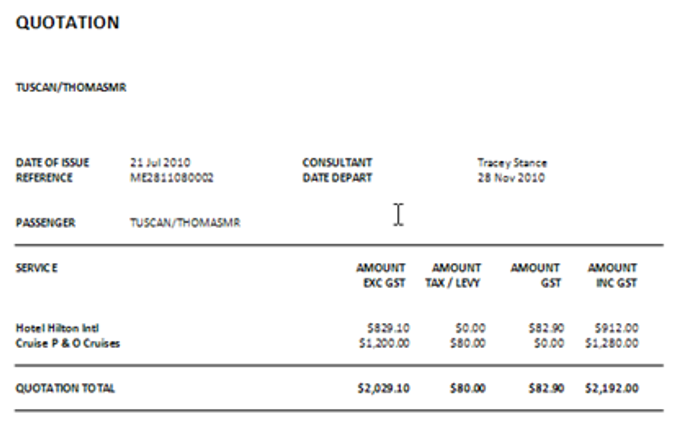
This option creates a quote document using the comments information from the Quote screen.
Statement of Account
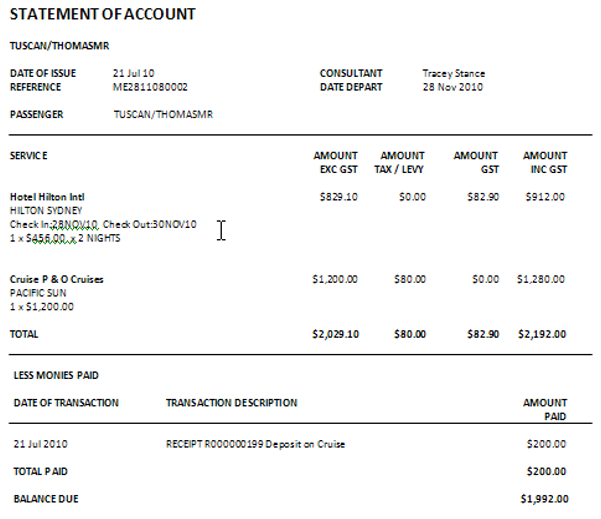
The statement of account automatically includes:
- A list of quoted items
- Record of all monies paid to date
- Balance of account
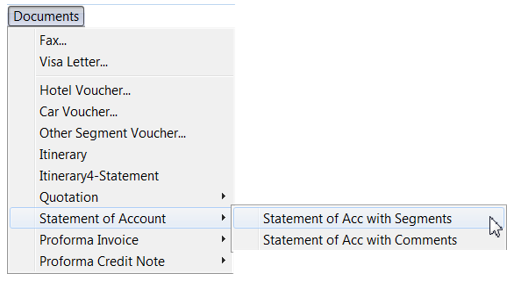
To generate a Statement of Account, open the relevant Trip file and select Statement of Account from Documents on the main menu bar.
Statement of Account will also show Adjustments between Trip files should this apply, access has been given to a particular user group for this feature, and this option is ticked on creation of this document, see CCTESecurity Guide (available to Management only) and CCTE Finance User Guide.
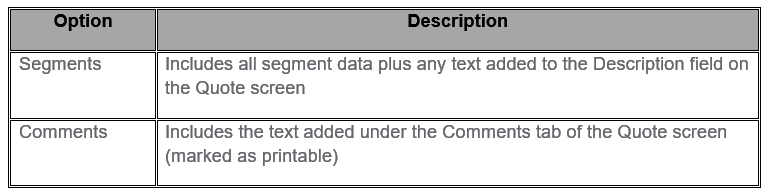
Two options are available, with Segments or with Comments
Proforma Invoice/Credit Note
Standard Invoices and Credit Notes can only be issued for Debtor accounts, however a client may ask for a tax invoice prior to paying for their travel.
To satisfy this request, a Proforma Invoice or Credit Note can be produced. These functions do not have any effect on the Trip balance.
Proforma Invoices are raised from within the Trip file via the Documents option on the main CCTE menu bar.
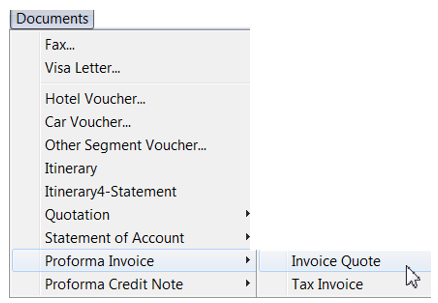
Two options are available:
- Invoice Quote, where data is taken from quotes existing within the Trip file.
- Tax Invoice, a Proforma invoice is produced with the title of Tax Invoice.
Select Invoice Quote to display the Proforma Invoice Quote window or Tax Invoice to display the Proforma Invoice window. Both of the preceding windows will display each item separately so that the details to be included can be selected individually.
If you wish to include the passenger names in the Proforma Invoice Quote, the names must be attached to the quote. See "Creating a Quote" in Module 5: Trip File.
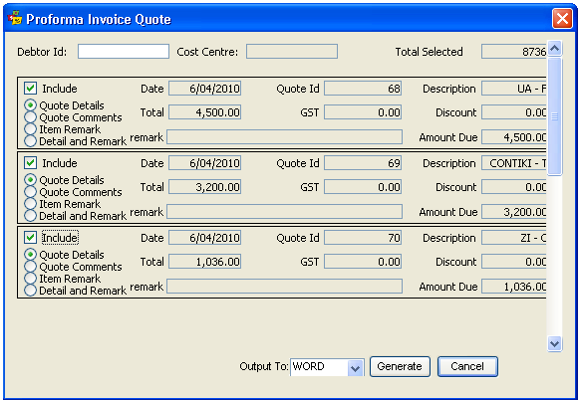
If this document is being produced for a Debtor, enter the Debtor ID.
Click the Include tick box to select the items for inclusion in this document.
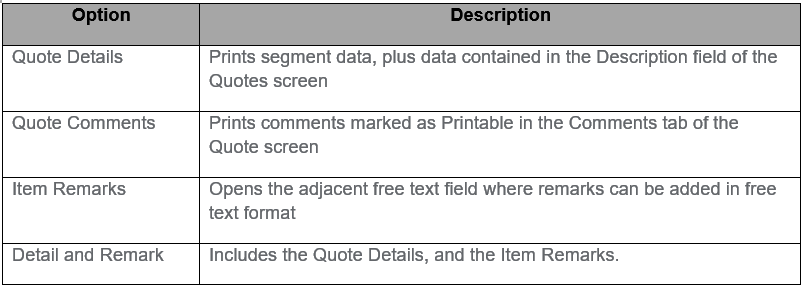
Click the required radio button for each quote item separately.
You can choose from:
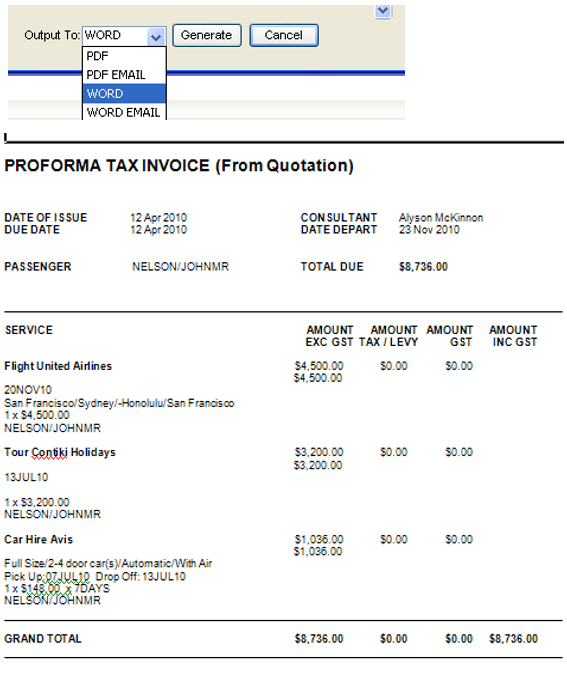
From the dropdown menu, select the Output to option you wish to use and click Generate to produce the
Proforma Invoice.
The Proforma Credit Note option on the Documents menu provides access to two other Proforma documents.
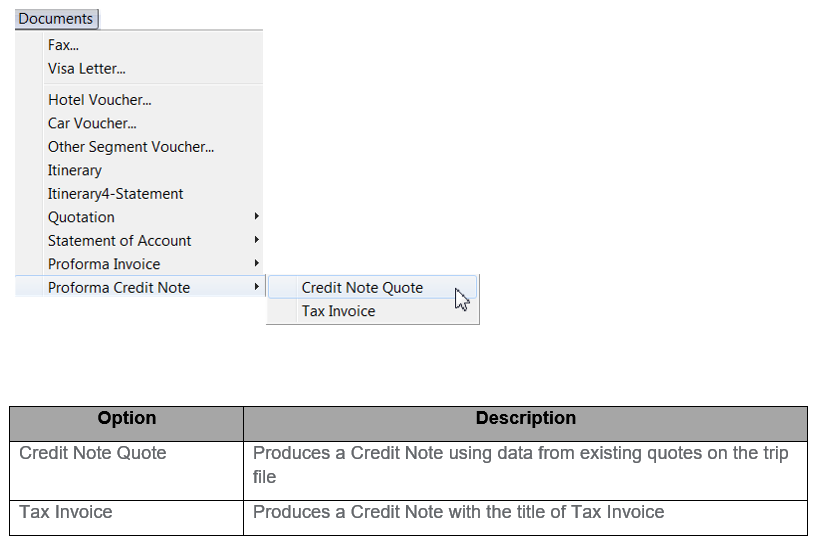
The procedure for creating these documents follows the same steps as for the Proforma Invoice Quote. The quote must have the Refund to Client radio button selected.
EMDs – Proforma Tax Invoices and Credit Notes
EMDs are captured on all Proforma Tax Invoices and Credit Note styles for all document outputs PDF, PDF Email, Print, Word and Word Email.
When an ASVC SSR is attached to a segment/unconfirmed ticket requisition then the Ancillary Services button description data will show on invoices and credit notes. If there are multiple descriptions in the Ancillary Services button that are the same for different flight sectors or the same flight sectors, then the description will show once on the document, not multiple times.
If there is more than one ancillary service description for the one EMD, the descriptions will show on the same line with a comma in between.
If the ASVC SSR is not attached to the segment/un-confirmed ticket requistion then the invoice wil capture data as it is today there are no changes.
For non-flight related ancillary services the Ancillary Services RFI Sub Code description field in the Ancillary Services segment, attached to a confirmed ticket requisition should populate under the transaction id on the invoice/credit note.
EMDs - Proforma Invoice and Credit Note Quotes
All outputs capture the description field from the quote.
The ancillary details are captured in the description field of the quote.
The Ancillary Services segment attached to a quote should populate the segment RFI sub code description field under the amount on the invoice/credit note.
Creditor Documents
There are no further options for Creditor Documents apart from Fax and Visa Letter
See “Fax” in Module: Documents.
See “Visa” in Module 9: Documents.
Debtor Documents
A statement run is included as part of the end of month procedures. However individual statements can be viewed or printed at any time. See CCTE Finance User Guide.
Client Documents
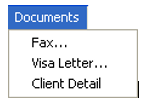
Fax and Visa Letter are available from the Client file as well as the document.
See “Fax” in Module 9: Documents.
See “Visa” in Module 9: Documents.
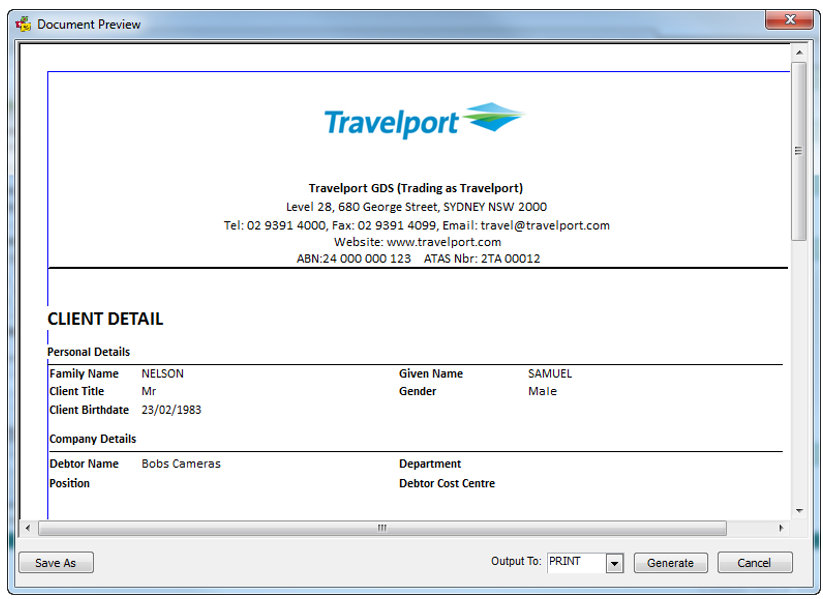
The Client Detail document produces a printable listing of all information relevant to the currently open client file. The client profile must be open on the screen in order for this document to appear in the list for selection.