
Working with Quotes
The Quotes screen allows for the storage of quotation information for the passengers. This data can be used to produce quotation documents, or used for the issue of Ticket / Cheque requisitions and Invoices or Credit Notes. For further information on accounting functions, see Module 6: Trip Accounting Part 1.
PNR Filed-fares (ticketed or un-ticketed) can be downloaded to a CCTE quote. This feature of creating quote upon download is configurable in CCTE as not all the travel agencies require this feature, a Supervisor needs to switch this on so this feature is available.
Creating a manual Quote
Quotes can be created using the Quick Trip function or from within a Trip file by highlighting the Quote tab and clicking on the New icon (Ctrl+N) on the toolbar.
A new Trip Quote window will open with the mandatory fields in blue.
If configured in Supervisor, users may have an additional tab for “Payment Details” , see Module 5 Trip File - Quote Payment Details which will make certain fields in this tab mandatory.
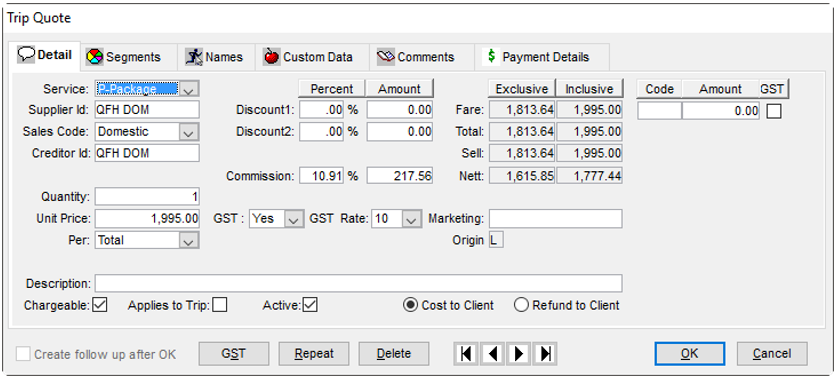
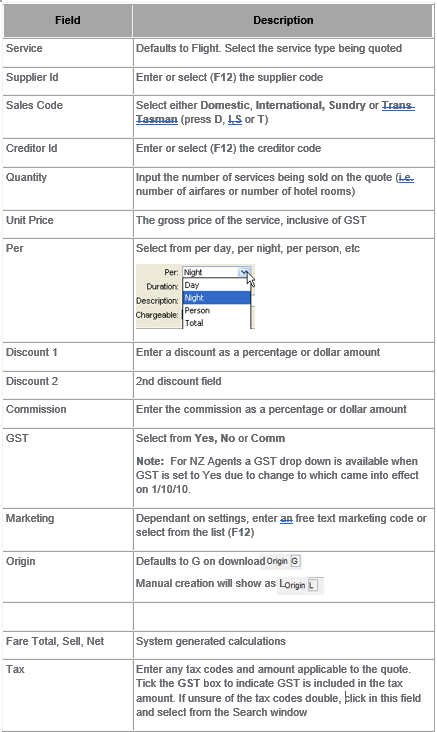
Trip Quote Detail Tab
Complete the mandatory fields and as many others as required.
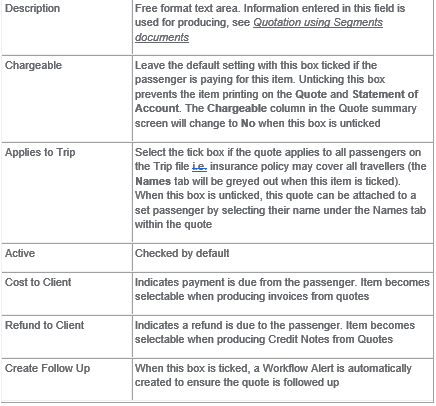
Trip Quote Segments Tab
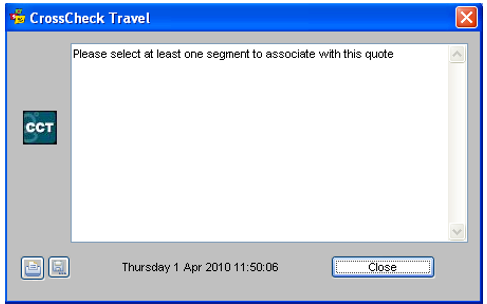
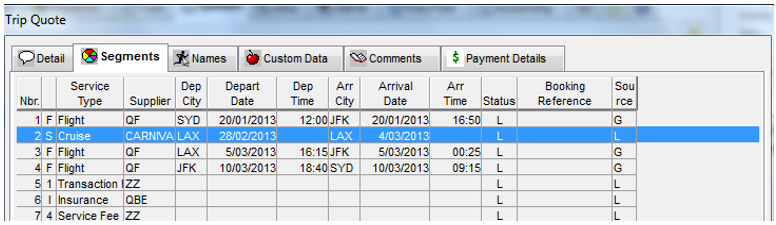
A quote cannot be saved until it has been linked to the relevant segments. A system generated reminder will appear if you click on OK in the quote screen without selecting a segment.
Click on the Close button and the segment screen will be displayed, to allow selection to be made.
Click on the Segment tab within the quote window, highlight the segments for this quote and click on OK. Note: Fee segments can also be selected for quote.
Trip Quote Names Tab
If the Applies to Trip box is left unticked on the Details tab, you can select which passengers the Quote relates to from the Names tab.
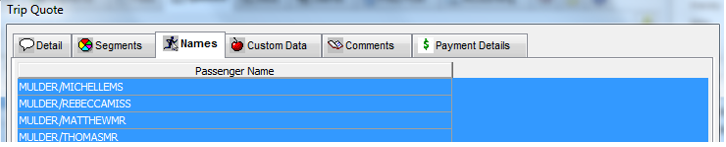
This tab will display the names of all members in the Trip file.
If this quote applied to a particular traveler, highlight their name on this screen, and click on OK.
e.g. Insurance or a special senior's price applying to one member on the Trip file.
Trip Quote Custom Data Tab
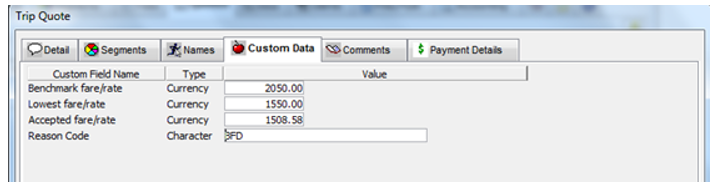
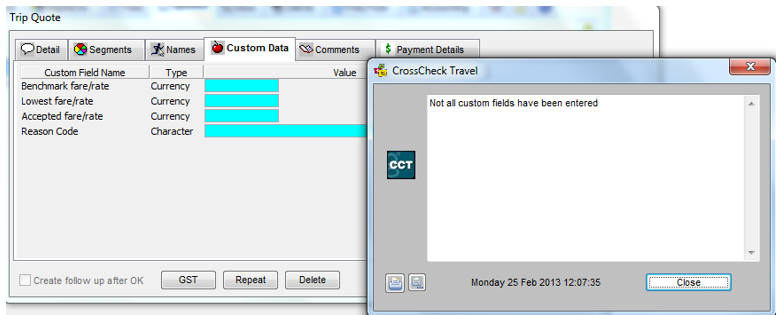
This option only appears if Custom Data has been activated by a system administrator. Provide the following mandatory details:
The Custom Fields tab is used to turn on additional fields for the collection of data used on the Fare Savings Report. The fields can be switched on within a Debtor file.
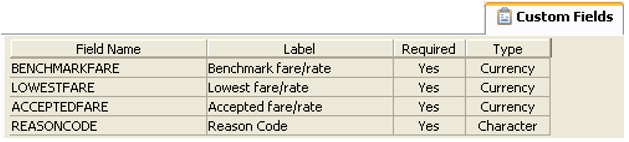
The Fare Savings Report provides the Debtor with a per trip fare analysis. Other Custom Field entries can be created by the supervisor. Access to this tab is governed by the System Administrator; therefore this tab may not be available.
Benchmark or Published fare / rate: Input the normal / published cost i.e. the full IATA fare level
Lowest fare / rate: Input the lowest fare available
Accepted fare / rate: Input the fare accepted by the passenger
Reason Code: Press F12 to access a list of available Reason Codes set up by the system administrator
If this tab is made available then the Fare Savings fields must be completed prior to OK on the Quote, or a prompt will display to remind the user to complete these fields, as they will become mandatory when switched on.
Trip Quote Comments Tab

The Comment Text field is used to store additional comments relating to the Trip Quote only. Click the New button to create additional lines or the Delete button to delete the currently selected line.
The Printable column is used to stipulate if the comment is available for printing on documentation such as Quotation Using Comments, Invoice, Credit Notes and Statements.
Completing the Trip Quote
Once all fields on each tab have been completed, click OK to save the quote. If the Create follow up after OK option was selected, a new Workflow action item will be displayed. See "Action Items" in Module 3: MyCCT for details on setting the reminder alert.
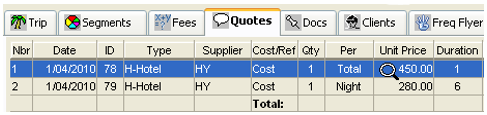
The Quotes tab will be redisplayed, showing a summary of the completed quote.
Repeat Button
The Detail Quote screen has a Repeat button on the bottom which could be used to replicate the original quote, make modifications and save by clicking the OK button.
Changing Existing Quotes
A quote may be changed as many times are required. Double click on the existing trip quote to open the input screen. Make any changes by overtyped, and click on the Save button. (Ctrl+S)
Deleting a Quote
Open the quote required from the Quotes tab of the Trip file. Click on the Delete button.
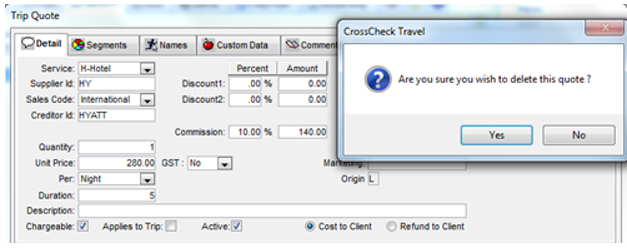
A confirmation prompt will be displayed. Click on Yes to permanently delete the quote.
Moving between Quotes
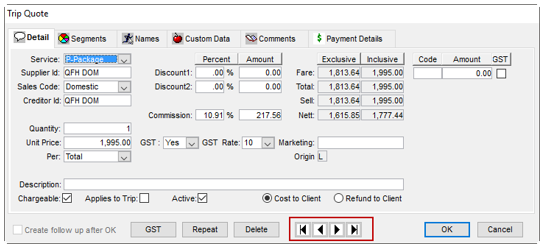
Once a Quote has been opened, click on the arrows to move between the individual quote screens.
These can be found at the bottom of the Quote screen.
Updating Quotes
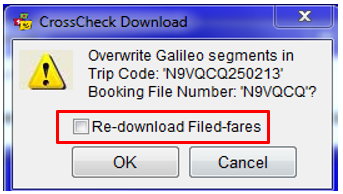
When Travelport+ booking file segments are deleted or changed and subsequently re-downloaded, the associated quotes may need to be updated. The following warning message may be encountered when CCTE realizes changes have been made that need attention.
On redownload if Filed fare download has been switched on by supervisor, a prompt will occur to check if filed fare is to be re-downloaded. If left ticked this may cause a Duplicate Quote, or this can be unticked but the Quote will need to be reassociated to any amended segments.
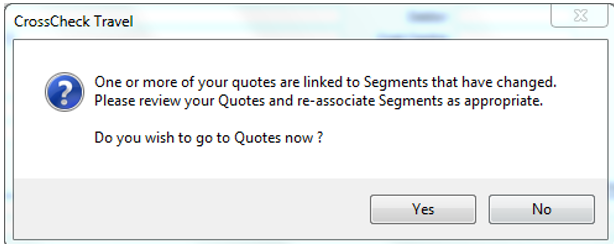
Select Yes to move directly to the Trip Quote. Alternatively, the required quote can be opened by double clicking on it from the Quotes tab.
Select the quote segments tab and the changed or redundant segments will be shown with a line through them.
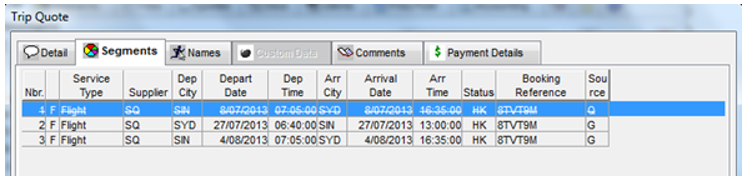
Deselect the redundant segments and they will turn RED. Click the new segments to be associated with the quote.
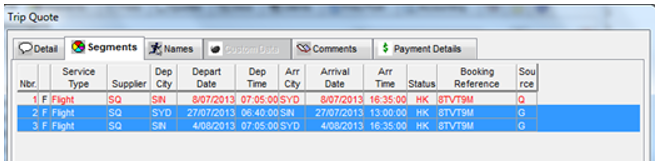
Update the quote Details tab if required and click OK to save the changes.
Duplicate Quotes
CCTE analyses all quotes, and if similar quotes are found, a warning message will be displayed.
Click Yes to move directly to the relevant Quotes tab, alternately select Tools from the menu bar and choose Quote Maintenance.
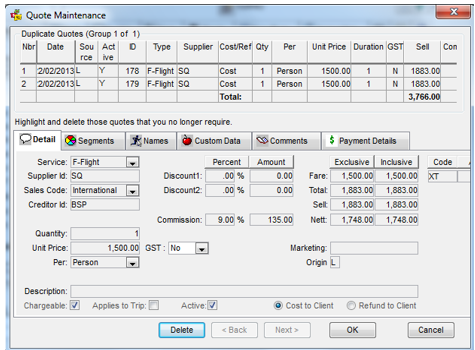
The similar or duplicate quotes will be displayed. Highlight the quote to be removed and click the Delete button. Answer Yes to the confirmation prompt.