
Linking Debtor and Client Files
Take the following steps:
- Highlight the Client tab and click the New icon or press CTRL+N to display a list of the client files in CCTE.
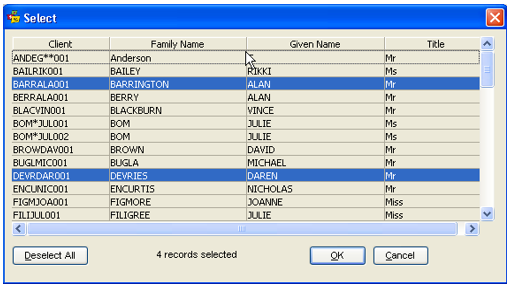
- Select the client(s) to be linked.
- Clients already linked are indicated by the highlight. Clicking an already highlighted client file deselects it and removes the link from this debtor.
- Click the OK button once all selections have been made and then client names will be listed under this tab.

- The New Request column is only activated if the Debtor uses Online Corporate Reports.
- Clicking the Deselect All button removes all highlights from the list and clears all linkage between this debtor and client files.
- Linking Debtors and Clients is also available from the Client file by selecting an appropriate Debtor in the Debtor Code field of the Company Details area. For more detail, see "Client Tab" in Module 4: Client File.
Once a Debtor is linked to a Client file then this file is linked to a Trip file, the Debtor will display with an Umbrella  for a Leisure Debtor workflow.
Accounting Tab
This screen provides a view only summary of accounting transactions, including an account balance for the current debtor. This information is drawn from accounting functions performed on a Trip file.
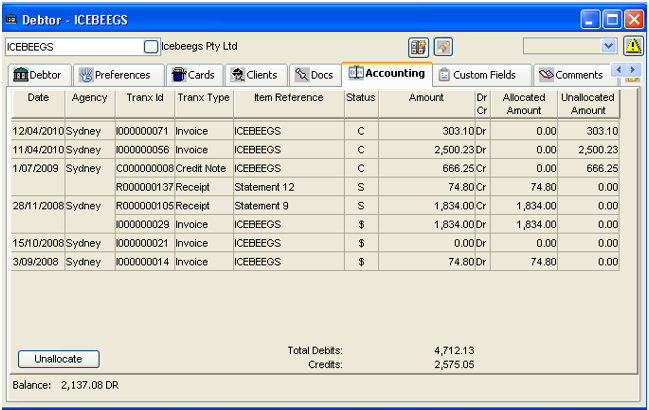
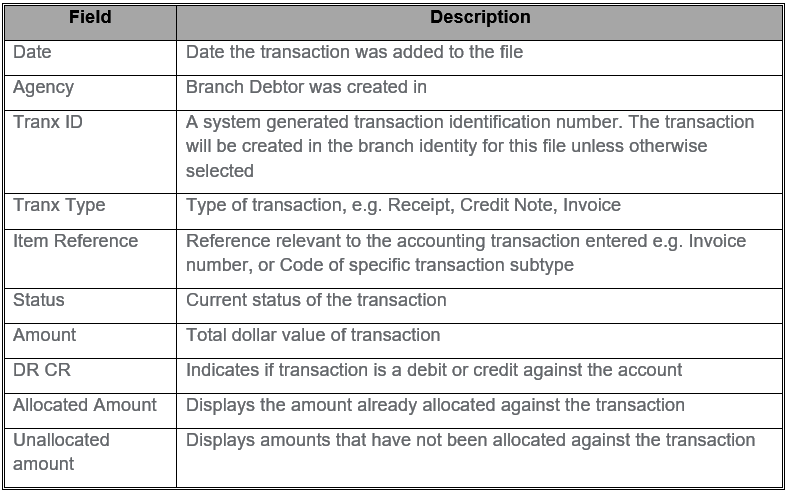
Column Descriptions
Transactions available from this tab are:
- Adjustment
- Allocation
- Receipt
- Refund to Debtor
These transaction types are covered in more detail, see CCTE Finance User Guide. All new transactions will show with the Branch selected for this Debtor.
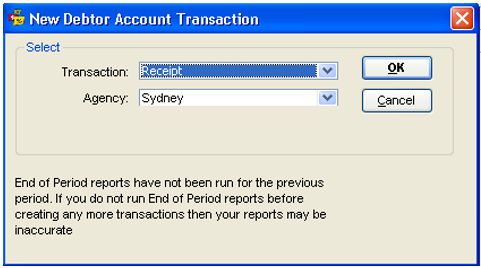
Debtor Receipts and Masked CC
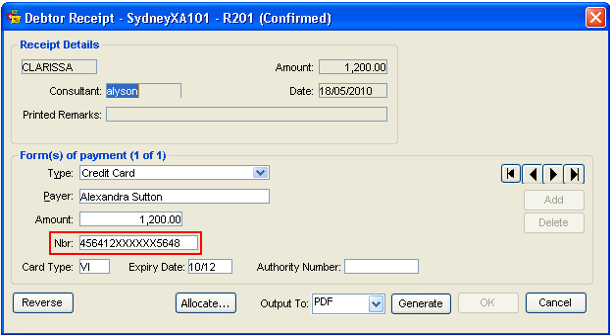
A manual Credit Card Number can be entered on the Debtor Receipt and it will automatically be masked.
Custom Fields Tab
The Custom Fields tab is used to turn on additional fields for the collection of data used on the Fare Savings Report.
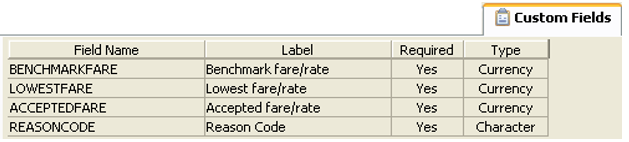
The Fare Savings Report provides the Debtor with a per trip fare analysis. Other Custom Field entries can be created by the supervisor. Access to this tab is governed by the System Administrator; therefore this tab may not be available. Also see Trip Quote Custom Data Tab.
Cost Centre Tab
The Cost Centre tab can be used to define Cost Centres used by a Debtor which has been set up with a Leisure workflow. By default, only Managers can add, edit or delete the Cost Centre tables in CCTE. Access to the Cost Centre look up tables in this tab is regulated by your Manager. For information regarding the Cost Centre lookup and configuration, please see CCTE Finance User Guide.
In offices using the leisure workflow in CCTE, the Cost Centre tab is only available if the Supervisor has activated the functionality. For further information, please see CCTE Finance User Guide. In leisure workflow offices, if this functionality has not been activated then the Cost Centre tab will not be available. In these cases, cost centre codes can be manually entered into the appropriate fields in Trip and Client files.
To set up new Cost Centres on a leisure workflow Debtor, select the Cost Centre tab.
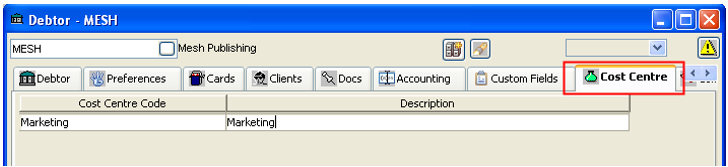
To add a Cost Centre, press Control N. Type in the Cost Centre Code in the Cost Centre Code column on the left. The code can be alpha-numeric (including special characters) and will accept a maximum of thirty (30) characters.
Tab to the Description column on the right and add a description for the new Cost Centre Code. This field is also alphanumeric, special characters are accepted, and can be a maximum of sixty (60) characters long.
To delete a Cost Centre code from the Cost Centre tab on a leisure workflow Debtor, simply highlight the code the user wishes to delete and press Control D. Alternately, go to the File menu and click Delete.
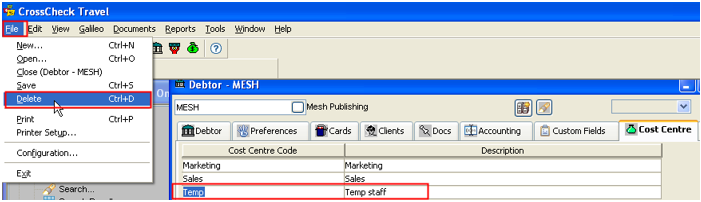
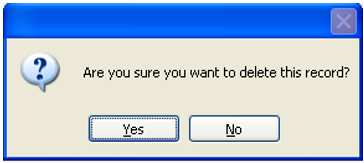
The user will see a dialogue box asking if you are sure you wish to delete the code. Click Yes to delete the code, and No to cancel.
Comments Tab
The Comments tab can be used for storing any comments about a Debtor file.
This field is free text and does not print on any documents.

To add additional comments, click the New icon or press Ctrl+N to display more input lines.
Workflow Action Items Tab
The Workflow Action Items tab lists all the action items associated with the current debtor. This functionality is covered in detail in the MyCCT module under the Action Items section.
Important Notes
The Important Notes icon is used to access important notes for this debtor. For more detail