
The Important Notes feature is similar in functionality to using Post-It® Notes on paper files. Important Notes can be attached to Trip, Creditor, Debtor, Client and Cashbook files.
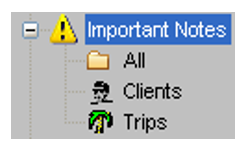
The Important Notes folder in the MyCCT menu has three preset folders:
- All
- Clients
- Trips
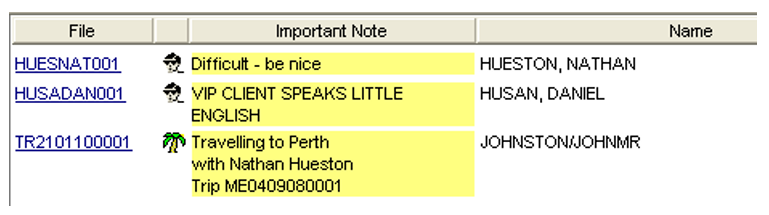
Selecting the All sub menu option displays every file. A list of all files in the Work Area showing the type of file, an extract of the important note, and the name on the File. The File reference becomes a hyperlink to the file.
Important Notes are often used on Client and Trip files, so sub-folders are available under these Modules in MyCCT, as well as separate folders for these file types under Important Notes. Any other modules containing Important Notes will appear in the All filter.
Creating Important Notes
Important Notes are created within the Trip, Client, Debtor or Creditor file. 
With the relevant file open, click the Important Note button in the top right corner of the file.
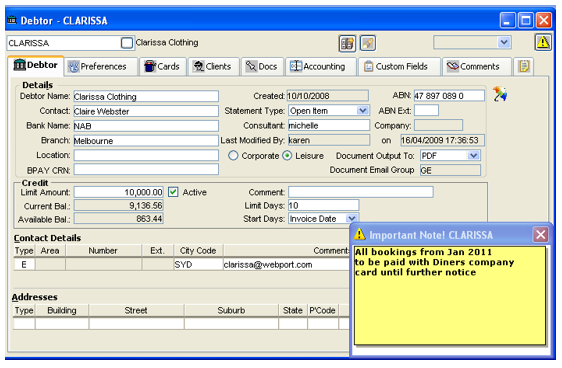
A small yellow message pad will open on top of the file. Type a free text message in the notepad.
When the file is closed, the Important Note is automatically saved. Do not close the Important Note.
The Important Notes will then appear every time the file is opened. The note pad can be moved to any position on the screen.
This tool is very useful for relief consultants.
Changing Important Notes
Click within the Important Note message pad, make corrections or changes, and click Save (Ctrl+S).
Deleting Important Notes
To delete an Important Note and permanently remove it from screen, highlight and delete all text within the Important Note. Ensure the empty note remains open on the screen and close the file. This automatically deletes the Important Note.
Note: Once highlighted and deleted, close the Trip file, not the note or the change/deletion will not save.