
These reports produce a list of Trip files showing the account balance.
Outstanding Balances
Lists only those Trips with an outstanding debit or credit balance, and the reason if it has been entered through the Out of Balance button.
This report features hyperlinks to all files displayed so that files can be easily examined. Clicking on the hyperlinked Trip code opens the file at the accounting screen. When the linked file is closed the user is returned to the open report.
Trip Report Detailed
Lists all Trip files and the details of each associated accounting transaction.
Trip Report Summary
Lists all Trip files with their accounting balance only.
Running the Trip Balance Reports
- Select Balance Report from the sub menu to produce this report.
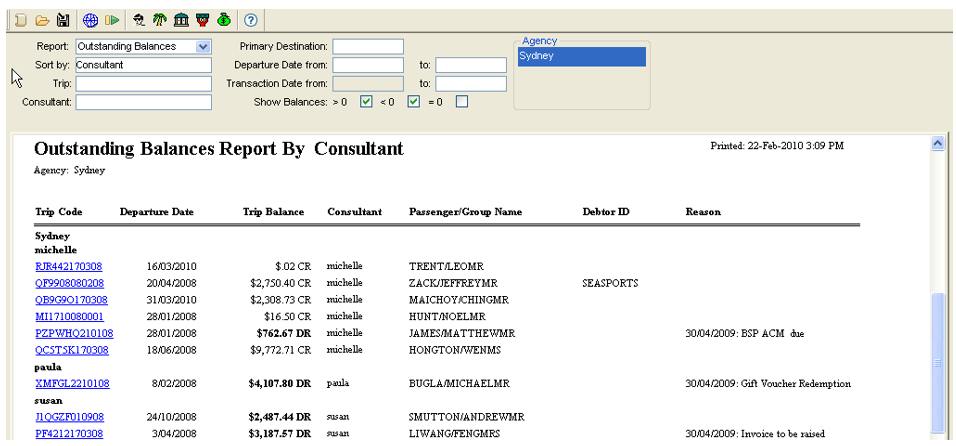
- Complete the fields as required.
- Report
- Select one of the reports described above from the drop down menu attached to this field.
- Sort By
- The Sort By field allows the selection of data retrieved and how it is displayed.
- Choose from: Trip Code, Consultant (default), Departure Date or Destination.
- Report
- The following fields are optional and may be completed to obtain specific information. However, when these fields are left blank data from ALL sources is obtained. The optional criteria are:
- Trip
- Use F12 to select a Trip code to obtain a report specifically for that File. If a Trip file is currently open this field will automatically default to that Trip code.
- Consultant
- Select (F12) a Consultant code to obtain a report specifically on Files created by the nominated consultant.
- Primary Destination
- Select (F12) a 3 letter city code to obtain a report of Trip files travelling to the specified destination.
- Departure date from/to
- Enter a date range to report only on Trip files within a specified period.
- Transaction date from/to
- Not available for Outstanding Balances.
- Show Balances
- Initially all balances are retrieved and the Show Balances option is dimmed. After all balances have been retrieved and are displayed the Show balances option becomes active. Check the box required and the data is sorted and displayed:
- >0 - Include Trip files with balances greater than zero (credits)
- <0 - Include Trip files with balances less than zero (debits)
- =0 - Include Trip files with balances equal to zero (nil balance)
- Initially all balances are retrieved and the Show Balances option is dimmed. After all balances have been retrieved and are displayed the Show balances option becomes active. Check the box required and the data is sorted and displayed:
- Trip
- Click the Retrieve button to display the report data. Click on the Print, Preview or Save As button as required.
This report includes the Out of Balance reasons if they have been entered in the file.