
This is part 5 of 6 in our series on managing groups in Trams Back Office.
Probably the most powerful feature in the Trams system that you’re not using, is User Definable Interface Data (UDIDs) UDIDS. This feature allows you to track information that would otherwise not be tracked in the TBO system. Despite the overwhelming power of this tool, relatively few users take advantage of UDIDS. UDIDs are pieces of information attached to a booking for reporting purposes. They are stored in the invoice booking screen and accessed through the UDIDs tab at the top of the invoice. Click on the UDIDs tab to display the UDID table. There are 99 UDID fields. Each field has capacity for 60 alpha/numeric characters.
UDIDs are completely free flow. If you need to track something for your agency reporting needs, and there is no field on the invoice or client profile that tracks it for you, use a UDID. Be sure to be consistent, however. Don’t track something for one client in UDID #1 and the same thing for a different client in UDID #2.
UDIDs allow you to define categories for each booking for reporting purposes. They give you access to information that may be important for your clients and to your customer service, as well as your database. By listing the UDIDs in a table, they are easier to read and input and they are separated from the client remarks field; therefore, your clients cannot view this data unless you present it to them on a report. UDIDs can contain both negative and positive dollar values that are added together in the report generator.
Example: You are sending a school Group to Disney World this summer and want a rooming list for your Group leader. Access your UDID window by clicking on the UDIDs tab Enter the roommate’s name on the line for UDID #1.
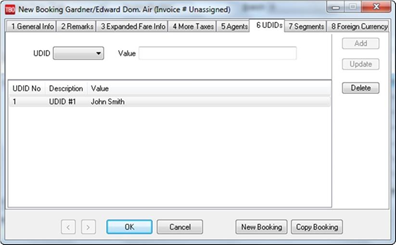
Once you have information tracked in the UDID fields, you can run reports such as the Gr_rl.rpt. (Group Rooming List). This prints an easy-to-read manifest for your Group leader. You can have UDIDS print on your reports, or you can use UDIDS as selection criteria to include certain invoices on any report.
Example: You have used UDID Number 1 to track how many customers found out about your agency because of your yellow pages ad. To run a report that shows you how many invoices were generated because of your yellow pages ad, under the Advanced Tab in TBO, set UDID Selection to the correct UDID number, set Is Equal to and enter your UDID value. TBO searches the UDIDs of all your client invoices and displays only those with your selected value.
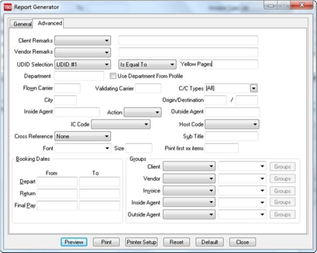
UDIDS can be entered from the Trams keyboard or by using the interface from your CRS. The entries required to interface UDIDs are as follows:
- For UDIDS that apply to the entire invoice, enter it in your Remarks
- For UDIDS that apply to a specific booking, enter it in your MS line.
|
Code Used With MS Lines (To attached information to a SPECIFC BOOKING) |
|||
| Code | Field | Max Field Length | Example |
| UD | UDID | 60 | *UD1 YELLOW PAGE AD |
|
Code Used with Remarks Lines (Used to attached information to the ENTIRE INVOICE) |
|||
| Code | Field | Max Field Length | Example |
| UD | UDID | 60 |
UD1 YELLOW PAGE AD UD2 CRUISE CTR UD3 TICKETING CTR (You have up to 99 UDIDS) |
Note: For exact formats, see the interface preparation guide for your reservation system.
Related Articles:
Groups in Trams Back Office: Part 1 – Setting Up Your Group
Groups in Trams Back Office: Part 2 – Handling Profiles for Groups
Groups in Trams Back Office: Part 3 - Group Invoices and Payments
Groups in Trams Back Office: Part 4 - Closing a Group
Groups in Trams Back Office: Part 6 - Reports