
Skip To:
Vacation Express Live Connect Features
Vacation Express supports the following Live Connect features if checked: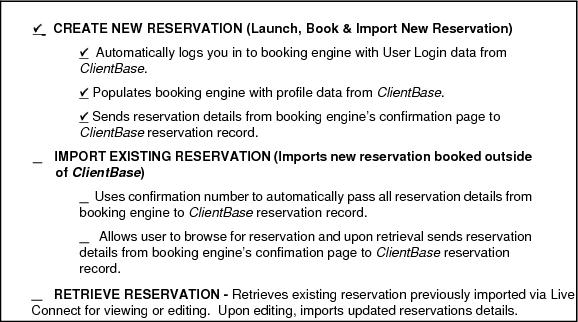
Vacation Express for ClientBase Windows
Register to use Vacation Express at http://www.vacationexpress.com/NewAgencyApp.aspx. You may also contact the Sales Department for assistance by phone at (800) 486-9777, or by email at sales@vacationexpress.com.
Set Up Vacation Express (Windows)
Upon receiving login information, take the following steps to setup ClientBase for Live Connect.
Step 1) Create a new or check that a Live Connect Provider for Vacation Express exists by going to Utilities|Live Connect Providers, and clicking Add. (Make sure the URL is correct if Provider is present.)
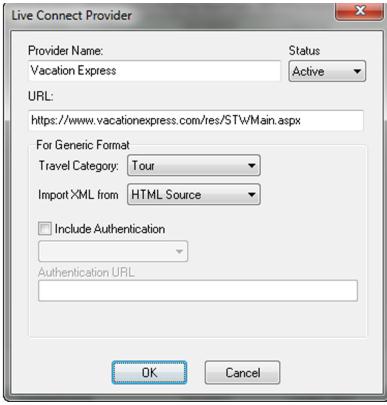
- Provider Name: Enter Vacation Express.
- URL:https://pro.vacationexpress.com/res/STWMain.aspx
- Travel Category: Select Tour from the drop-down.
- Import XML from: Select HTML Source.
Step 2) Set up for Live Connect agent logins can be done individually or globally for the agency. Users can set up their own logins by going to Utilities|My Login|Live Connect and clicking Add. To set up globally, go to Global Defaults|Res Card Defaults|Live Connect to enter the User Name, and Password that everyone in agency will use. When Live Connect is launched, the system first looks to see if there is login information at the User Login level, and if not, then looks at the global login.
- Live Connect Provider: Select Vacation Express from the drop-down list.
- User Name/Password: Enter the User Name and Password based upon the login information provided to you when you contacted Vacation Express.
- The Agency Number and Agency Code are not applicable.
Step 3) Retrieve the Vacation Express vendor profile from the Profile Manager (or create one if not in your database). From the General Info tab, click the Live Connect Providers button. Click Add, and select Vacation Express booking engine from the drop-down list. The Vendor Code is left blank. In the Travel Category profile field, select Tour from the drop-down menu.
Create New Vacation Express Select Reservation (Windows)
Step 1) When ready to book on-line, create a client Res Card and fill in the Reservation Cycle, Trip Name fields, Region/Destination, and select the Travelers.
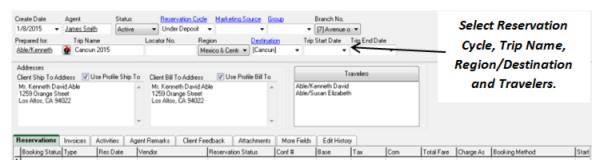
Step 2) Use the Add Reservation button to start a new reservation. Enter Vacation Express as the vendor, and the Live Connect dialog box pops up for you to select Create new reservations.
Step 3) Select any customer information to use to book the Travel Express reservation. Click Connect.
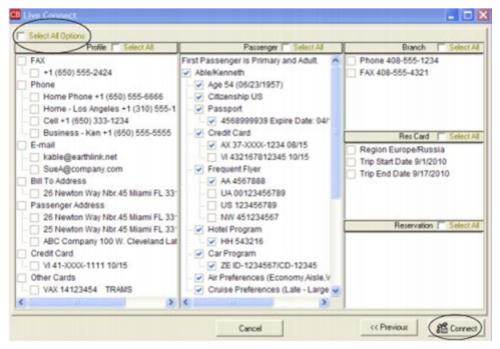
Step 4) Although still in ClientBase, you are now on-line at the Vacation Express booking site. Complete the reservations using instructions supplied to you upon registration. When on the confirmation page, click Import Reservation.
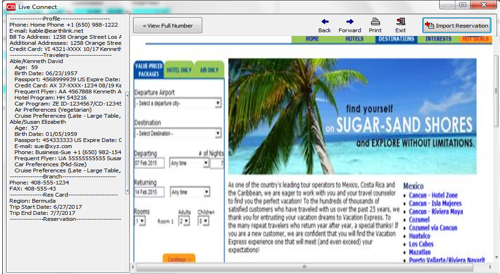
All reservation data booked on-line is now located in the reservation fields in ClientBase.
Vacation Express for ClientBase Online
Register to use Vacation Express here: http://www.vacationexpress.com/NewAgencyApp.aspx . You may also contact the Sales Department for assistance by phone at (800) 486-9777, or by email at sales@vacationexpress.com.
Set Up Vacation Express (Online)
Upon receiving User ID and Password, take the following steps to setup ClientBase for Live Connect.
Step 1) Once you have obtained accurate login information, you need to make sure this Live Connect Provider is in ClientBase by going to Tools|Settings|Live Connect Providers and clicking Add if not present (make sure the URL below is correct): correct
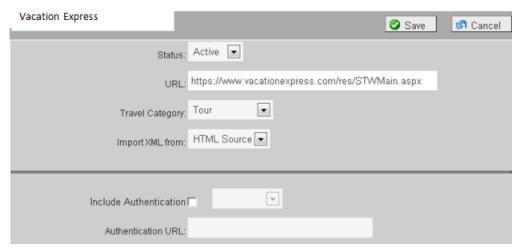
- Provider Name: Type Vacation Express.
- URL: Type https://pro.vacationexpress.com/res/STWMain.aspx
- Travel Category: Select Tour from the drop-down.
- Import XML from: Select HTML Source.
Step 2) Each user has the ability to enter his own login information under Tools|My Login|Live Connect or enter one set of login information for a Live Connect provider for all agents by going to Tools|Settings|Live Connect Login. Click Add and enter the following information:
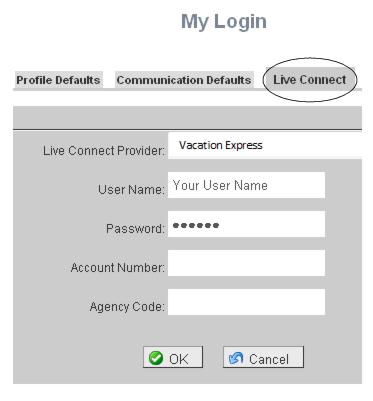
- Live Connect Provider: Select Vacation Express from the drop-down list.
- User Name and Password: Enter the necessary fields based upon the login information provided to you when you contacted Vacation Express.
- The Agency Number and Code is not applicable.
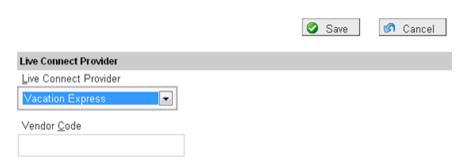
Step 3) Retrieve the Vacation Express vendor profile from the Profile Manager (or create one if not in your database). From the General Info link under Additional Info, select Tour from the drop-down menu. Also in the General Info link, click the Live Connect Providers button. Click Add, and select the Vacation Express booking engine from the drop-down list. There is no Vendor Code and then click Save:
Create New Vacation Express Reservation (Online)
***Important Note: You must download the Live Connect extension for Chrome before using Live Connect with ClientBase Online. Chrome is the supported browser. Please click here for instructions on downloading the extension.
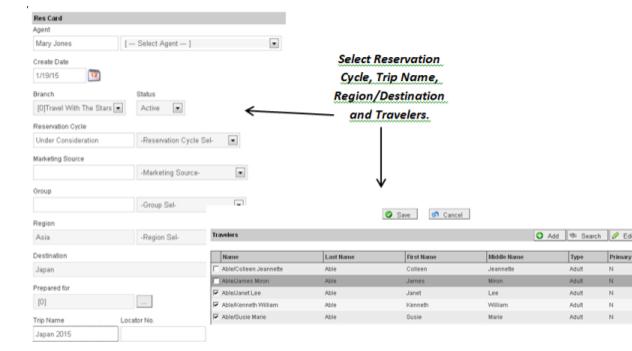
Step 1) When ready to book on-line, create a client Res Card and fill in the Reservation Cycle, Trip Name fields, Region/Destination, and select the travelers.
Step 2) Launch Live Connect by clicking Live Connect on the menu bar. (You can also launch Live Connect from the Profile action gear.)

Enter the Vendor/Connect To and click Create New Reservation.
Step 3) Select any customer information to use to book the Vacation Express reservation. Click Connect.
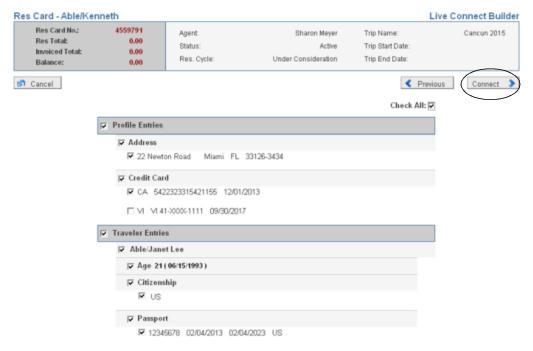
Step 4) A new browser window will open for Vacation Express. Complete the reservation(s) using instructions supplied by Vacation Express upon registration. When the reservation is confirmed, click on the Live Connect Extension, and then select Import Reservation. All reservation data booked on-line is now located in the reservation fields in ClientBase.
Note: If you do not have the Live Connect extension installed, click here for directions on installation.