Opening CCTE
CCTE can be opened from the desktop as follows:
If a short cut icon for CCTE has been added to the desktop, double click on the CCTE Icon.

Alternatively, open CCTE from the Windows Start Menu using the following steps:
- Click the Start button to display the selection menu.
- Move the cursor up the menu so that Programs is highlighted and a list of
programs appears on the screen. - Highlight CrossCheck Travel Enterprise from the list
- Select Client
- Select CCTE
Logging in
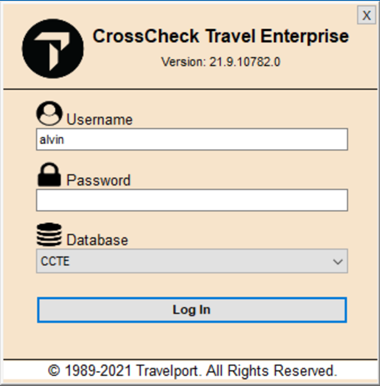
CCTE is governed by security and requires a user name and password to access the system. This user name and password is assigned by a System Administrator or Travelport Helpdesk.
To log into the CCTE application:
- Complete the User field with your user name.
- Press Tab and complete the Password field.
- Click on Log In (or press the Enter key).
Change My Password
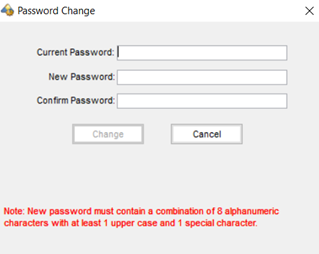
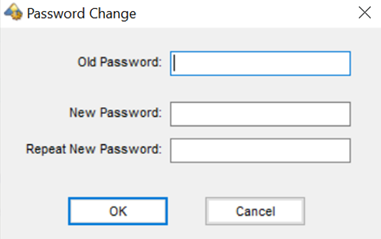
The User must log in with their existing password and then click on the Tools heading on the Menu bar and select Change My Password and complete the dialogue box.
PCI Compliant Password Features
If your agency has opted to switch on the PCI Compliance features in CCTE, your password format will need to meet the required strength standards, containing:
- eight or more characters
- both upper and lower-case characters, e.g., a-z, A-Z,
- Digits, punctuation, or special characters as well as letters, e.g., 0-9, !@#$%& *_+~=<?.
A password change will be required every 30, 60 or 90 days with a change prompt received 5, 10 or 15 days prior to the end of the expiry period. Any new password cannot be the same as the previous password, including a minimum of 4 maximum of 6 password changes. The change can be performed using the Change My Password function (Page 16) and/or when prompted within the login screen (on the last day of the expiry period).
If a user fails to change their password prior to the end of the expiry period, their sign on will become locked. If this occurs the ‘Supervisor’ user will need to unlock their log in and generate them a temporary password.
Similarly, if an incorrect password is used, the user will have 4 further attempts (i.e. 5 in total) before being locked out of the system.
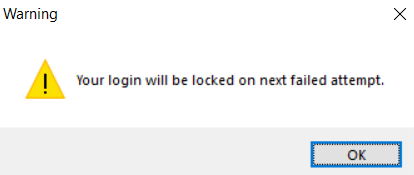

In the event of a lockout due to incorrect password entry, the user can either:
- Wait 30 minutes before reattempting login
- Request to be unlocked and to receive a temporary password from the agency’s ‘Supervisor’ user
A temporary password will need to be used within 30 minutes of its generation and the user will be required to change it immediately after entry.