
Screen Layout
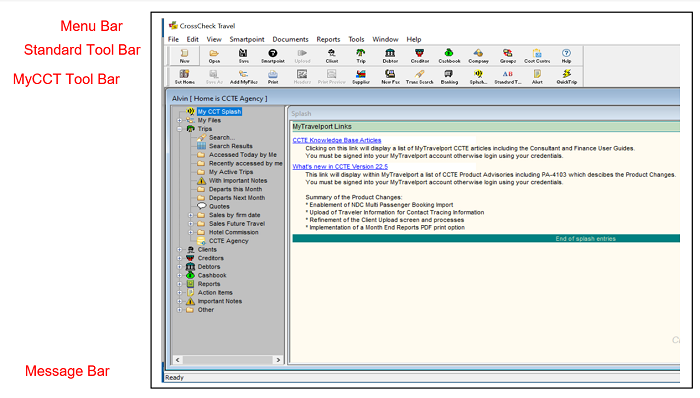
Menu Bar
The Menu bar provides several drop-down lists containing all the functions and options available in the CCTE application. Selecting each Menu displays the drop-down list with several menu commands showing additional pop up names when the mouse is placed over them. Clicking the mouse on the option performs the function selected.
Toolbars
The Toolbars (both Standard and MyCCT) provide quick access to several commonly used CCTE features. These toolbars can be adjusted to suit the individual working environment of each user.
Standard Toolbar
The Standard Toolbar consists of a selection of buttons that perform frequently used tasks. Toolbar functions can also be accessed from the menu bar. The Standard Toolbar buttons are set and are unable to be reconfigured.

| Button | Function |
| New |
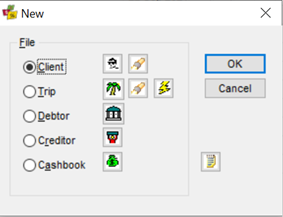
Clicking the New button produces one of two results
Select the type of new file to be created by clicking the appropriate radio button The New icon on the standard toolbar also includes the following options:
If a file is already open, click on the New Icon, and a new line is added to the field where the cursor sits e.g. Enter a name, click on the New Icon and a second name field fill-in box appears |
| Open | Opens the File Select dialogue box |
| Save | Saves the active file or entry |
| Smartpoint | Opens the Smartpoint (Host) application |
| Upload | Uploads the Client file into Smartpoint (Host) |
| Client, Trip, Debtor, Creditor, Cashbook | Displays the last corresponding file accessed |
| Company, Groups, Cost Centre |
Relate to the CCTE Debtor Hierarchy Guide in a Corporate Branch. |
| Help | Opens the Travelport web page which contains a variety of reference documents |
MyCCT Toolbar
The MyCCT toolbar gives users easy access to commonly used tasks such as Transaction Search and the functionality available in the MyCCT menu. These tasks can also be accessed from the Menu Bar.

Toolbar buttons perform the following functions:
| Button | Function |
| Set Home | This is for use in a Multi Branch agency |
| Save As | Allows an existing document to be saved. |
| Add MyFiles | Allows the user to add files to a MyFiles folder (Trips, Clients) |
| Activates the printing function in CrossCheck Travel Enterprise | |
| Headers | Allows a header or title to be added to the top of a page |
| Print Preview | Activates the Print Preview function in CrossCheck Travel Enterprise |
| Supplier | Accesses the Supplier Table |
| Fax | Creates a Fax Header in Word |
| Transaction Search | Search for an Transactions, Ticket or Cheque numbers |
| Banking |
Opens the Cashbook at the Deposits Tab |
| Splash |
Opens the dialogue box to create a new Splash screen entry |
| Standard Text |
Opens the Maintain Standard Text window for setting of itinerary headers and footers. |
| Alert |
Opens the dialogue box to create and Alert Item |
| Quick Trip |
Opens the Quick Trip input screen |
Toolbar Text
The view of both toolbars can be changed to show the Toolbar buttons in a larger size with text prompts, or display smaller buttons with no text prompts. To switch between the two modes, select View from the Menu Bar and click Toolbar Text. Alternatively right-click on the toolbar itself and select from the menu that appears.
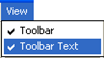
If the Toolbar Text option is unticked, the buttons show no text and are smaller.

The Toolbar icon test is still available by positioning the mouse pointer over the Toolbar button to display a pop up tip box.
MyCCT Menu
The MyCCT Menu gives users access to the full range of MyCCT functionality. It contains sub menus for most areas including Trips, Clients, Creditors, Debtors, Cashbook, Reports, Action Items and Important Notes and Other.
Message Bar
The Message Bar provides feedback to the user, providing quick tips or help to fill in dialog boxes, or the current status of the CCTE application.
The message bar constantly updates to reflect movement of the mouse or cursor.
The message bar is used to offer instruction pertinent to currently selected fields or menu items.
Clicking in a field displays a helpful tip in the message bar area.

Work Area / Splash Screen
The Work Area is the main area of the CCTE environment and displays many of the fill in screens and responses from the CCTE application. Upon opening CCTE, the Splash screen appears in the work areas.
See “Splash Screen” in Module 3: MyCCT.
About CCTE
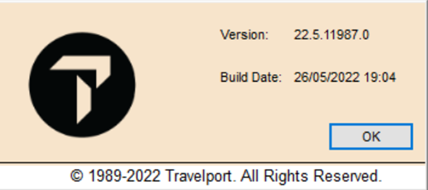
When you need to call the Travelport Helpdesk, information about your Version of CCTE will be required in order to assist you. Click on Help on the menu bar and select About to display a window with details about CCTE.
Note: The options available from the Menu Bar, Toolbars and MyCCT menu are dependent on the level of security that has been granted to each user. If an option describes in this manual is not available when selecting a menu or toolbar button, this means access has not been granted for the current user to the relevant functionality. The security setup is handled by a Manager, Supervisor or Travelport Representative