
Within Branch/Set up – there is the option for supervisors to define what fields are mandatory on a Trip File and Quick Trip can be generated in two ways:
- Quick Trip generates a new Trip File.
- Quick Trip is added to an existing Trip File (in reality – it is a Quick Quote).

The “Follow Up” process on Trip Files can be monitored when they are first created (and where they have a designated status), as well as the “Follow Up” process associated with a Quick Trip when it generates a new Trip File.
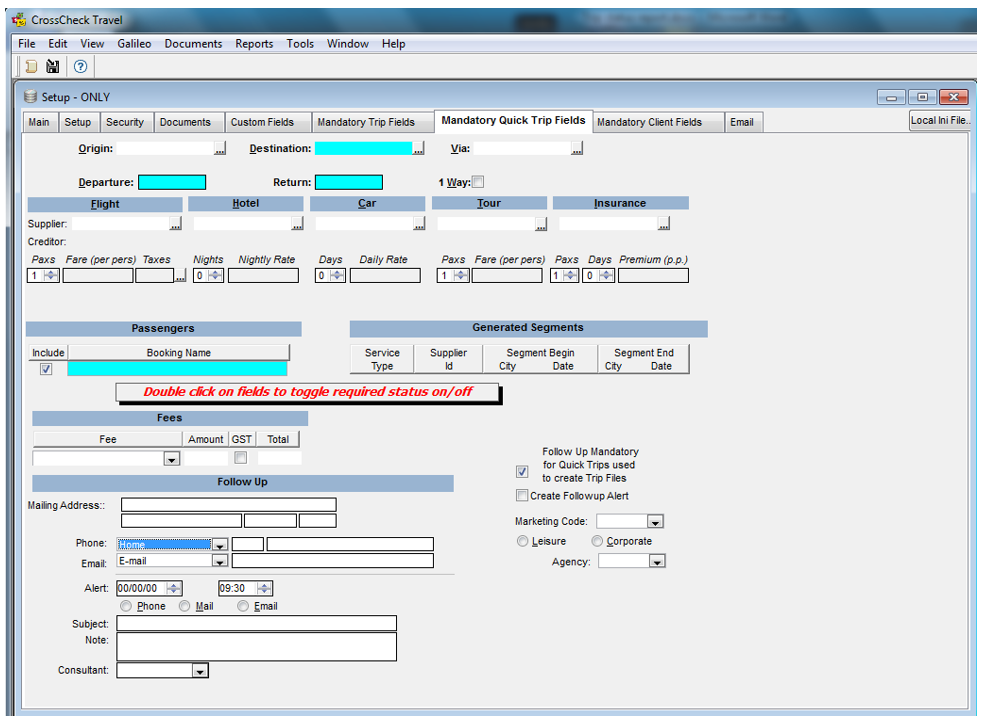
A Supervisor can update mandatory fields required on Quick Trip and can make the “Follow Up” creation for Quick Trip mandatory, to set this up:
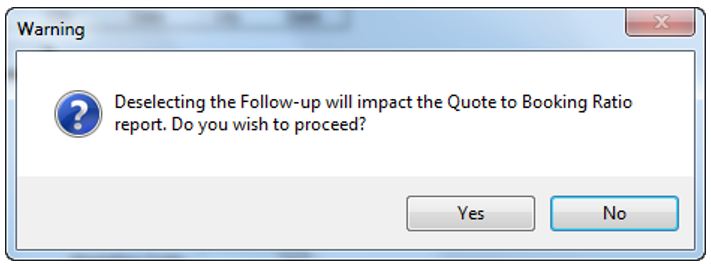
Mandatory Quick Trip Field must be ticked – the default is for this field to be ticked.
If this field is unticked a message will appear:
A mandatory “Follow Up” workflow action item is triggered by the designated Trip Status when a trip file is created, eg. Enquiry/Quote.
A “Follow Up” KeyWord must be added to the “Trip Status” value via Tools/Table/Codes/Trip Status within Other as Follow Up and PROMPT.

Any fields that are already mandatory on the Mandatory Trip Fields set up – will automatically display as mandatory on the Mandatory Quick Trip Fields screen.
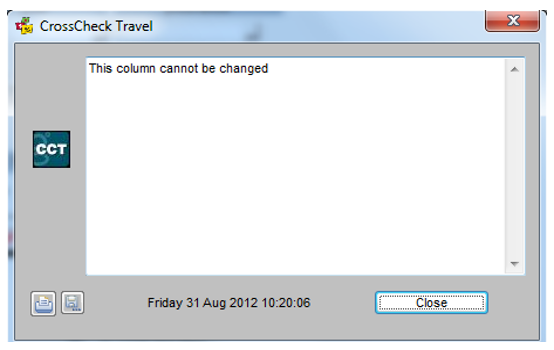
If an attempt to change any of the default mandatory fields occurs, a warning message will appear, “This column cannot be changed”. Other fields can be made mandatory by double clicking in that field to toggle on or off, as required.
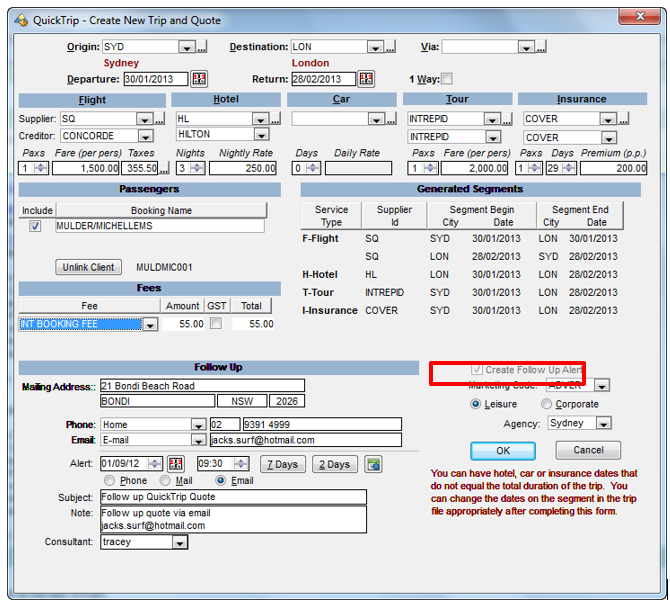
When a Quick Trip is created, the user will not be able to uncheck the “Create Follow Up Alert” as it is greyed out.
Note:
- Quick Trip has a minimum number of fields that require completion before the Trip file can be created from it -
- These are highlighted in cyan for reference – and are not able to be made optional.
- These fields are: Destination and Booking Name.
- A Trip component (eg. Flight, Hotel, Car, Tour or Insurance and its related Fare/Value, is also mandatory – but these are prompted with messages, as it would be hard to represent/show all options as mandatory, when they are not.
- The “Follow Up” for Quick Trip that are added to existing Trip Files will not be mandatory.
Trip Status Maintenance
- It does not matter in which “Other” field (from 1 – 4) the keyWord is added – as long as it is added against the correct Trip Status – selected from drop down list.
- Where there is no KeyWord added – no process is started.
- Follow Up reminder will be mandatory for the consultant to complete when a Trip File is first created with that trip status.
- Trip Status Update Prompt will be optional/up to agent discretion.
- For this Trip Status Table Maintenance - The “Other” keyWords will be selected from a drop down menu.
- The only be options to select are “PROMPT” and/or “Follow Up” from the drop down menu.
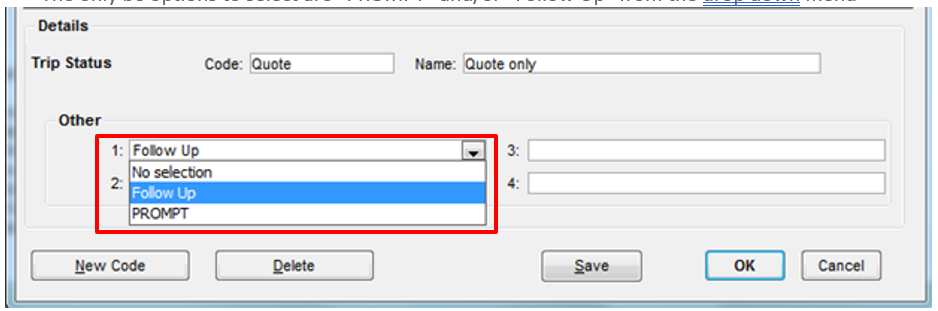
- The user will only be able to select these options once per Trip Status (i.e. CCTE will validate to ensure the user has not accidentally.
These updated processes need to set up first - before the report can be effectively implemented. The Quote to Booking reports have a dependency on the implementation of “Follow Up” Workflow Action Items.
- This requirement will allow the agency to turn on the “Follow Up” workflow action item to be mandatory for both Quick Trip creation and for Trip Files initially created with a specified Trip Status.
- This requirement will allow the agency to specify which Trip Status values will require the “Follow Up” workflow action item.
- A Trip File that originates from a Quick Trip would already have a Follow Up action item created – no need to prompt again.
- Workflow Action Items will be labeled as either an “Action” or a “Follow Up”. In addition – “Follow Up” action items will be defaulted to “High” priority – so that the consultant is directed to access the Pop Up to action item.
- Trip Status will remain as a manual update, except for a Quick Trip where a Trip File is created – it defaults to “Quote” and for when the Trip File is downloaded from Travelport+ – it defaults to “Active”.
- A Consultant will be prompted when a “Trip Status update is required, the onus is on the Consultant to update the Trip Status.
- Only Trip Status’ with the ‘PROMPT’ stored next to their value in the Table Code Maintenance will start the Trip Status update process.
- Hence for Trip Status reporting – it would not be possible to report on the average number of days a trip status has been at that value, for trip files created prior to the implementation – UNLESS that trip file status has been updated and saved, so that the date and time of that update is recorded in the database.
- The Trip Status report will display the Average Number of days of the LATEST trip status update.
Based on the above configurations:
- The user will be prompted with this message while updating the “Trip Status”.

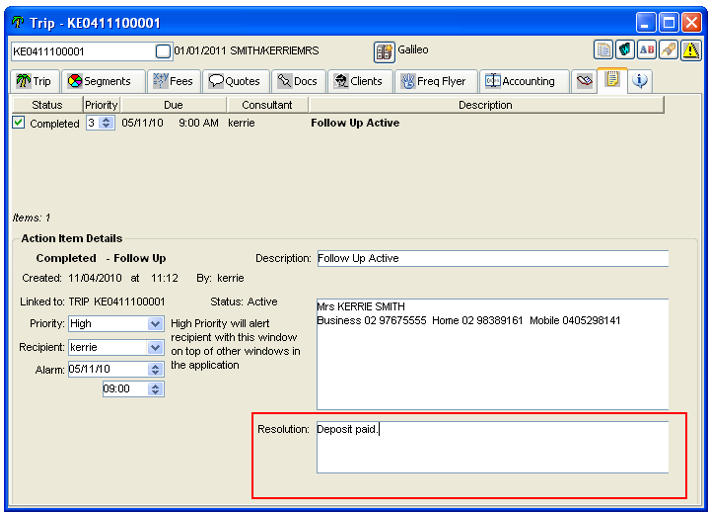
- The Follow Up Workflow Action Item will pop up when a Trip File is created.
Note: Workflow Action Items are labelled as either an ‘Action’ or a ‘Follow Up’.
Trip Status will remain as a manual update, except:
- When a trip file is created from Quick Trip where a Trip File is created– it defaults to “Quote”.
- When the Trip File is downloaded from Travelport+ – it defaults to “Active”.
A “Resolution” is required in a new field available on the work flow entry.
Note: This new field is only applicable to Workflow Action Items of the type ‘Follow Up’.
Users will be able to view the “Type” column under Action Items in the following areas in MyCCT:
- My Open Items
- Everyone Overdue
- Everyone Today
- My Completed Items
- Created by me – 90 days
- Per Branch
- Per Consultant

Reporting
A Report is available to Track conversion ratio - Quote to booking, provides agencies with a report that details quote to booking statistics.
The Trip Status report will display the Average Number of days of the LATEST trip status update.
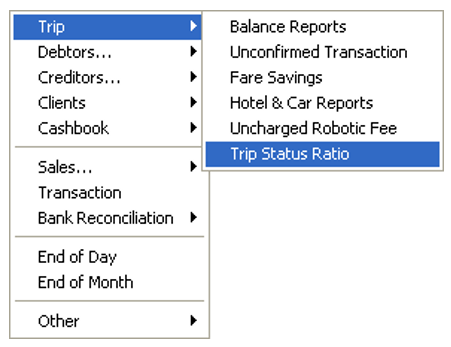
The Trip Status Ratio Report in a predefined format via Reports -> Trip Menu.
The report can be generated on the predefined parametres for Branch, Consultant, Creation Date:
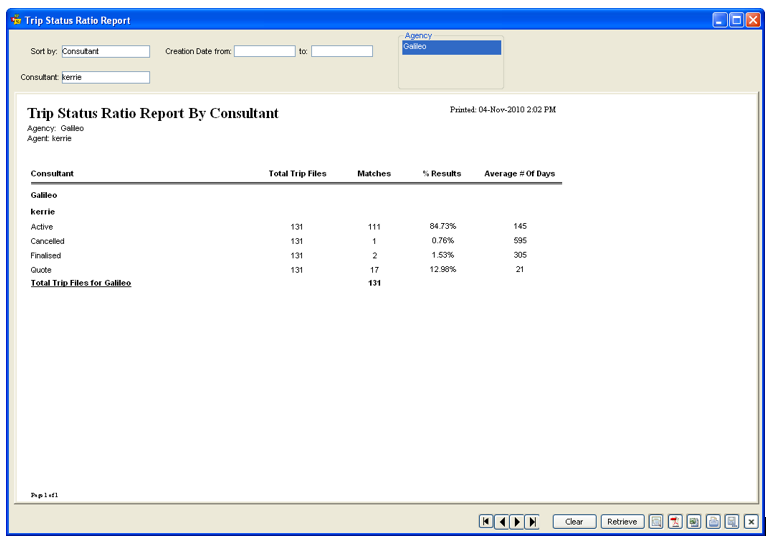
Column details:
|
Total trip files |
Total trip files created by that consultant |
|
Matches |
Number of these trip files that belong to a particular booking status |
|
% of Results |
% of the total bookings that are a particular booking status |
|
Average # of days |
Average number of calendar days that the trip files have been at that Trip Status |
Note: The report can be exported and saves in a pre-defined Excel formatFor more information on MyCCT Reports please see MyCCT - Reports.