
The information entered in the Trip file Marketing Code field can accessed from the MyCCT Sales reports.
Skip To:
Refresh Sales Summary Data
The sales information must always be updated before using the Sales reports.
Take the following steps:
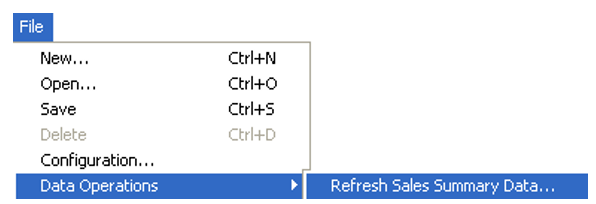
- On the main menu, select File then Data Operations and Refresh Sales Summary Data.
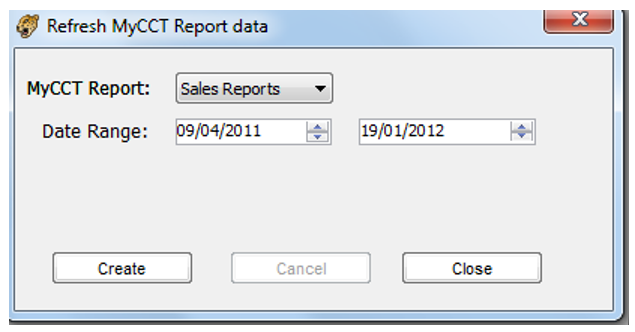
- A dialogue box will be displayed where the user can enter the dates required. Enter a date range and click on the Create button.
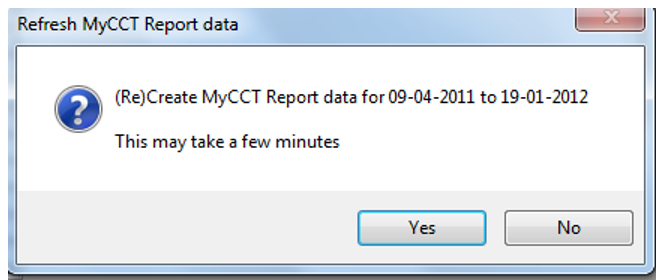
- A prompt will confirm the dates entered and warn that the process may take time. Click on Yes to proceed.
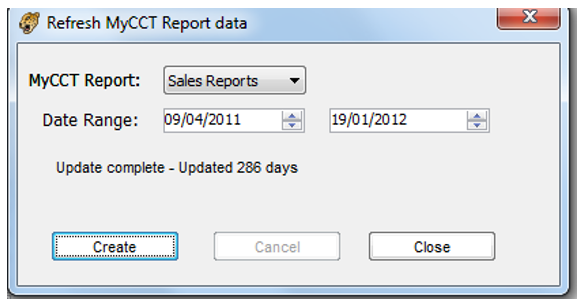
- A further prompt will advise that the process is completed. Click on the Close button.
- The user can now open any of the MyCCT Sales Reports and select the Marketing code for inclusion in these reports.
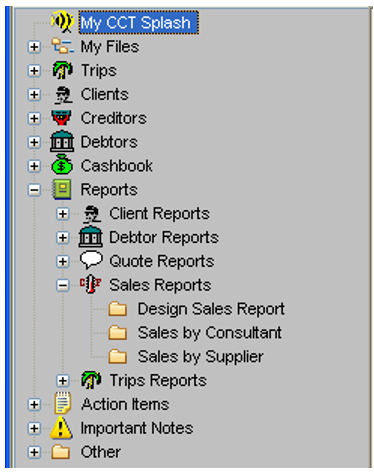
Design Sales Report
Click on the Design Sales Report folder
- To create a report, tick the Headings to be including Marketing Code.
- Select the report grouping by ticking the relevant items in the Group column if required.
- Using the scroll indicator, or overtyping, enter the numbers to Order the column as required.
As each item was ticked for inclusion, the fill-in boxes appeared in the Group and Where columns when applicable.
Heading names can be changed to shorten the space used in the report. e.g Primary Destination can be shortened to Destination and Transaction Consultant Name can be shortened to Consultant by overtyping the existing heading.

- Click the Generate Detail button to produce the report. No qualifiers added to the Marketing code, so all possible marketing codes have been retrieved.
Saving your Report Design
If the user would like to use this report again the user can save the setting selected by clicking on the Design Sales Report folder to re-display the selection screen and click on the Save Design As button at the bottom of this screen.

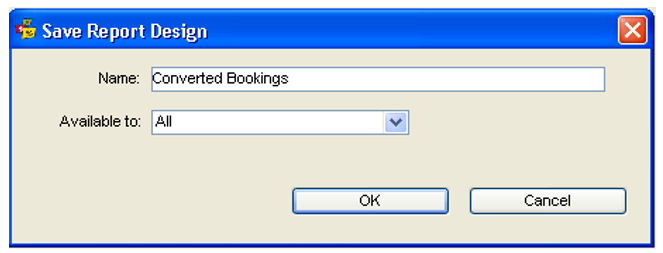
A dialogue box will be displayed where the user can enter the Name of your new report.
Select which consultant the report will be Available to from the drop down scroll, or leave it set to All and click on the OK button.
This folder will now appear on the MyCCT menu until the user chooses to delete it.