
Trip File Marketing Entries
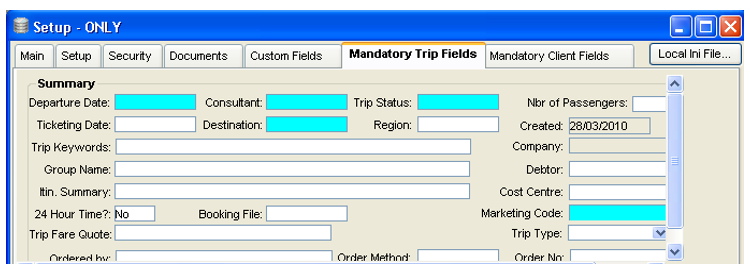
A supervisor can make the completion of the Marketing Code field on the Trip file a mandatory item. To do so:
- Log in to CCTE as Supervisor.
- Select the Mandatory Trip Fields tab.
- Double click on the Marketing Code field to change it to a mandatory field.
- Click on the Save icon on the toolbar.
Client File Marketing Tab
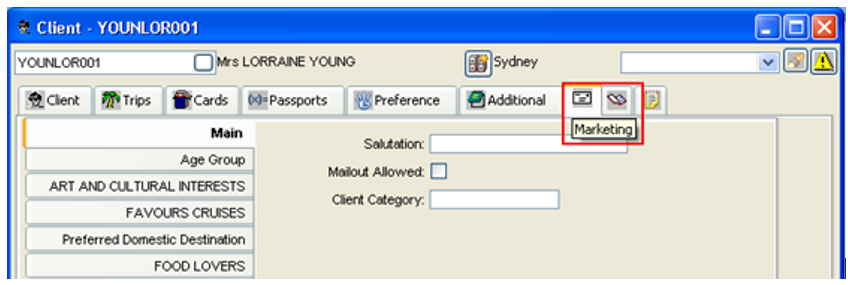
Marketing information in the Client file is entered under the Marketing tab.
To select a marketing item in the Client file the entry must first be first created in the Table.
To learn how to create the codes for the Client file Marketing fields, See "Marketing Codes Table" in Module 3: System Administration.
Collating Information from the Marketing Tab
The information entered under the Marketing tab on the Client file can accessed from any of the MyCCT Client reports by selecting the Interest Code.
The principals demonstrated below apply to the pre-set Sales filter folders as well as to the Design your own Report folder.
- Click on the Design Client Report folder.
- To create a report, tick the Items required including Interest Code.
- Select the report grouping by ticking the relevant items in the Group column if required.
- Using the scroll indicator, or overtyping, enter the numbers to order the column as required.
- As each item was ticked for inclusion, the fill-in boxes appeared in the Group and Where columns when applicable.
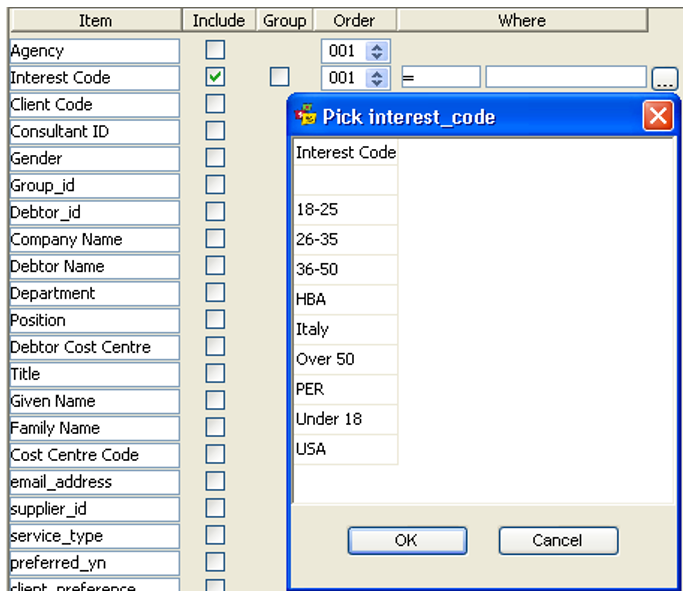
- Complete the Where column to tailor your search if required. Specifying entries can be created for any item which generates a Where field. If the Where field is not completed files matching all possible entries will be retrieved. When the Interest Code item is not specified all files with any interest code will be listed.
- To use the Where columns click the blank box under the Where column to reveal a drop down list
- Click on the = sign and another fill-in box appears.
- Click on the ... icon (as indicated by the cursor) to open a selection box, or type in the code required. All the codes from all Types categories entered in the tables will be displayed.
- Select and click OK.
- Selections can be removed from the Where column by reopening the drop down box and selecting the blank.
- Click on the Generate Details button to produce your report.
These reports can be saved into Excel or any other Microsoft application and a Mail Merge created for a marketing campaign.