
Accounting Transactions
This module covers the basic, day to day accounting functions performed through the Trip file. For more complex Trip accounting functions, see Module 8: Trip Accounting Part 2.
CCTE provides a wide selection of accounting transactions that are able to be performed on individual Trip files.

Items highlighted are detailed in the Trip Accounting Part 2 module, along with several advanced Ticket Requisition types.
Note: Accounting transactions CANNOT be deleted but most can be reversed.
Transaction Status Codes
Accounting transactions take on a number of status codes depending on the stage the transaction has reached.
The status code of each transaction is displayed on the Accounting tab screen.

Creating Transactions
To create a new transaction from the Trip file’s Accounting tab:
- Click the New icon from the standard toolbar (or press Ctrl+N). The New Trip Account Transaction screen appears, providing a list of all transactions.
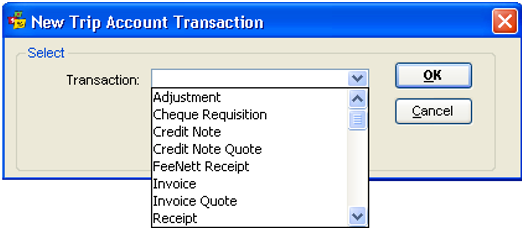
- Click on the down arrow in the Transaction field and highlight your choice.
- Leave the Agency box set to the default that appears.
- Click on OK to open an input screen.
Output To: Dropdown menu
A dropdown menu can be found in most accounting transactions in a Trip File.
The options included in this dropdown are:
Word: will save the document as a Microsoft Word File. These will generate in the Document folder which can usually be found under C:\Program Files\CCTE\DOCUMENTS
Word Email: will attach the document to an email in Microsoft Word format.
See CCTE Finance User Guide, for further information.
Save As: will save the document in various formats. The reports can be saved in Excel and should be saved in Excel 8, as it provides the best formatting
PDF: will save the document as a PDF File. These will generate in the Document folder which can usually be found under C:\Program Files\CCTE\DOCUMENTS
PDF email: will attach the document to an email in PDF format. See CCTE Finance User Guide, for further information
Print: will print the document
Saving Documents from CCTE
The agency supervisor should set the location in CCTE for each branch where the documents are required to be saved. The location selected can be anywhere on the local or shared network computer. CCTE will automatically update the location on each user profile from their home branch. The agency supervisor can also set the location for an individual user if required. If permitted by the agency supervisor, individual users will also be able to set their own preferred location.
CCTE will save the document at the location when it is saved or emailed as WORD or PDF. It will also record the history of the documents which were saved, printed or emailed. The history will display in the DOCS tab within TRIP, DEBTOR, CREDITOR, CLIENT. The user can view the saved document by clicking on the hyperlink.
This covers all the documents that can be saved, printed or emailed except for:
- Ticket Requisition
- Refund from Creditor
- Commission Receipt Open Item
- Commission Receipt other
- Miscellaneous payment
- Miscellaneous receipt
- eNett extract payments
- Debtor Balance brought forward with ageing
For the documents listed above, see CTTE Finance User Guide.
Note: The above documents are excluded because they cannot be saved as WORD or PDF; the document generation option does not exist or is disabled.