Cheque Requisition
A Cheque Requisition is issued for items which do not have an accountable document number. The Cheque Requisition is a record of payment details to be made to a creditor.
Cheque Requisitions can only be created manually, however the steps and fields involved are similar to those used for Ticket Requisitions.
Take the following steps to create a new Cheque Requisition:
- Click on the Accounting tab in the relevant Trip file.
- Click New on the standard toolbar (Ctrl+N) to access the New Trip Account Transaction window.
- Select Cheque Requisition and leave the default set automatically in the Agency box.
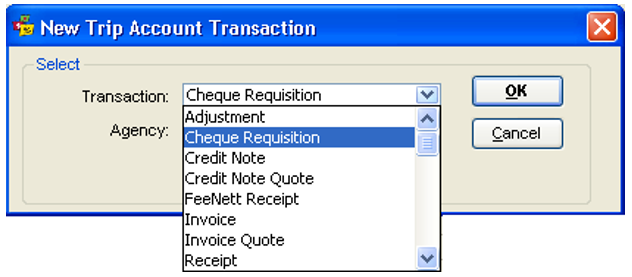
- Click on OK to open an input screen. A new Cheque Requisition screen will be opened with the mandatory items in blue.
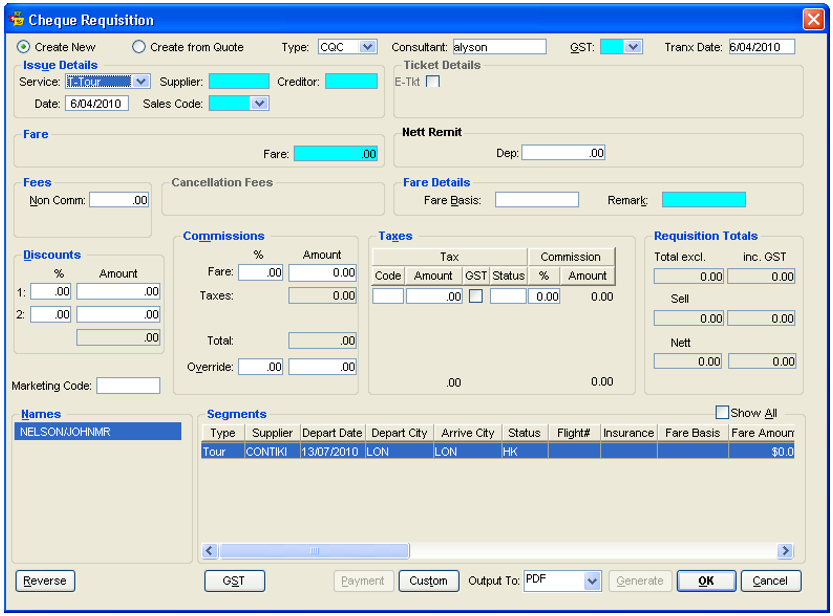
Note: This screen defaults to display the service type of Flight when first opened.
Cheque Requisitions can also be created automatically from the Fees tab. See "Fees Tab" in Module 5: Trip File.
Cheque Requisition Fields – General
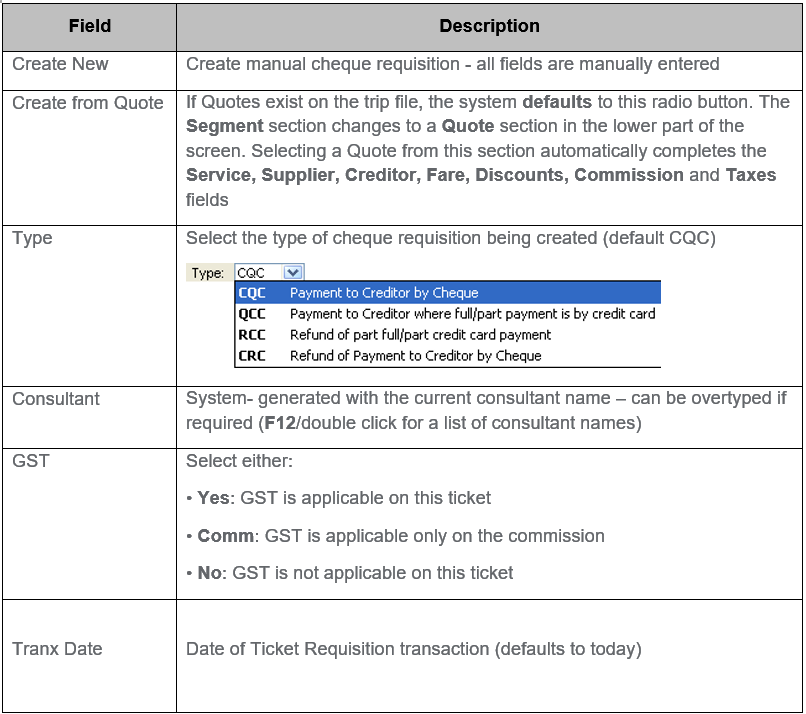
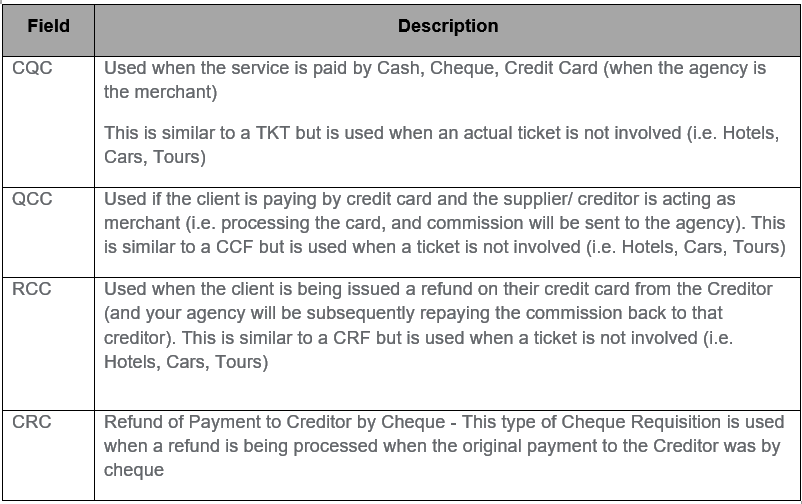
Cheque Requisition Types
It is extremely important to select the correct Type code as this field will generate different fields in the Cheque Requisitions.
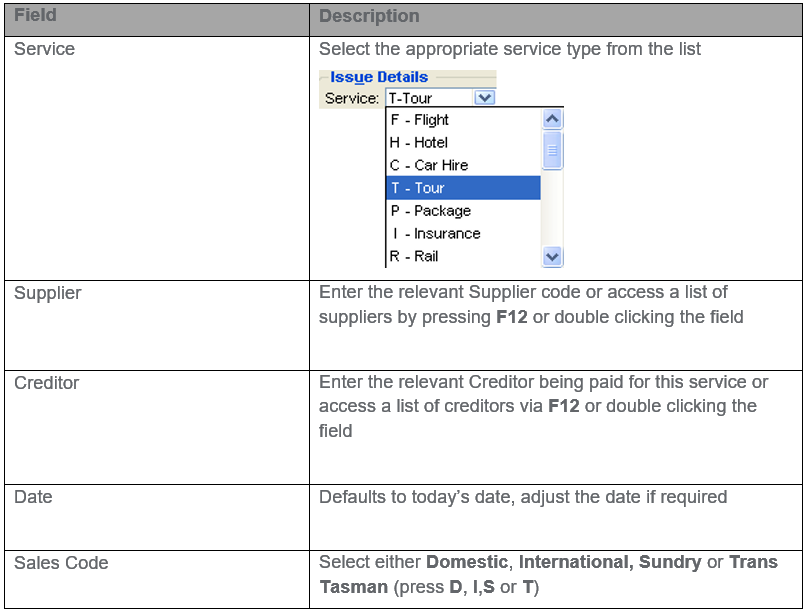
Issue Details
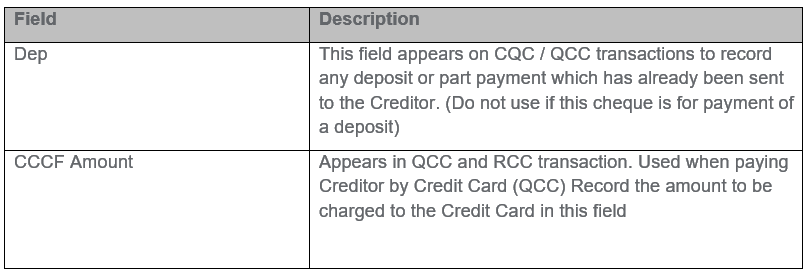
Fare

Other
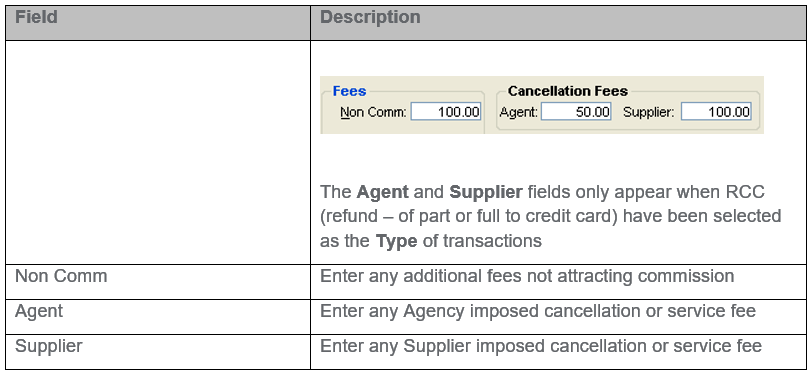
Fees / Cancellation Fees
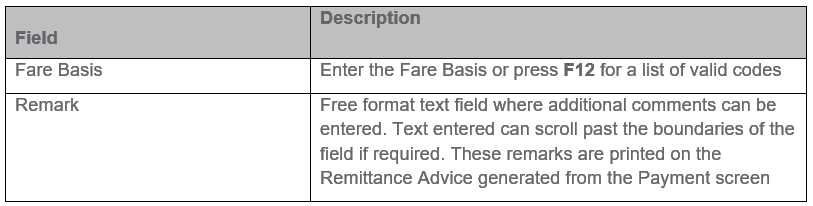
Fare Details
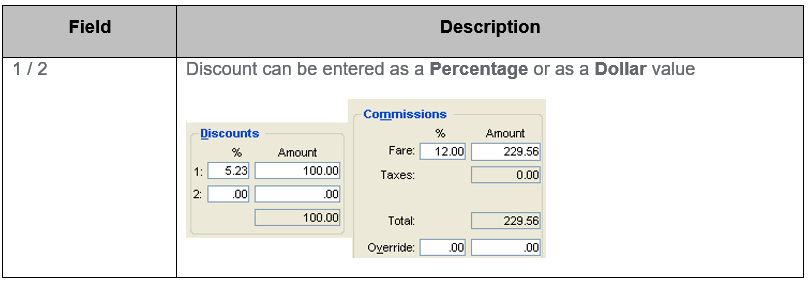
Discounts
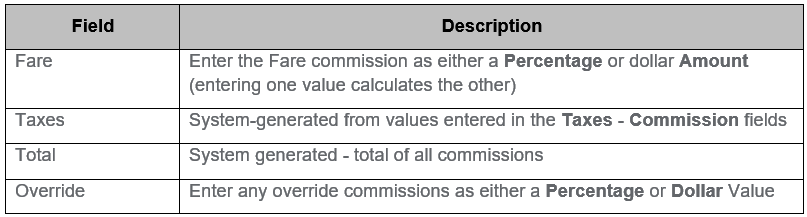
Commissions
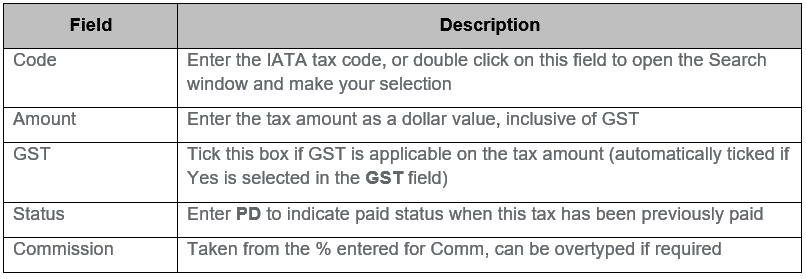
Taxes
Requisition Totals (All System Generated)

Marketing Code

Names

Cheque Requisition Action Buttons
The action buttons along the bottom of the Cheque Requisition screen perform the same functions as those on the Ticket Requisition. See "Ticket Requisition Action Buttons" in Module 6: Trip Accounting Part 1.
Several buttons are available along the bottom of the Ticket Requisition screen, to perform various functions once the relevant fields have been completed.
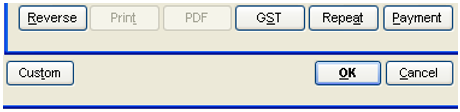
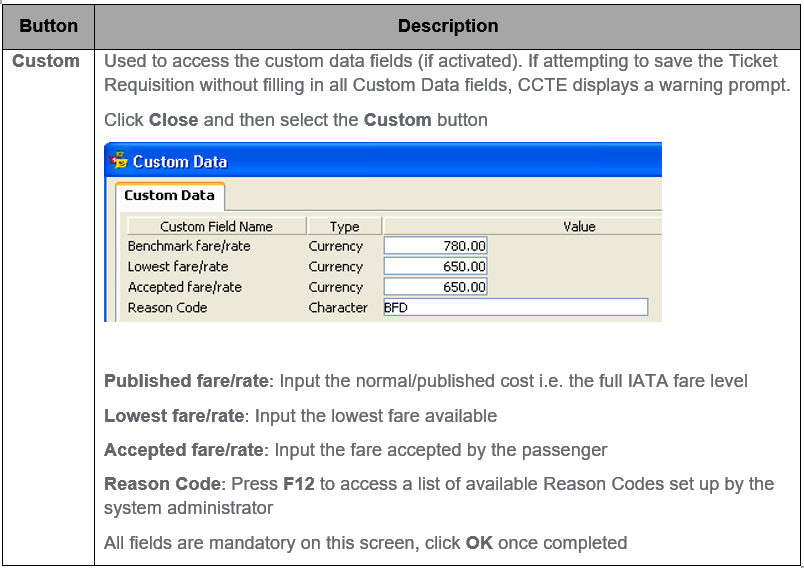
Note: If the Requisition is for a Trip file, which is linked to a Client file, who works for a particular Debtor and the Debtor has Custom fields switched on, it will also be necessary for these fields to be completed prior to saving the ticket. A prompt will appear in this instance. See Trip Quote Custom Data Tab.
Segments / Quotes
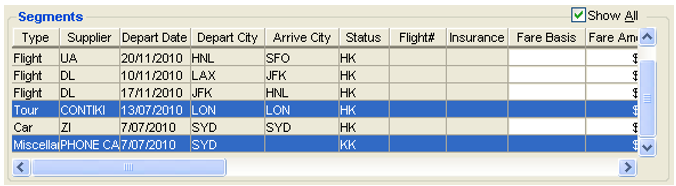
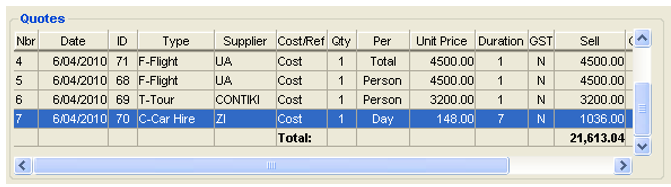
Segments will only be displayed when Create New has been selected and Quotes will only be displayed when Create from Quote has been selected.
Segments (Create New)
The segments displayed will match the Service type selected, unless the Show All box is ticked. When this box is ticked all segments of all service types will be displayed. Highlight the services to be included on this cheque requisition.
Quote (Create from Quote)
All quotes associated to the Trip file will be displayed. If more than one quote exists for a service type, ensure the correct quote details have been used. Selecting the quote automatically completes the Service, Supplier, Creditor,Fare, Discounts, Commission and Taxes fields.
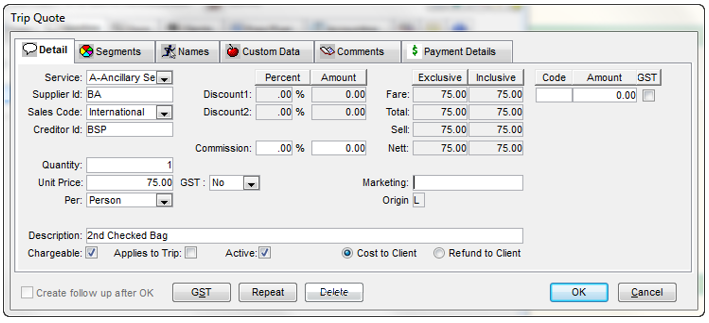
Quotes – manual quotes created for EMDs
Quotes for Ancillary Services are not created automatically as part of the download to CCTE. Quotes can be created manually selecting the Service as Ancillary Services.
The description field can be used to detail the ancillary services description.
Redownload – Ancillary Services segments and EMD details
Triggers for download and redownload of Ancillary Services are:
*SI redownload triggers
- *SI status
- EMD number
SVC redownload triggers
- Supplier
- SVC status
- EMD number
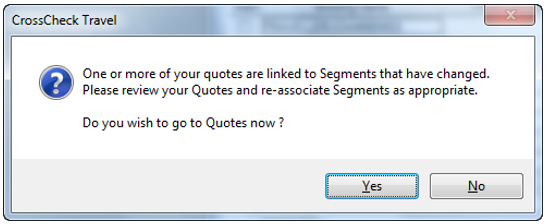
The following message will be displayed where there are any changes or cancellations in the PNR to segments or segments with ASVC or SVC attached.
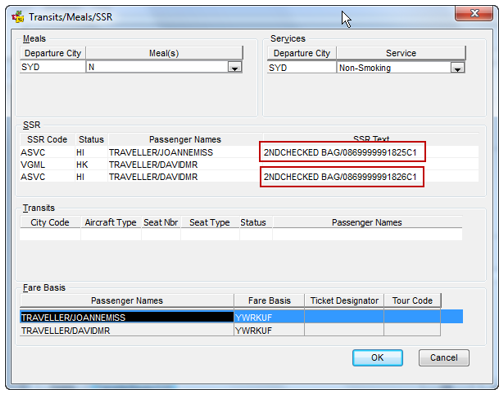
Flight segment/SSR description will appear in the Trip File in Segment then Transit Meals/SSR button of the segment.
Paying a Creditor with the Passenger’s Credit Card
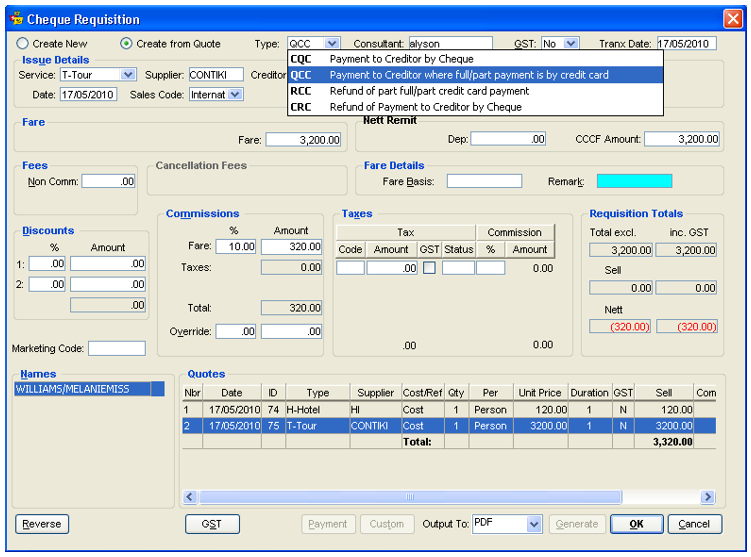
This entry is created under a Cheque requisition, type QCC meaning – Payment to Creditor where full/part payment is by credit card and where the supplier/creditor processes the CCCF.
The client’s payment is direct to the creditor so no balance is recorded on the Trip file accounting summary, and the Creditor pays the merchant fee.
The code QCC must be selected from the Type field, then all other input fields are the same as the cheque requisition type CQC, except for the additional CCF Amount field. Enter the amount being charged to the credit card in this field. The Requisition Totals show the commission owed to the agent in red.
The agent can run a report based on QCC Cheque Requisitions and CCF Ticket Requisitions to keep track of this commission.