Ticket Requisition
There are two ways to create a Ticket Requisition:
- Automatically, through a download, or
- Manually
To create a Manual Ticket Requisition
- Open the relevant Trip file and select the Accounting tab.
- Click New on the standard toolbar (Ctrl+N) to open the New Trip Account Transaction window.
- Select Ticket Requisition from the list (or press T) and click OK.
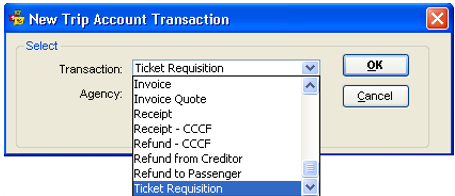
- Click onOKto open an input screen
A blank Ticket Requisition screen will be opened. To complete the entries on this screen select the Create New radio button, or populate a majority of the fields from the quote, by selecting the Create from Quote radio button.

Note: To enter details in the various fields of the Ticket Requisition screen, use the Tab key to move between the fields. Pressing Enter is NOT recommended as this mimics clicking the OK button.
If applicable, see accounting for Commission on Taxes.
Ticket Requisition Fields - General
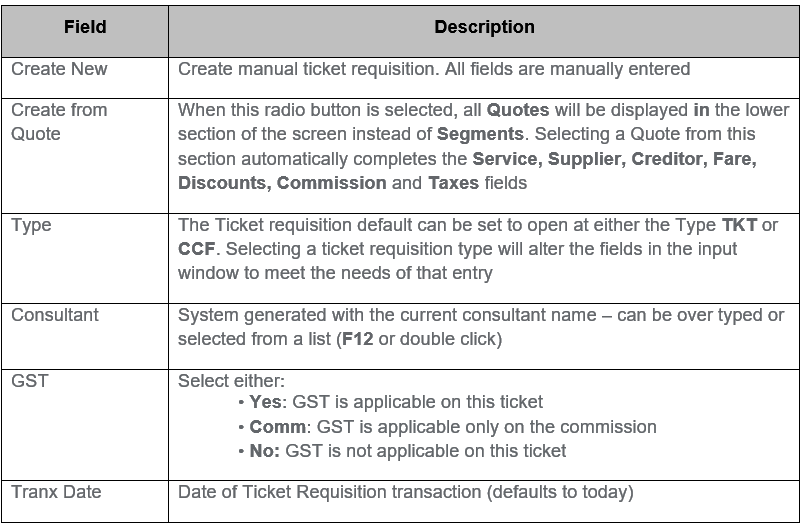
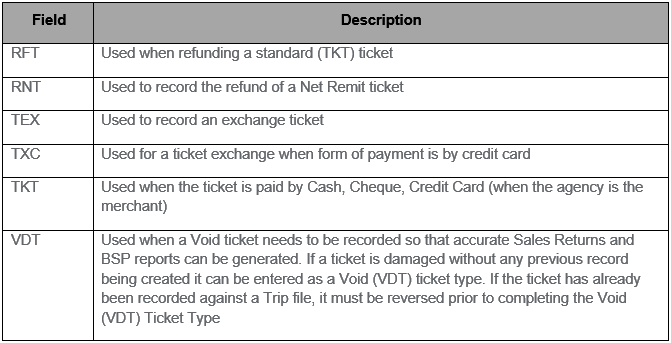
Ticket Type
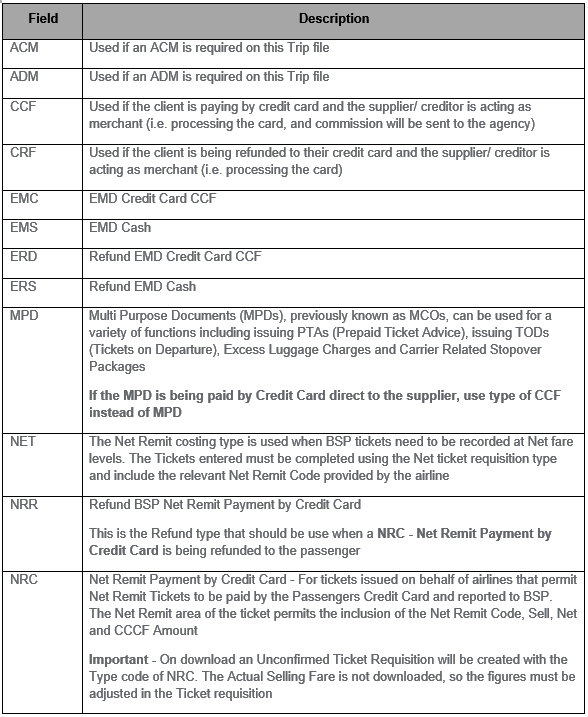
It is extremely important to select the correct Type code as this field will generate different fields in Ticket Requisitions.
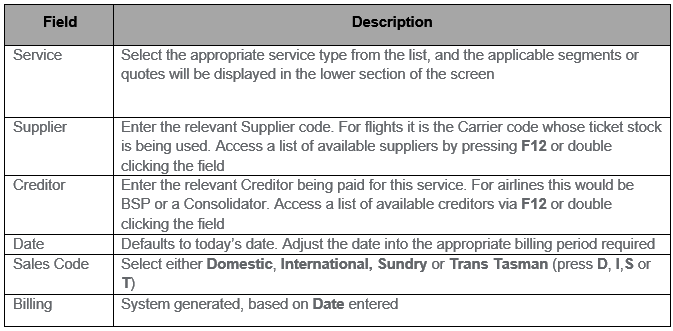
Issue Details
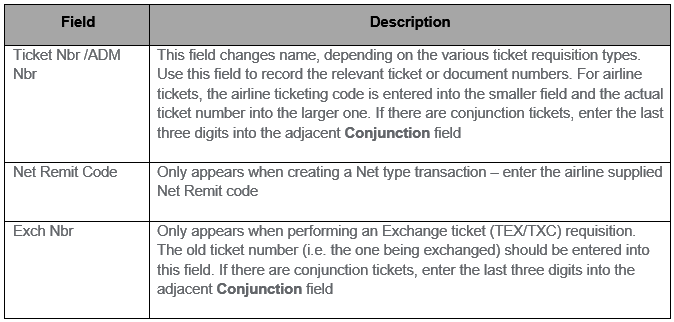
Ticket Details
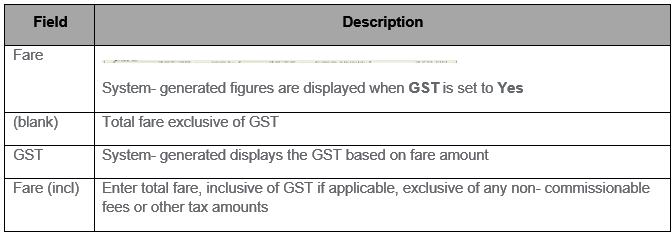
Fare
Other/Net Remit
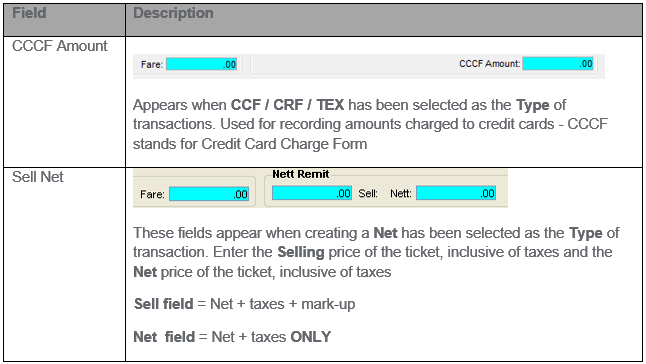
Fees / Cancellation Fees

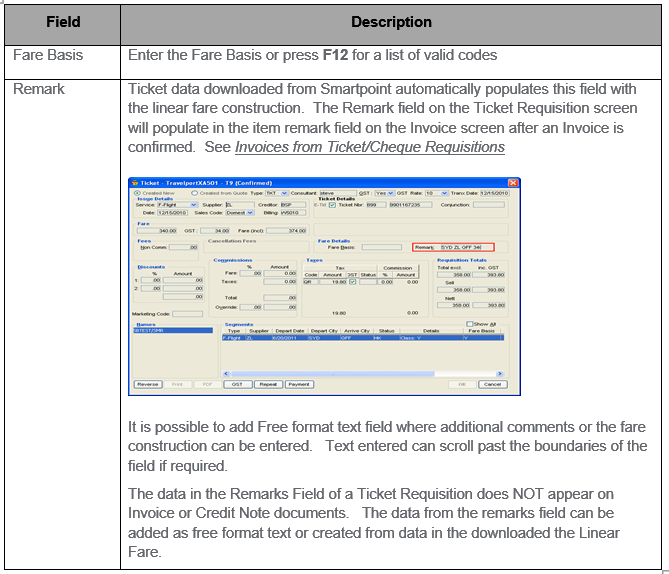
Fare Details
Discounts
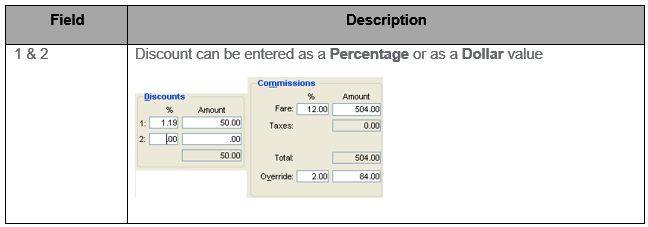
Commissions
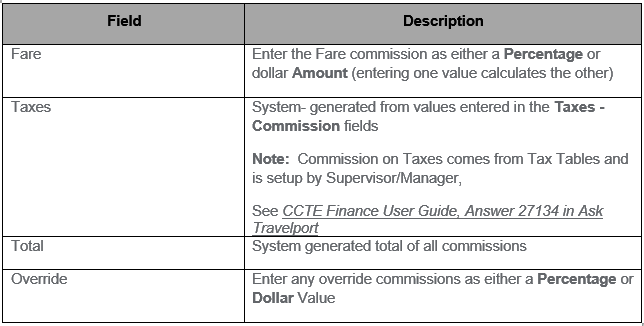
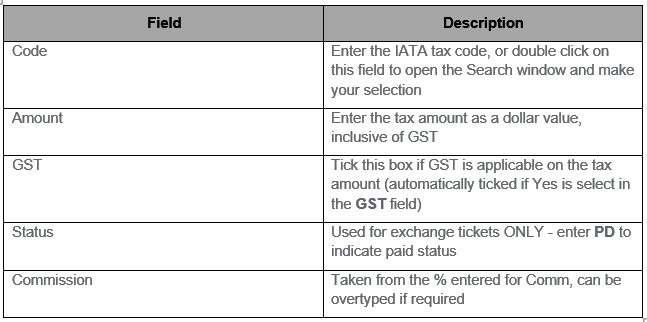
Taxes
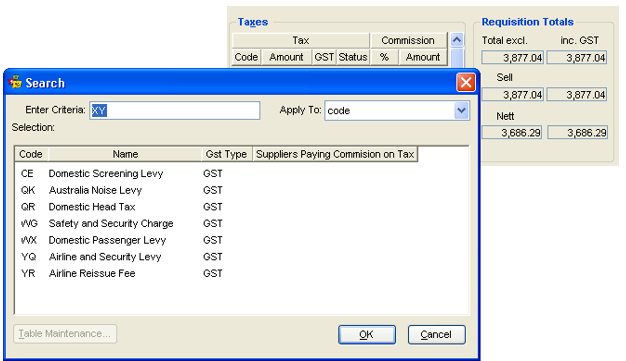
Note: Irrespective of whether the ticket requisition (Confirmed or Unconfirmed) is created manually or on download the commission percentage should be populated based on Supplier, Sales Code and Tax Code, see Commission on Taxes.
Requisition Totals (All system generated)

Marketing Code

Names

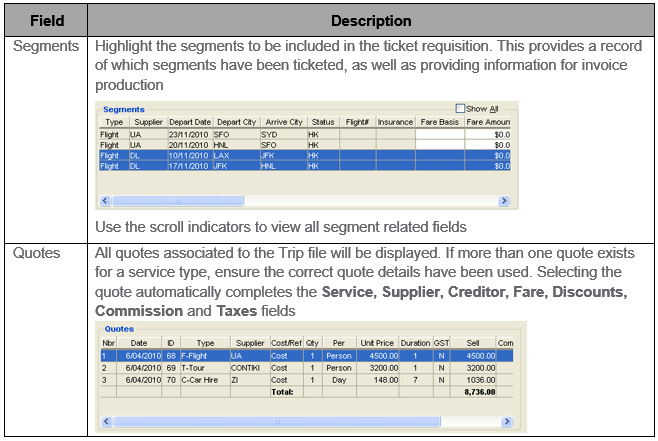
Segments / Quotes
Segments will only be displayed when Create New has been selected. Quotes will only be displayed when Create from Quote was selected.