
This is a view-only screen which lists all registered CrossCheck Travel Enterprise users. The Consultants classified as Active (Active box ticked) are listed first and any inactive consultants are listed at the end of the display.
A separate Consultant Input screen is used to add, delete, or modify details for each user. The details of an existing consultant can be viewed by double-clicking into the required consultant row.
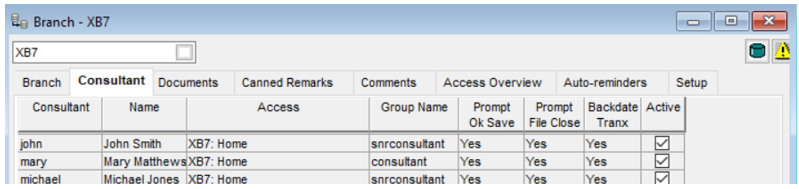
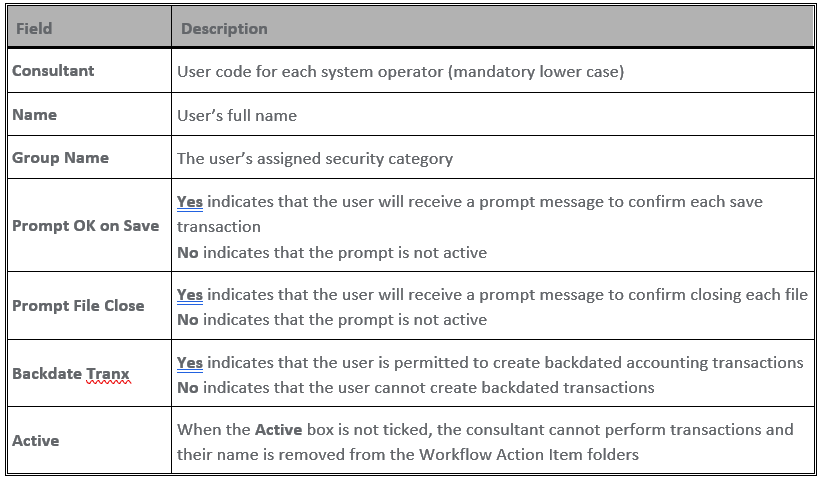
This screen displays the following summary information:
New Consultant
To create a record for a new user, highlight the Consultant tab and click on the New menu button or press CTRL+N, to open the Consultant Maintenance input screen. The screen fields available will depend upon whether PCI compliance has been switched on in the agency. More information on PCI Compliance is available in Product Advisory 3340: CrossCheck Travel Enterprise CCTE v18.5 on Ask Travelport. Mandatory fields are shown in blue.
Screen when PCI is switched Off:
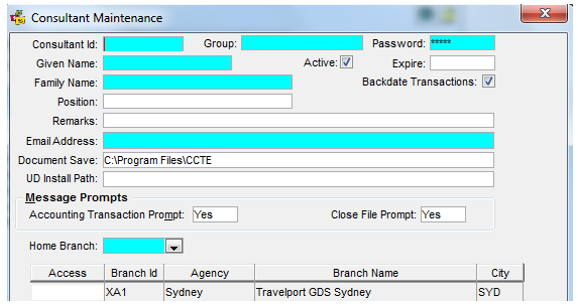
To set up a new user, complete the following fields:
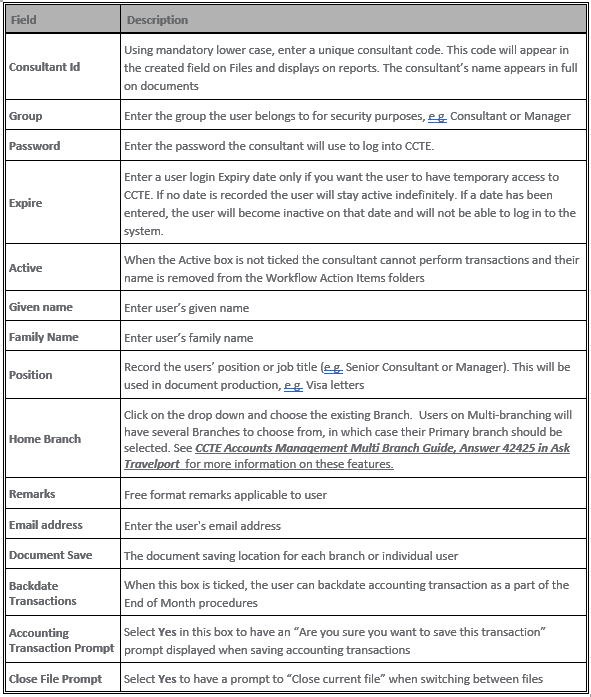
Changes to screen when PCI is switched On:

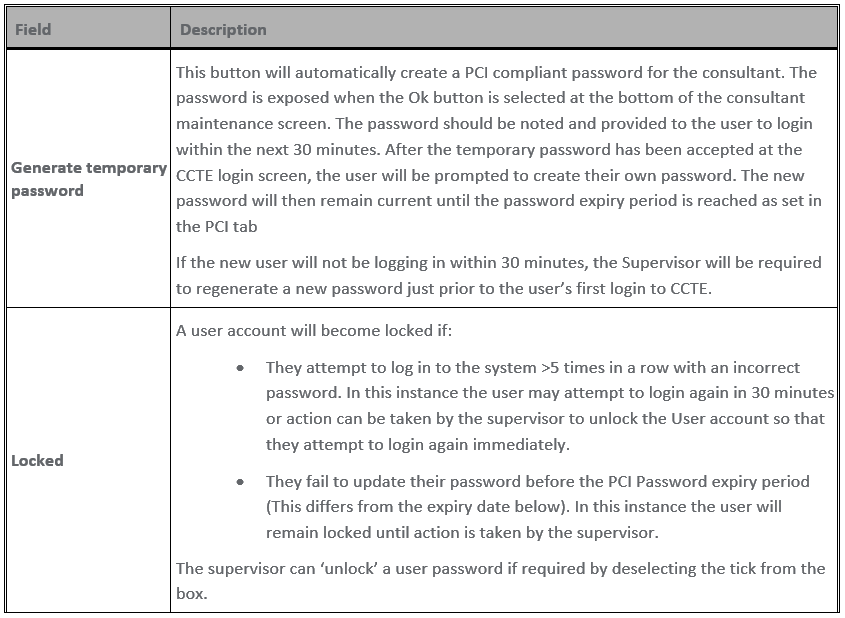
The differences in the screen are as below. Please refer to the PCI compliance area of this document for further information.
User Groups:
There are five user groups available for selection within CCTE for a Consultant and Security can be restricted per user group.
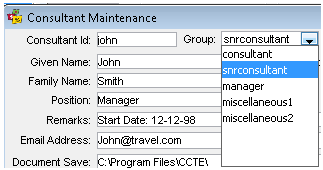
The most appropriate user group should be applied to each user, with appropriate security assigned to each in the Security tab. For further information on how to enable security settings, please refer to the Security Guide, available to Supervisor/Manager only.
Modifying User Information
User records can be modified any time, as long as the user is not logged into CCTE when this process is being carried out. To modify a record select the ConsultantTab to display the list of Consultants.
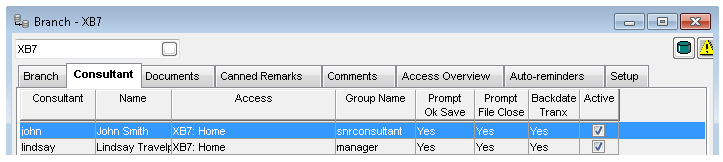
Double click on the Consultant record line to be modified. Make the required changes by overtyping or adding the new information.
User Password Reset:
A user’s password can be reset by the Supervisor by:
- In a Non-PCI Compliant database: Click into the password field and overtype the existing password in lowercase. Click the Ok button in the screen to save the new password.
- In a PCI-Compliant database: Click on the ‘Generate Temporary Password’ button and click the Ok button. Note the password generated and provide it to the user within 30 minutes of generation. The user will be prompted to change this password when entered. If the password is not used within the 30 minute timeframe, it will need to be regenerated.
User Unlock:
This only applies when PCI Compliance is switched on, and the Supervisor is required to unlock a login.
A user can be unlocked by the Supervisor by unchecking the tick in the Lock field of the consultant and clicking Ok.
If the consultant has been locked out due to the user’s failure to renew an expired password, the supervisor will also need to generate a Temporary Password (as above).
User Deletion:
To delete a consultant, display the consultant’s record and click on the Delete button. A prompt will be displayed asking for confirmation. Select Yes to delete the user and exit.
A user cannot be deleted if the User Id code has been used anywhere in the system. In such cases a warning prompt will be displayed upon attempting to save the deletion.
User Deactivation:
To deactivate a consultant, display the consultant’s record and untick the Active box.
If the Active box is not ticked the consultant is unable to login into CCTE and their name is removed from the Workflow Action Items folder.
The consultant’s record is then moved to the bottom of the consultant list under the Consultant tab.

A consultant can also be disabled by adding an Expiry date for their login in this screen. Note that this expiry differs from the Password expiry date set in PCI Compliance settings.