
An Agency Manager/Supervisor is able to configure the auto-reminder settings for trip and clients for various requirements, either as an email or a reminder.
A consultant can potentially expect 2 emails (if the reminder option chosen is email) - one for trip on a daily basis and another for client to be generated on a daily or weekly basis depending on the data.
- The email reminder for Trips consists of Trips Due for Invoicing sorted by Debtors which is then followed by Trips Out of balance, Travel Completed and TripCheck items. All these areas are neatly separated for better visibility. The trips selected for ‘Due for Invoicing’ will not appear again under ‘Out of Balance’.
- It will be the responsibility of the agency to ensure that the default trip type is configured appropriately as Leisure, Corporate or Group based on the agency’s business as this will be a criteria for filtering out the “Travel Completed” trips if this filter is chosen.


The email or Reminder notification is generated daily at 0200 for each consultant in accordance with the configurations set up by the Manager for the Agency.
Email:
If the Auto Reminder is set to email, then the system will process the email as follows:
- The data from each Trip File will be retrieved for each consultant in the branch.
- The email will be delivered daily to the consultant’s email address (found in the Consultant Maintenance Screen).
- The email will be delivered to the recipients whose email addresses have been configured in the Auto Reminder screen on the Setup tab for the Branch.
- The subject of the email will be ‘Trip File Reminders’.
Reminder:
Automated Reminders that have been set to Reminder generate (daily) a Reminder (1 per trip) to the consultant. The system l retrieves Trip File data that meet the reminder criteria set in the Auto Reminder Tab (in Supervisor Module).
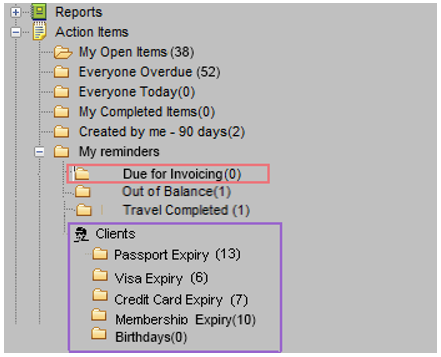
The Reminders are placed in a set of folders under the MyReminders subfolder within MyCCT/ActionItems. The folders are named with relevant headings (eg. Due for Invoicing/Deposit Payment/Final Payment)
Due for Invoicing
Lists trips due for invoicing:
- The primary contact for Debtors not associated with a Company is as per the primary contact setup for Debtors.
- The phone and email for Debtors is the phone and email of the primary Contacts.
- The client email is the email id of the client, similar to the client email of Out of Balance.
- The logic for selecting the phone and email is as below:
- Phone: If Primary is selected, the corresponding phone is picked up. If Primary is not selected, then business. If business is not available, then mobile. If mobile is not available, then home will be retrieved. If none of them are available, the first available phone will be retrieved.
- Email: If Primary is selected, the corresponding email is retrieved. If not and if there are multiple emails, the first available email will be retrieved.
Out of Balance
CCTE is able to generate automated reminders to users for trips:
- That are Out of Balance
- Where Travel has been Completed
- Follow up on a TripCheck list as required by Agency
Note: The Automated Reminders will be a system schedule job that is automatically generated each day at 0200 Server time.
The Agency Supervisor can configure settings at a branch level:
Trip file reminders (one or all): My Out of Balance – My Travel Completed – Trip Check Reminder
- Reminder method (either one): Email or Reminder within CCTE
- Send to multiple email IDs for the Email reminder
For Out of Balance, reminder occurrence will be depend on:
- Trip Type – Leisure, Group or Corporate
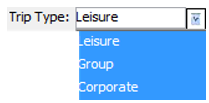
Either trip Debit or both trip Debit and Credit - Debit or Credit threshold amount - Out of Balance reason.
- “Reminder Method”: Select from ‘Email’ or ‘Reminder’.
- “DR Amount Only”: Select this option if reminder required for Out of Balance trips with debit amount.
- “DR and CR Amount”: Select this option if reminder required for Out of Balance trips with debit or credit amount.
- “DR Threshold Amt”: Enter the DR threshold amount. Automated reminder will not be sent for the Out of Balance Trip Files under the DR Threshold.
- “CR Threshold Amt”: Enter the threshold amount. Automated reminder will not be sent for the Out of Balance Trip Files over the CR Threshold.
- “Exclude Out of Balance Reasons”: Select one or multiple reason codes on which automated reminder is not required.
- “Email to other”: If required to send a copy to other users then select ‘Yes’ else ‘No’. Copy emails IDs should be entered in “Recipient1”, “Recipient2” and “Recipient3”.
Travel Completed
Travel Completed reminders like Sales Code and TripType which will filter out the auto-reminders based on the selected criteria.
For Travel Completed, the reminder occurrence will depend on:

Trip’s return date (last travel segment) - Notification days (a range between -5 and + 7 days are available)
- “Reminder Method”: Select from ‘Email’ or ‘Reminder’.
- “Notification (Days)”: Select the number of days after/prior the Arrival Date (of the trip’s last travel segment) that the reminder is to be sent.
- "Email to other": If required to send a copy email to other users then select 'Yes' else 'No'. Copy emails IDs can also be entered in "Recipient1", "Recipient2" and "Recipient3".
Trip Check
For TripCheck Reminders
- Allows agency managers to set controls and to manage and monitor consultants to perform tasks required in the agency
- Creates automatic reminders for tasks required in the booking process
- Reduces errors and omissions by consultants
- Improves the quality of the service offered by the agency by automating reminders
- Allows the agency to provide consistent service for their customers and suppliers
TripCheck Reminder Configuration
TripCheck configuration is a two-step process to:
- Customise TripCheck Reminders
- Activate email or CCTE reminders
Users will receive a reminder to setup the reminders when enabling the functionality from the TripCheck button the front of a trip.
Note: Changes to this screen must be saved before setting up the Auto Reminders.

A message is also shown from the Auto Reminders tab to ensure that both items are configured correctly.
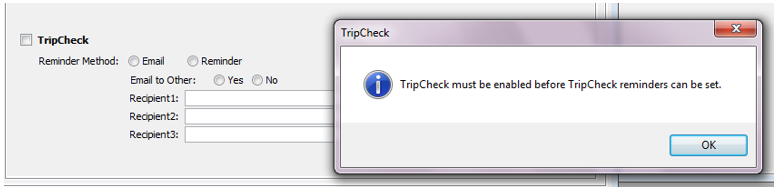
Branch Tab > Auto Reminders: Navigate to Branch > Setup > TripCheck to set the reminder method. Users should select the required reminder method.

Branch Tab > TripCheck: Log in as Supervisor and navigate to the branch tab - Branch > Setup Tab> TripCheck. From this screen standard reminders can be selected form the Travel and Payments & Documentation tabs.
Additional customised reminders can be added from this screen, see Trip Check within CCTE Accounts Management Guide.
TripCheck must be enabled prior to selecting the method of reminder. If this has not been done, on selection of the TripCheck option, the system notifies with a message: “TripCheck must be enabled for all selected branches before TripCheck reminders can be set”. TripCheck can be enabled without the reminders and can then be tracked via the TripCheck Report. Retrieval is a manual process.

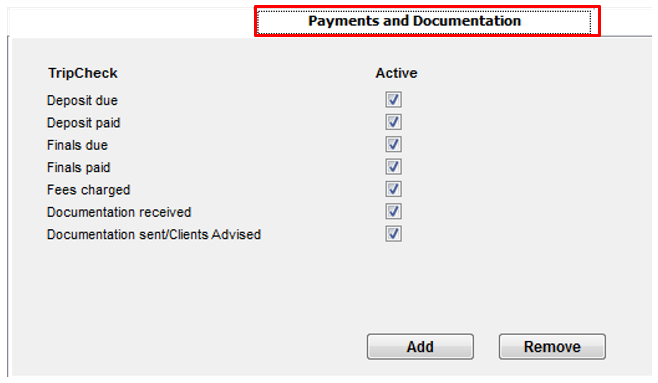
A reminder email or Reminder item will be generated when checks on the trip become due and have not been marked as complete on the Trip File. To keep the number of reminders manageable only one Reminder (email or Trip Reminder) will be generated for each Trip File. The dates for the reminders will be set by the consultant through the TripCheck function on the trip file.
Sample Email Reminder for ‘Out of Balance’ and ‘Travel Completed’ trips
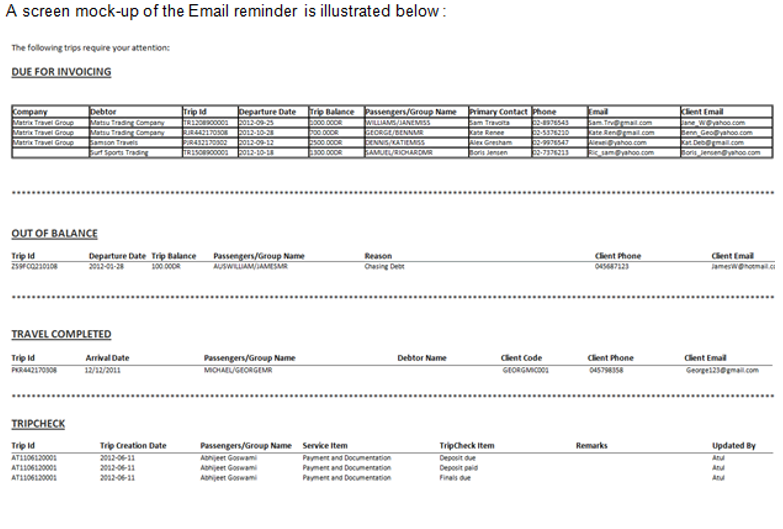
Based on the above settings a Consultant will either receive the reminder email or will be able to view the reminders within CCTE.
MYCCT > Action Items > Reminders folder
Sample of ‘Out of Balance’ Reminder display

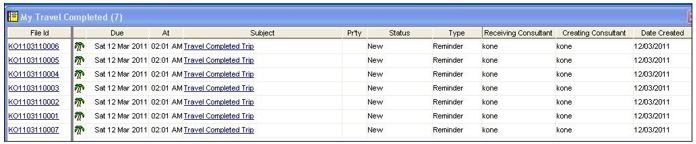
Sample of ‘Travel Completed’ Reminder display
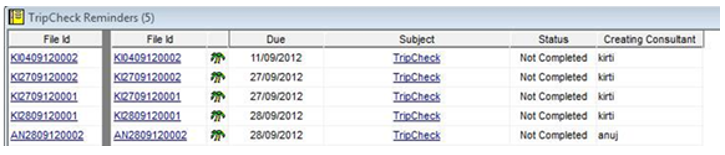
Sample of ‘Trip Check’ Reminder display
Trip > Actions Items tab - Sample of 'Out of Balance' Reminder - Action Item Tab
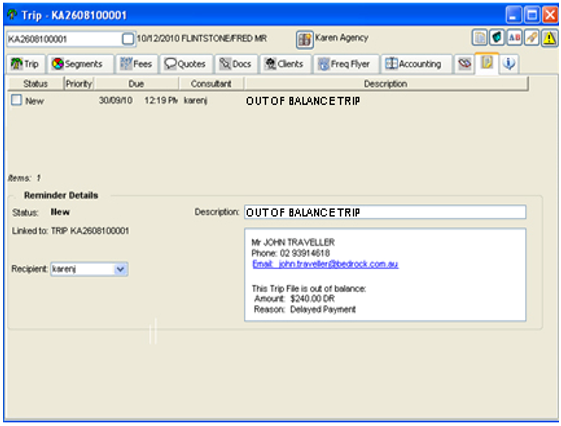
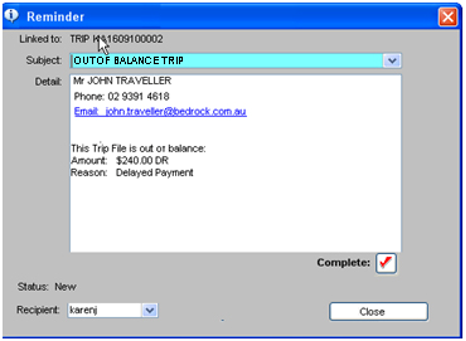
Sample of ‘Out of Balance’ Reminder - Action Item
Note:
- The Reminder will not have a priority field or an alarm date and time. There will be no visual or audible pop ups generated from Reminders.
- The Reminder will not be editable. The only actions available from the Reminder will be:
- Mark the reminder as complete.
- Select the hyperlinked email address from the Reminder.
- The Consultant can send an email from the hyperlinked email ID (if an email address has been found on the Trip File).
Points to consider:
- The ‘Out of Balance’ reminder occurrence will be based on the configurations set up by the Agency Supervisor:
- Either trip debit or both trip debit and trip credit
- Debit or Credit threshold amount
- Out of Balance reason
- Automated reminders will be generated daily to the Consultant based on configuration set up by the Agency Supervisor.
- Automated reminders will be system generated only. They cannot be manually generated by the Consultant.
- CCTE will use the existing Outstanding Balances Report (by user) to gather the relevant Trip data for generating automated reminder.
- For creating the ‘Travel Completed’ automated reminders: The Trip File –> Segment Tab will be checked for the Arrival Date of the last travel segment.
Travel Completed - CCTE will consider the “Notification” value set by the Agency Supervisor. This will determine the number of days after the Arrival Date (of the last segment) that the reminder is to be sent.
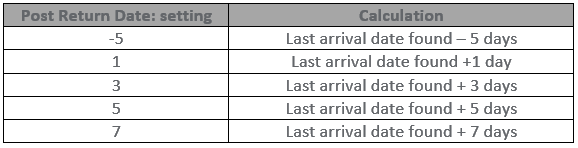
Example: If the Arrival Date of the last segment is 01 May, and the Notification is set for 5 days then the reminder will be generated on the 06 May.
The following Service Types will be excluded from the search for Travel Completed:
- Transaction Fee
- Merchant Fee
- Amendment Fee
- Service Fee
- Management Fee
- Cancellation Fee
- Insurance
- Miscellaneous
- Travellers Cheque
- Web
Client Reminders
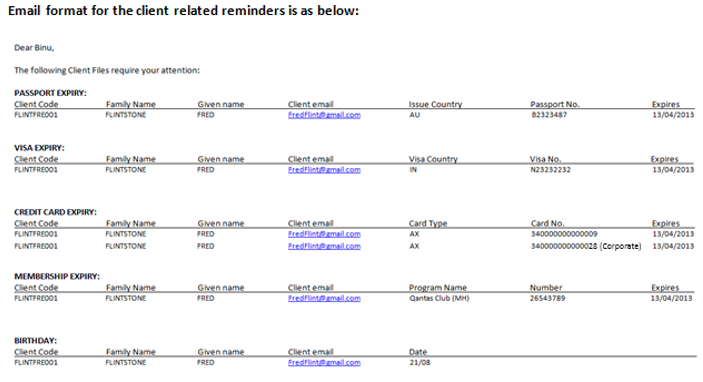
Client reminders/emails can be configured to send one client email reminder on a daily/weekly basis including all the individual reminders for each of the categories – expiry of passport, visa, credit card and membership as well as birthdays.
Monday is the day set aside for weekly reminders for the following week if weekly reminder option chosen as the frequency for client files reminders.
- By default, reminder categories (passport expiry, visa expiry, credit card expiry, membership expiry and birthdays) are un-selected
- The reminder frequency option for client files is set to weekly by default.
- The default option of Client Type combo in Client reminders is for all options to be selected.
Client email reminders will be generated once as per the configuration. There will not be multiple client email reminders against the same item.
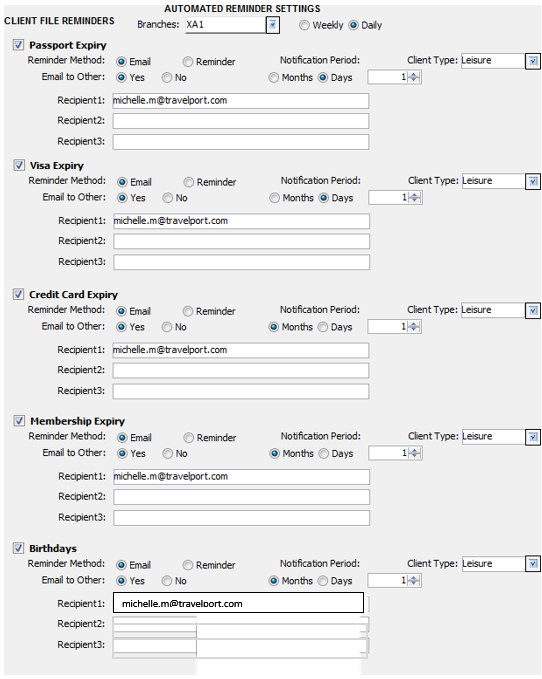
Client Reminders filter:
- Passport Expiry
- Visa Expiry
- Credit Card Expiry
- Membership Expiry
- Birthdays
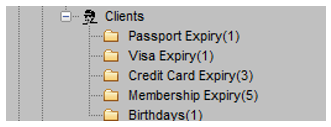
Example of Client related Email
Quote Payments
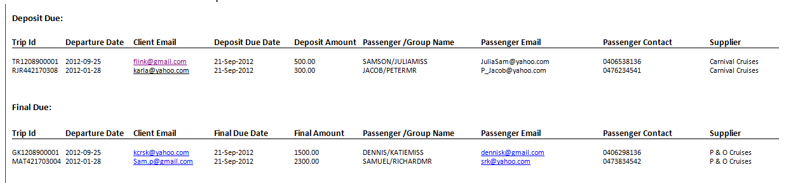
These reminders will be triggered by the deposit and final payment fields on the Quote screen and will allow users to monitor when payments are due from clients and to Suppliers.
Ability to set automated reminders to consultant for specific trip automated reminders including:
- Email and Trip Reminder for Deposit Due Date
- Email and Trip Reminder for Final Payment Due Date
- ‘Deposit Due Date not paid’ means there is no tick on the ‘Deposit Paid box’ in the quotes screen
- ‘Final Due Date not paid’ means there is no tick on the ‘Final Paid box.’ In the quotes screen
- The reminders will be generated for all active and chargeable quotes. It is therefore possible to have a trip with multiple reminders for the deposit and final payments associated with all the active and chargeable quotes.
The reminders generated automatically reflect on the trip workflow action items. The default setting of auto-reminders for Quote Payments will be that the Deposit and Final payment options will be deselected.
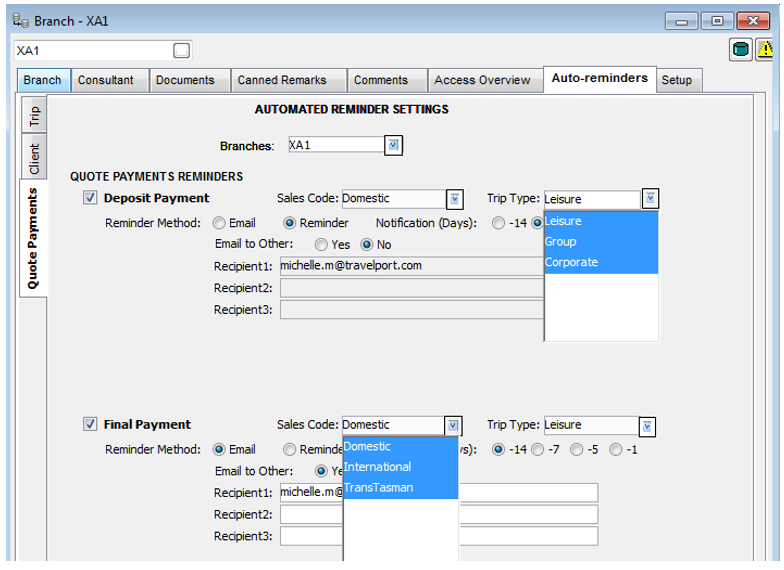
The CCTE supervisor has the ability to configure automated reminders to generate a daily Email or Reminder to up to 3 email addresses and the Consultants for Quote Deposit and Final Due Dates and amount.
- The number of days prior or post to the Quote Deposit Due Date not paid and Quote Final Due Date not paid reminder that the use wishes to be reminded for each automated reminder can be configured.
- Automated Reminder settings can be set for all Branches on the CCTE database or specified Branches, see CCTE Accounts Management Multi Branch Guide.
- Reminders can be based on Sales Code and TripType. These controls are multi-selectable.
- If the Sales code option is not selected, the system will prompt an error message: “Please select the Sales Code”.
- If the Trip Type option is not selected, the system will prompt an error message: “Please select the Trip Type”.
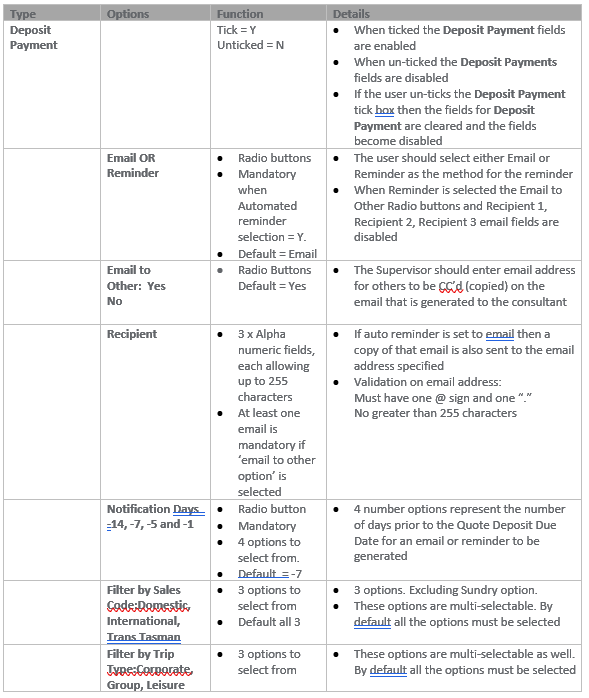
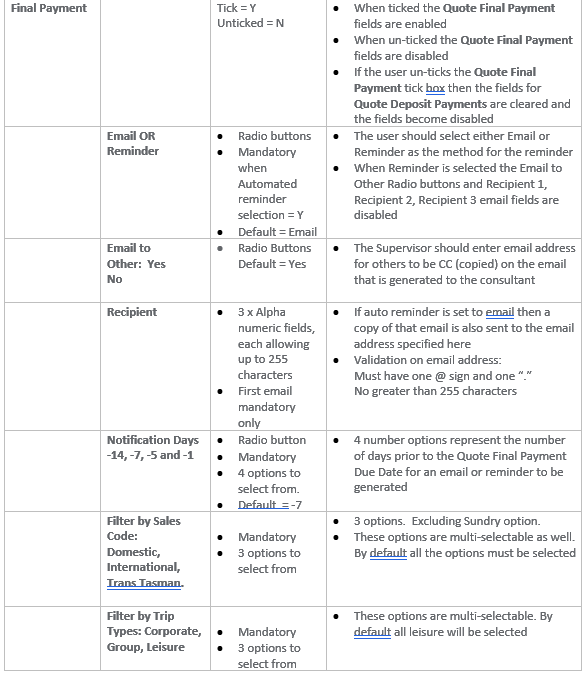
The email or Reminder will be generated daily for each consultant in accordance with the configurations set up by the Manager for the Agency.
The Reminders are placed in a set of folders under the Reminders subfolder within MyCCT/Action Items. The folders are Deposit Payment and Final Payment.
When the Consultant has selected a particular folder the view will show the Trip Files sorted by passenger name similar to “Travel completed” items.
The count for Deposit Payments and Final Payments are also included in the Everyone Overdue and Everyone Today folders.
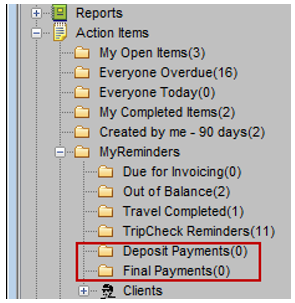
When the Reminder is complete it will be removed from the relevant folder, and no longer be included in the count for the individual folder or the Everyone Overdue and Everyone Today folder.
The completed reminder is then added to the My Completed Items folder.
Note:My Completed Items folder automatically purges after 90 days.