
The MyCCT Splash screen will be automatically displayed when CCTE is first opened and whenever you are not working in a file, report or list. The Splash screen is similar to an agency bulletin board. It can be used to broadcast messages to all consultants within the agency, providing important information or hyperlinks to Web sites or documents. The messages can be set up with time limits to ensure they are only displayed for set periods. Five message types are available to categorise the display.
These are:
- Alerts
- Announcements
- Information
- Links
- Specials
Skip To:
Redisplaying the Splash Screen
After a file list has been displayed or a file open in the Work area, the Splash screen might not always be immediately re-displayed. Click on the Splash icon in the MyCCT area on the left hand side of the screen to re-display Splash. (Not the Toolbar button - this opens the Splash input window).
Creating a Splash Screen Entry
- Click on the Splash Icon
 on the MyCCT toolbar, or select File, Splash from the menu bar to create a new Splash entry.
 - The Maintain Splash Entries window will be displayed showing all previous entries made (if any).
- Click on the Insert New button to begin a new entry, otherwise a previous entry will be overtyped.
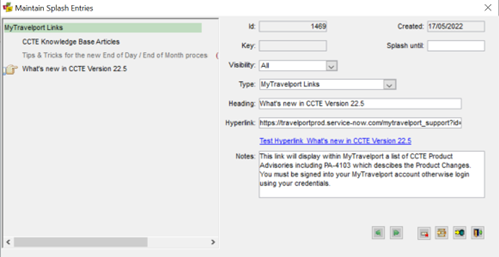
- Complete the following fields as required.
|
Field |
Description |
|
Splashed Until |
Enter the last date required for your message to be displayed on the Splash screen. After this date the entry will not be displayed in the Splash screen but will be stored as a history item on the left-hand side of the Maintain Splash Entries window. These stored entries can be deleted |
|
Visibility |
Select All to send a message to all users or choose to send a message to a particular consultant by selecting from the drop-down list |
|
Type |
Select the type of message to be created from the following categories: Alerts, Announcement, Information, Link, Specials |
|
Heading |
Enter the heading to be displayed when the Splash screen is accessed |
|
Hyperlink |
The entry may be hyperlinked to a web site or a document |
|
Test Hyperlink |
This button is used to test the hyperlink entered to ensure its validity - it only appears after both the hyperlink and a heading has been entered |
|
Notes |
A free text area which will appear on the Splash screen. This field is not mandatory. |
- Click on Save to database button
- Click on the Exit button, to save the entry to the database and close the Maintain Splash Entries window.
Action Buttons
The buttons at the bottom of the Maintain Splash Entries screen will assist with creating, changing and deleting entries.
|
Button |
Function |
 |
The Delete button will delete the message displayed on the right-hand side of this screen. |
 |
The Insert New button should be clicked to begin a new Splash entry. Any number of messages can be created at the same time. |
 |
The Save to database button saves your entry to the CCTE database and displays it on the left-hand side of this window and on the Splash screen, and keeps the Maintain Splash Entries window open. |
 |
The Exit this screen button saves your entry, displays it on the Splash screen, and closes the Maintain Splash Entries window. |
Changing a Splash Screen Entry
- Click on the Splash Icon on the MyCCT toolbar, or select File, Splash from the menu bar, to open the Maintain Splash Entries window.
- The message to be changed must be displayed in the right hand side of the Maintain Splash Entries window. Any messages can be moved from the left to the right-hand side of this window by clicking on the item in the list displayed on the left-hand side, or by clicking on the arrow buttons at the bottom of this screen.
- Once the message is on the right-hand side, retype or alter any fields required. Click the Save to Database, and then Exit button to commit the changes.
Deleting a Splash Screen Entry
Open the Maintain Splash Entry screen, and display the entry to be deleted on the right-hand side of the screen. Click the Delete button, and click Yes to the prompt to delete the entry.

Click the Save to Database, and then Exit button to commit the changes.