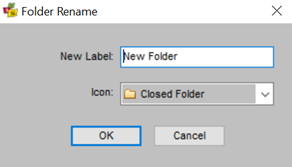
My Files is where Trip, Client, Creditor, and Debtor Files can be moved to Folders for easy reference. The Folders can only be viewed by the User who creates them.
To give a File to another consultant, place it in their Action Item folder.
Skip To:
Creating Folders
- Right click on the My Files icon in the MyCCT and select the New Folder option from the drop down list.
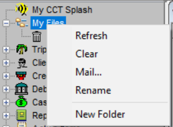
- After selecting New Folder, a Folder Rename dialogue box will be displayed
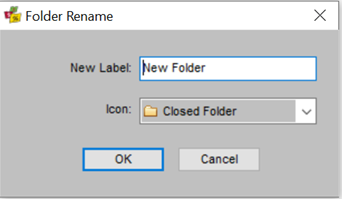
- New Label field – add the name of the Folder (e.g.) ‘HKG Groups’
- Icon field - from the dropdown on the right select the icon you wish to use
- Press OK
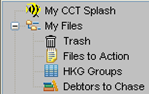
The new folder will then be displayed when the My Files area in My CCTE is opened, until it is deleted or changed.
Creating Sub Folders
- Right click on an existing Folder and select New Folder.
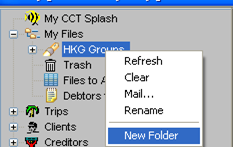
- Follow the same Steps as ‘Creating a Folder’
The new sub folder will then display associated to the main folder.
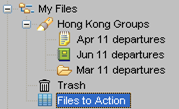
Moving Files into the My Files Folders
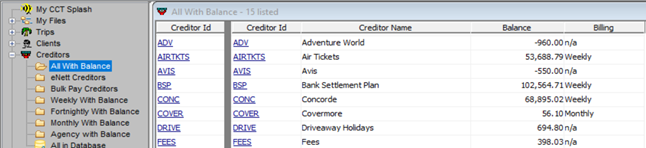
Files can be dragged and dropped into the My Files folder and sub-folders from any Search Result or Pre-stored Search Result under Trips, Clients, Creditors and Debtors in MyCCT.
- Create a search (e.g.) Trip Search or use a Pre-stored Search (e.g.) Debtors with Balances
- From the Search Result List left click on the File ID Code (e.g.) Trip Code (the icon for the file type will display)
- Use the mouse to drag the File to the destination Folder
- Release the left mouse button to drop the File into the Folder.

Saving a Displayed List
The results of a Search can be saved on a given date as a static record.
- Create a search (eg.) Trip / Client Search or use a Pre-stored Search (eg.) Creditors with Balances
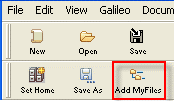
- Select the ‘Add MyFiles’ icon
- Select ‘Yes’ on the Create Folder screen
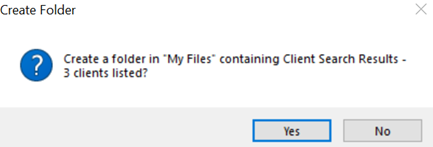
- The new folder can then be named/renamed and an icon attached as previously described