
The Trips section provides quick access to trip files using pre-set search folders or by entering your own search criteria.
Skip To:
Preset Search
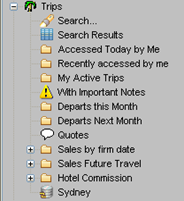
The MyCCT Trip section has many pre-determined search folders to retrieve files by commonly used groupings. The pre-set Trip searches:
Click the + icon next to Trips to display the following options:
|
Options |
Description |
|
Search |
Tailor the search by entering as many fields as required |
|
Search Results |
List of Trip files that match the above Search criteria |
|
Accessed Today by Me |
Trip files worked on Today by the current consultant |
|
Recently Accessed By Me |
Trip files recently worked on by current consultant |
|
My Active Trips |
Trip files that have the Status as ‘Active’ in the front Trip tab |
|
With Important Notes |
Trip files with Important Notes attached |
|
Departs this Month |
Lists all trip files with a departure date in the current month, from the Home and Access branches |
|
Departs Next Month |
Lists all trip files with a departure date in the next month, from the Home and Access branches |
|
Quotes |
Retrieves all files with Quote in the Status field. All Quick Trip files are automatically listed in this folder until their status is changed |
|
Sales by Firm Date |
Opening this folder will display a list of sub-folders allowing the user to view the sales for given periods, dating from today back to the previous four months |
|
Sales Future Travel |
Opening this folder will display a list of sub-folders allowing the user to view the sales for given periods, dating from today to one year into the future |
|
Hotel Commission |
Opening this folder will display a list of sub-folders based on the status of the tracked commission. This tool allows users to track commission when the client has paid the hotel directly |
|
Agency Name |
Displays an entire list of Trip flies in the Agency Branch. |
Click on the required folder to display a list of Trip files in the adjacent work area, then click on the Trip code hyperlink to open any file. Some folders have a sub-menu attached to further qualify the search and can be opened in the same manner.
Trip Search
The Departure dates default to a 9 month range (3 months prior and 6 months forward of today's date). This period can be adjusted by selecting Tools from Menu bar then Options (see Module 2: Consultant Options).
Action Buttons
The four Action buttons have the following functions:
New Search - Clears all fields in the mask to start a new search.
Search Now - Activates the search criteria entered
Back - Re-display any previous search entries
Forward - Once the Back button has been used, the Forward button will be displayed to enable movement in both directions
To use Search:
- Open by clicking on the Search folder in the MyCCT menu.

- A fill in mask will then open where you can complete as many fields as required to tailor your own search.
- Complete any fields in this mask and click on the Search Now button to display a list of files in the Work Area. The fields in this mask are taken from these fields on the Trip tab. The entries in this mask must match those on the Trip tab. (i.e. the Group Name field is a free text area; therefore the entry in the search screen can be any part of this entry).
Note: Agency field will be pre-populated with the user’s Home branch.
- If a Trip code is entered, CCTE automatically moves straight to that Trip file. The first few characters or the full code can be entered.
- Search can be made using CalypsoNet Booking Ref: field
- It is possible to search for Trips and Clients based on a BPAY CRN via MyCCT search screens.
If the BPAY CRN is incorrectly input into MyCCT searches, messgaes will appear asking you to either: ‘Please check the BPAY CRN and try again. The BPAY CRN should be alpha numeric and up to 20 characters in length’ or ‘No data matches the search criteria’
- To clear the fields and start a new search, click the Search Now button.
Agency
The dropdown will list the Branches the logged in User has access to. Selecting a Branch will search for Trips in that Branch only. This field will default to ALL and will search in ALL Branches the User has access to (if Multi Branch applies to your Agency).
Keyword
This is a free format field on the Main Trip Tab and can be searched on. The search can be on single or multiple words but will only search for exact matches (e.g.) Prize Winner.
Action Buttons
The four Action buttons have the following functions:
New Search - Clears all fields in the mask to start a new search.
Search Now - Activates the search criteria entered
Back - Re-display any previous search entries
Forward - Once the Back button has been used, the Forward button will be displayed to enable movement in both directions

Search Results
Once the Search has been conducted, a list of Trip files will be displayed in the Work Area. The results are also placed in the Search Results folder.
The Trip Search Results screen includes the following columns:
Agency - Branch the Trip is located in
F - Indicates the number of Flight Segments in the Trip
H - Indicated the number of Hotel Segments in the Trip
C - Indicates the number of Car Segments in the Trip
Oth - Indicates the number of Other Segments in the Trip
Keywords - Displays the Keyword text

Trip File Access
Open any Trip file by left-clicking on the Trip Code hyperlink.

The number of visible columns and rows is dependent on screen resolution of the computer monitor, however the list can be moved down and/or across using the Scroll Bars. The columns can be sorted by clicking the column header e.g. to sort the list by Departure Date, click the Departure Date heading. The first click sorts the list into ascending order, clicking the header again sorts the list into descending order.
Column headings may also be clicked on and dragged to another position within the Search screen.
Reordering of Trip Search Screen
A user is able to save the order of trip search result columns as per the user’s preference and retrieve the preferred order every time a new trip search is done. The user is notified that the Trip search Results layout can be saved on closing the screen.
- Click of the Trip Search screen to bring up the trip search results
- Re-arrange the columns as per the user‘s preference (illustrated below). This can be in any order through a drag and drop

- When the user closes the Trip Search window at the “x” and if the layout has been changed from the default layout, the system notifies a message with a “Yes/No” button “Do you wish to save the New Trip Layout?” Clicking on Yes should save the New Trip Search Layout
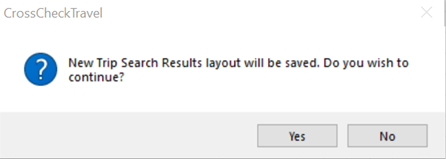
- Click on the File\Save menu or alternatively through CTRL+S key stroke, the system should prompt a message informing that “New Trip Search Results layout will be saved. Do you wish to continue?” with a Yes/No button
- The system should save the new order of trip search result columns for the logged in consultant.
Once a user saves the trip search result settings, the preferred settings are saved for the user for any subsequent trip searches until the user re-orders the trip result columns and saves the new setting for the user’s login.
Note: After the user has reordered and saved a trip search layout, any subsequent rearrangements would result in the restoration of the Trip Search columns back to the default order before any further rearrangements can be made.