
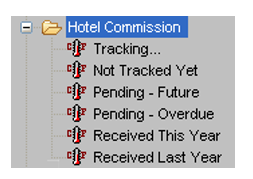
Click on the Hotel Commission folder to display a list of sub-folders. As you click on each sub-folder a description of the contents will be displayed in the pop-up dialogue box and in the Message bar, and a list of relevant files displayed in the Work Area.
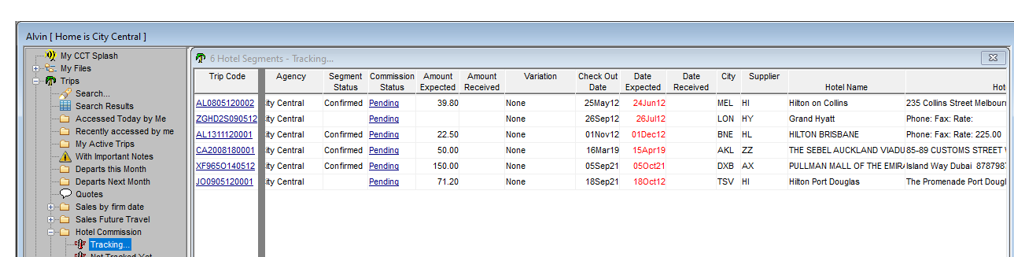
Each retrieved list will have scroll indicators along the bottom, displaying all fields including check in and out dates, hotel location and contacts.
Skip To:
Received This Year and Received Last Year
Commission Status
As you open each folder you will see a variety of commission status entries.
|
Status |
Description |
|
Pending |
This file has been tracked and is awaiting the commission payment |
|
Create |
A Hotel segment has been created in this file but has not been tracked for commission to be sent to this agency |
|
Received |
This file was tracked and the commission has been received |
|
Write Off |
This file was tracked, but the commission not sent, so the user has altered the status from Pending to Write Off |
Tracking
Click on the Tracking folder to display a list of all Accommodation Segments with a Check Out Date in the last month, as well as files with overdue commission.
Not Tracked Yet
Clicking on the Not Tracked Yet filter will produce a list of files with the check out date six months prior, that have not been flagged to track the commission.
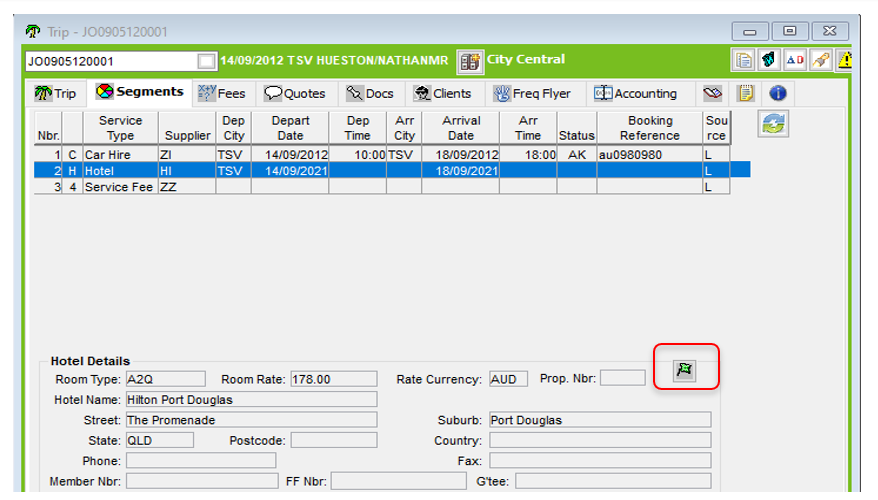
To Track the commission, access the Segment Commission Tracking screen by clicking on the Create hyperlink, or access the whole trip file by clicking on the Trip Code. Open the segment tab and click on the green flag attached to the hotel segment to change this file to a pending status.
- The Pending Future folder lists files with a Pending status and the accommodation date in the future.
- The Pending Overdue folder lists files with a Pending and with a past accommodation date.
Sending a Reminder
To send a Hotel Commission Reminder, first display the Hotel Commission Tracking window. You can access the Hotel Commission Tracking window from two different locations. Firstly, when flagging the hotel segment for commission tracking.
Secondly, by reviewing one of the Pending Hotel Commission reports (either Pending – Future or Pending – Overdue) and clicking on the Pending hyperlink to open the Hotel Commission Tracking screen.
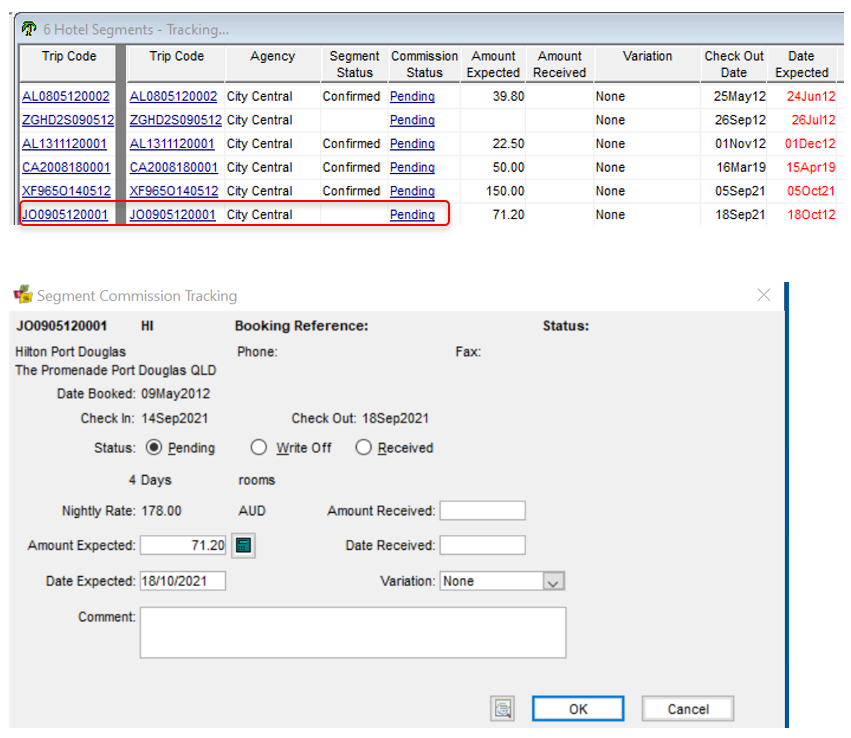
Then click the Printer icon.
The Hotel Commission Reminder will be displayed.
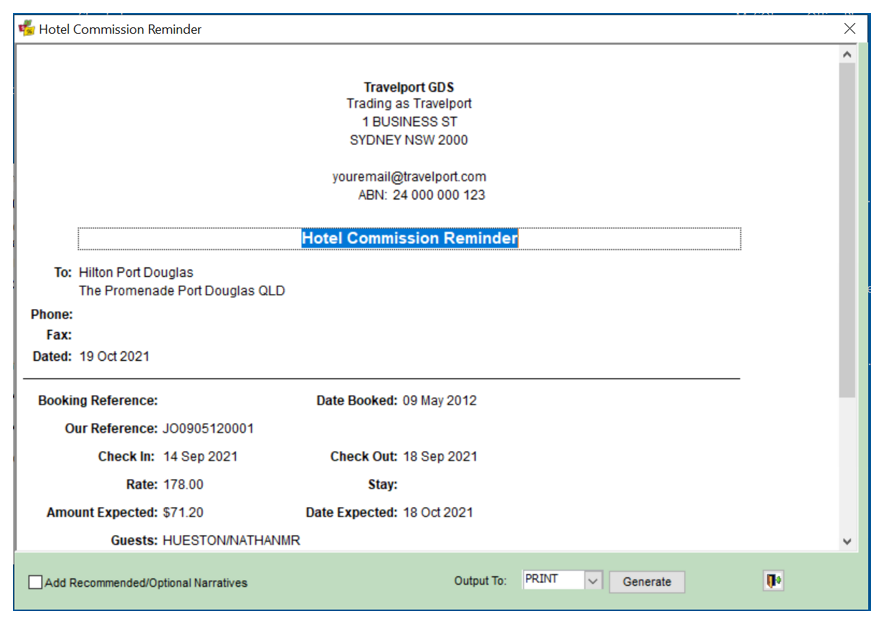
By default, Hotel Commission tracking is set to seven 7 days after hotel stay ends. This default can be amended by the Supervisor. Please see CCTE Finance User Guide, for further information.
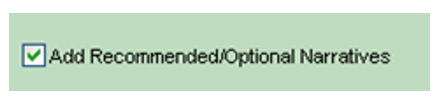
If you wish, you can add pre-set narratives by ticking the Add Recommended/Optional Narratives box on the bottom left.
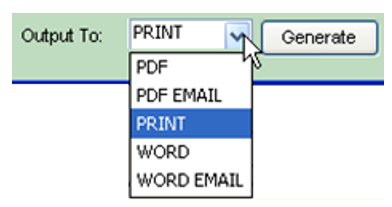
Once you are ready to send the reminder, select the relevant output type from the Output To drop down, and click Generate.
For further information on the use of Narratives, please see Module 9: Narratives.
If not successful in obtaining your expected commission, select the Write Off radio button in the SegmentCommission Tracking window.
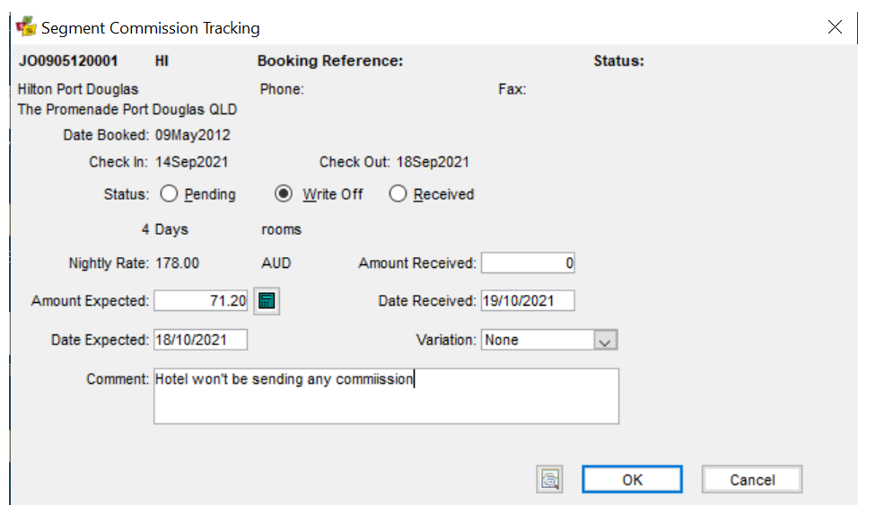
The file will no longer be retrieved with the Pending Overdue after the status has been changed to Write Off.
Received This Year and Received Last Year
These folders display the received amount along with a reason for any Variation from the expected amount, if one was entered when receipted.
