
Trash Folder
When you clear or delete a Folder the contents of that folder is moved to the Trash folder.
Right click on the Trash folder and select Clear to remove the contents.

Deleting Files in the MyFiles area does not delete the file from the CrossCheck Travel Enterprise database.
Mail Function
Choosing the Mail function for a folder will display a list showing the name and addresses for each file within that folder.
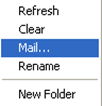
Trip files
Details are taken from the entries on the Trip tab. If a Given and Preferred Name have both been entered on the Trip tab, the Preferred Name will be transposed into this screen. The address list defaults to the Home address for the Trip file. If a home address has not been entered this file will not be displayed in the Direct Mail window.
Client files
The Mailing address is transposed into the Direct Mail window not the Home address. If Mailing, Invoice and Business addresses have all been recorded on the Client file, only the Mailing address will be transposed. If a Mailing address has not been entered and both an Invoice and Business addresses have been recorded, then both of these addresses will appear in the Direct Mail window and the user will need to remove one.
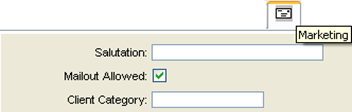
For a Client to be included in the Direct Mail window the “Mailout Allowed” box must be ticked under the Marketing tab in the Client file.
Removing
Any file can be removed from this list by clicking on the Remove button. Details can be amended in this window but they will not be saved back to the file.
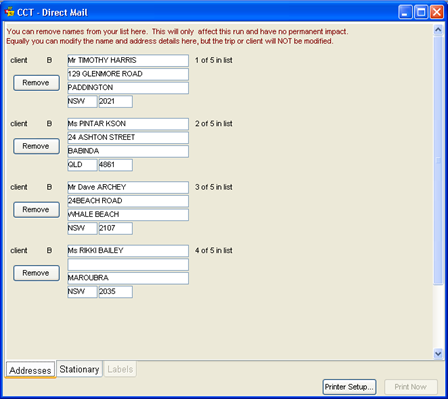
Click on the Stationary tab and select your requirements from the drop down scroll. After the Stationary settings have been selected the Label tab will become available, displaying the label format.
Click on the Print Setup button to choose to direct your list to a printer or photocopier, and click on the Print Now button if required.