
Skip To:
Void Tickets
Exchange Tickets
-
To create any type of ticket exchange
-
Even Exchange Tickets
-
Additional Collection
-
Exchange with Refund to Passenger
Void Tickets
All Void Tickets need to be recorded in CCTE so that accurate Sales Returns and BSP reports can be generated. If a ticket is damaged without any previous record being created, simply enter as a Void (VDT) ticket type. If the ticket has already been recorded against a Trip file, it must be reversed prior to completing the Void (VDT) Ticket Type.
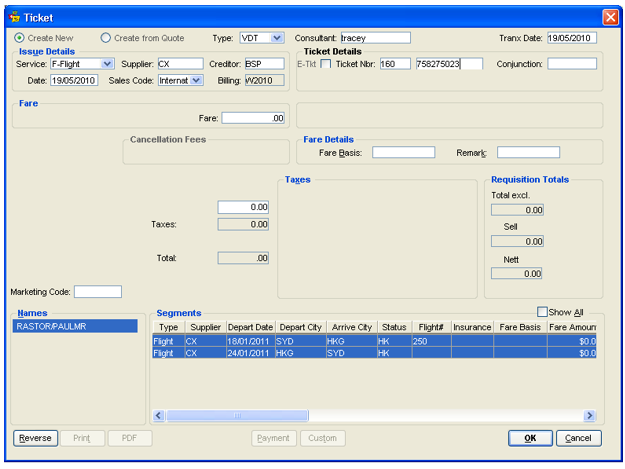
To create a VDT transaction
- Open a Ticket Requisition (Ctrl+N) and select VDT from the Type field.
- Select Create New.
- Enter the relevant issue details and the void ticket number in the Ticket Nbr field.
- Complete the mandatory fields (marked in blue), select a Passenger and Segment and click OK to save the transaction.
Exchange Tickets
There are three methods for the creation of an Exchange Ticket Requisition:
- Even Exchanges
- Additional Collection
- Refund to Passenger
CCTE enables you to produce two types of Ticket Exchanges:
- TEX – Ticket in Exchange
- TXC – Ticket in Exchange CCCF
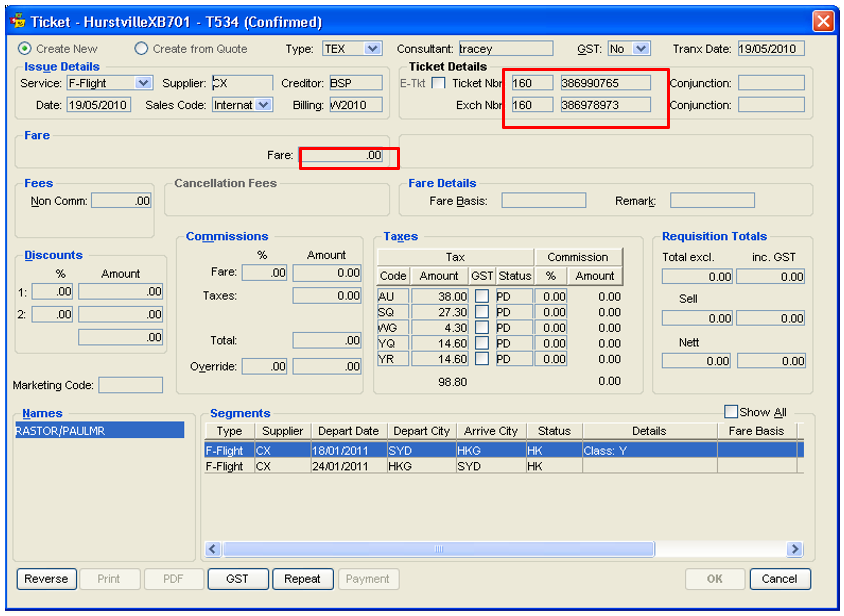
To create any type of ticket exchange
- Open a Ticket Requisition (Ctrl+N) and select TEX or TXC in the Type field
- Select from Create New or Create from Quote
- Select Yes, No or Comm from the GST field, depending on the requirements
- Under the Ticket Details area, enter the new ticket number in the Ticket Nbr field
- The old ticket number should be entered into the Exch Nbr field
Even Exchange Tickets
For Even Exchange tickets: Same process applies to both TEX and TXC ticket types.
- Leave Fare, CCCF Amount and Commission as zero
- Add PD (using capital letters) for paid next to any Taxes amounts paid on the original ticket
- Highlight the names and segments applicable to the ticket and click OK to save
Additional Collection
For Additional Collection exchanges: Same process applies to both TEX and TXC ticket types
- Work out the difference between the original base fare and new fare. This additional collection is entered in the Fare field
- When the additional collection is being paid to the carrier using a credit card, enter the amount into the CCCF field (including the additional collection value plus any new taxes)
- If the additional collection is solely due to taxes, enter these details in the Taxes field
- All taxes paid on the original ticket must be entered in the Taxes area and shown as paid using the status code of PD (using capital letters). Enter any additional taxes to be collected for the new ticket. Ensure these new taxes have no Status code
- Complete all other fields as required, including Commissions and select the Name and Segments
- Click OK to save the transaction
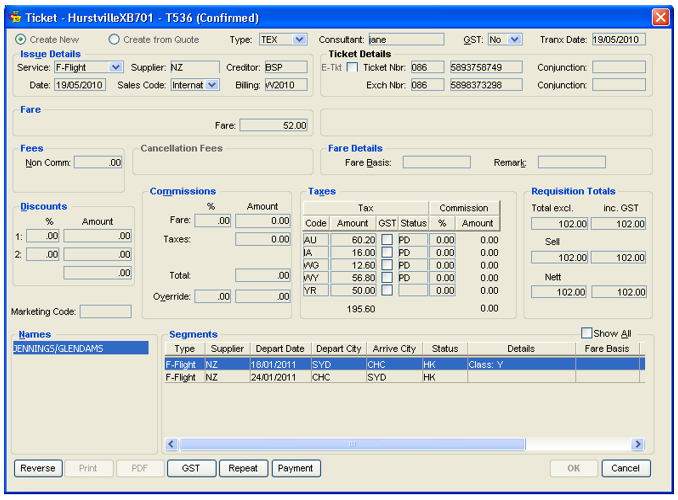
Note: When downloading a booking file from Travelport+ with an additional collection, the unconfirmed ticket window displays the additional collection amount. Any pre-paid taxes do not download and need to be entered manually. Please always confirm your agreement with these figures, and update manually if need be prior to confirming ticket.
Exchange with Refund to Passenger
Ticket Exchanges resulting in a refund to the passenger require the necessary BSP documents to be raised:
- A new ticket at the new fare level showing NIL collection
- An MPD for the refund amount due to the passenger, also with a NIL collection
This typically occurs when a ticket is issued in exchange at a lower fare level than the original ticket. To record these transactions in CCTE, four steps need to be completed.
- Complete a TEX type ticket requisition for NIL value for the new Ticket Number (same as for an even exchange screen)
- Complete another TEX type ticket requisition for NIL value, entering the MPD number in the TKT Number The physical MPD is for the refund value which is then processed and refunded to the client
- Complete a RFT type ticket requisition for the MPD with the amount to be refunded to the passenger
- The refund is credited to the Trip file and can be refunded to the passenger
After the three ticket screens have been completed, the trip accounting tab shows a credit balance, which is the refund due to the client.