
Skip To:
Invoices
Invoices from Ticket / Cheque Requisitions
Unallocation
Invoices from Quotes
Reversing Invoices
Invoices
Invoices are raised against a Trip file for corporate clients linked to Debtor files.
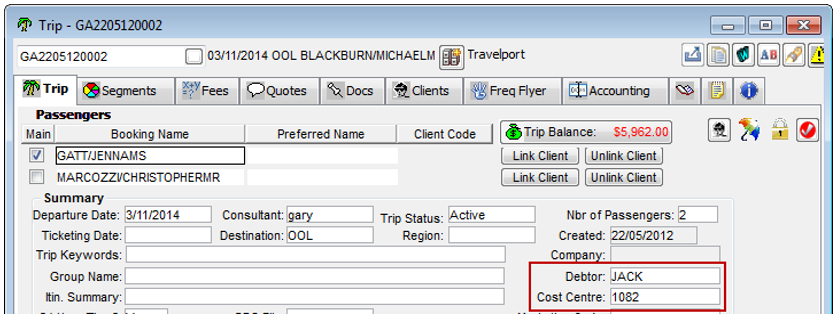
A Trip file can only be linked to one Debtor file at a time. For information on linking Trip files to Debtors or unlocking the Trip Debtor to change the Trip Debtor, see Debtor Linkage and Unlock Trip Debtor in Module 5: Trip File.
The invoice is sent to the Debtor for payment. Invoices are raised from:
- Ticket or Cheque Requisitions, see "Ticket and Cheque Requisitions" in Module 6: Trip Accounting Part 1
- Quotes, see "Working with Quotes" in Module 5: Trip File
Before raising an invoice, ensure one of the above is present on the Accounting tab or Quote tab of the Trip file.
Note: Where a Debtor document is generated from a trip file e.g. an invoice where the Client / Debtor association exists the document will be generated with the relevant Debtor CRN.
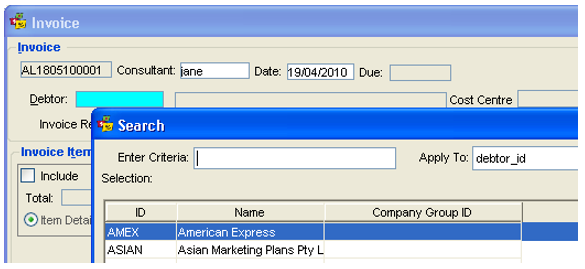
American Express and Diners are available to all branches.
Leisure workflow default settings on the Accounting Invoices and Debtor Statements will be driven by the document output configuration set on the leisure debtor profile.
Note: The default value of the DOCUMENT OUTPUT for a new debtor in a variable workflow will be as per the leisure settings. List items in the DOCUMENT OUTPUT TO field as per the debtor type.
See Module 6: Generation of Documents.
Invoices from Ticket / Cheque Requisitions
- Open the relevant Trip file and select the Accounting tab.
- Click New or press Ctrl+N.
- In the New Trip Account Transaction window, select Invoice from the drop-down selection.

- Click OK to open an input screen.
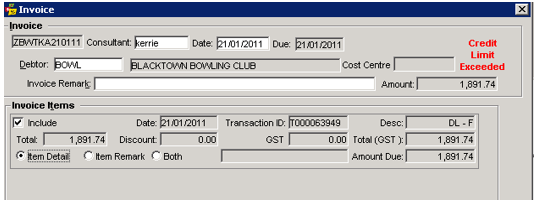
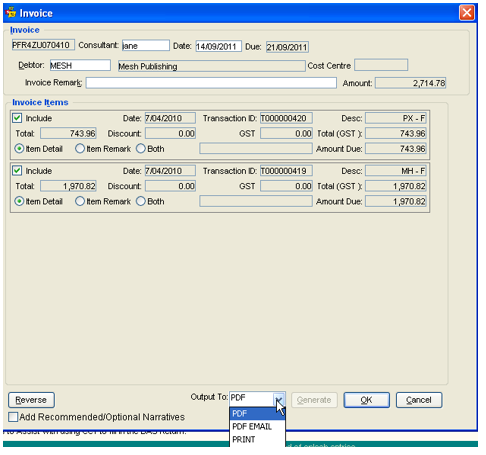
The Invoice screen will open showing:
- A system generated Invoice number.
- Consultant and Date fields populated by the system.
- The Due date calculated from the due date entered in the Debtor file.
- The Debtor code and name carried across from the debtor, client, and trip file links. If there is no code, select it manually by double clicking in this field and selecting from the list of Debtors displayed.
- Invoice Remarks will print on the Invoice. This is a free text area.
- The Amount field will be system generated and depends on which items are selected for inclusion below.
- The Invoice Items area, lists the Ticket and Cheque Requisitions in this Trip file.
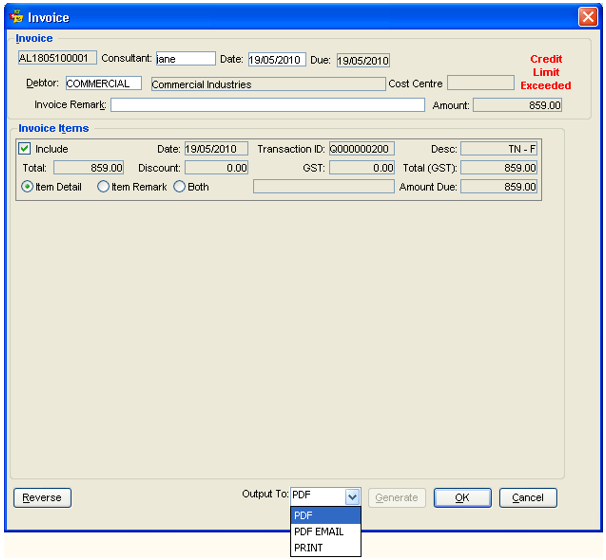
Tick the Include box on the requisitions to be included on this invoice. Select your inclusions:
- Item Detail
- Details are taken from the segment entries
- Item Remarks
- After selecting this radio button, a Remarks field becomes available
- Both - Both of the above

When a Ticket Requisition is downloaded from Host, the ticket screen shows Linear Fare Remarks downloaded to the Remarks Field.
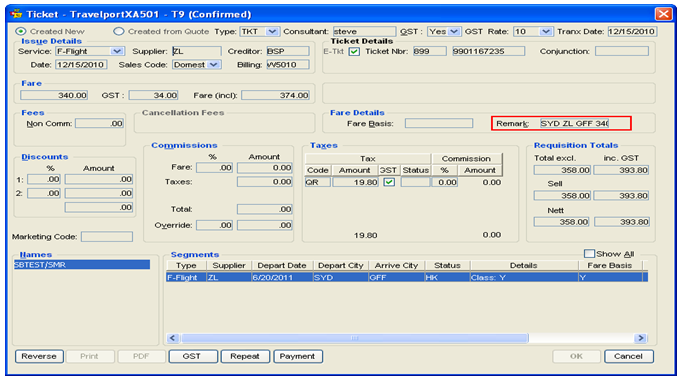
When the Include->Both radio button is selected on the Tax Invoice screen when generating a Tax Invoice, the:
- Remark field is editable for free format text
- Free format remarks populate on documentation
- Item remarks from the segment populate on documentation
- Remarks Field data from the Ticket Requisition screen is not to populate on documentation
FOP detail can be completed, if required. Invoice can be PDF, PDF Email or Print - Click Generate once all selections are made.
Invoice Production – FOP (Form of Payment) Screen
When switched on from Branch, a screen will appear when creating an Invoice. If this feature has not been activated, the user will not see the following screens.
The screen is called “Invoice Details” and requires the user to add information regarding the Invoice Payment Method.
Completion of the details on this screen is not currently reported anywhere in CCTE. If you do not wish to complete the details, you may click the Cancel button at the bottom of this screen. The invoice will post as normal.
Note: Invoice FOP screens will only show if the Invoice Detail setting has been enabled at branch level by the agency supervisor. This functionality is available in all workflows, but by default is turned off for variable and leisure workflows. The Invoice Detail functionality captures the FOP details on debtor invoices and receipts for Debtor reporting purposes. For further information, see CCTE Finance User Guide.
If you wish to fill in the values on this screen, the fields can be populated as follows:
Invoice Description: A description of the Invoice
If you do not wish to complete the details, you may click the Cancel button at the bottom of this screen. The invoice will post as normal.
Credit Card Payment: Populated if the Invoice is to be paid by Credit Card and your Agency is the Merchant. The ‘Select a Card’ area above the payment area can be selected if there is a card on file. You may need to type ‘0.00’ into the Amount on Account field in order to populate the amount (if required).
Note: Once you post the invoice you will still need to manually add a Receipt to the Debtor file at this time.
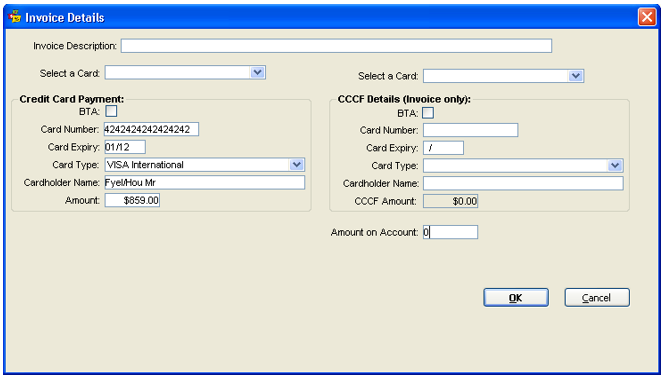
Invoicing using CCF ticket type FOP example –If this type of FOP is used a Receipt is automatically created and allocated against the Invoice – see CCTE Finance User Guide.
CCCF Details (Invoice Only): Populated if the Invoice has been paid by Credit Card and the Supplier is the Merchant. The ‘Select a Card’ area above the payment area can be selected if there is a card on file. The CCCF Amount will automatically be populated by the value of the CCCF field on the Ticket/Cheque Requisition. The actual value posted onto the Trip file/Debtor will be nil (for the value of the CCCF Amount field).
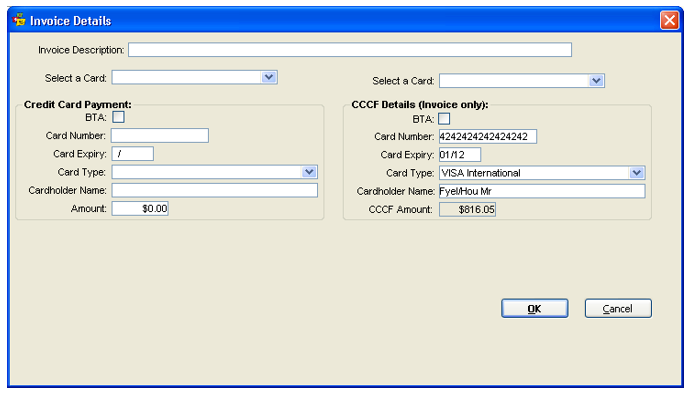
Invoicing using TKT ticket type however Amount is On Account rather than paying by Credit Card FOP example – In this example, a Receipt would need to be created in the Debtor and allocated against the Invoice when the Debtor paid the monies.
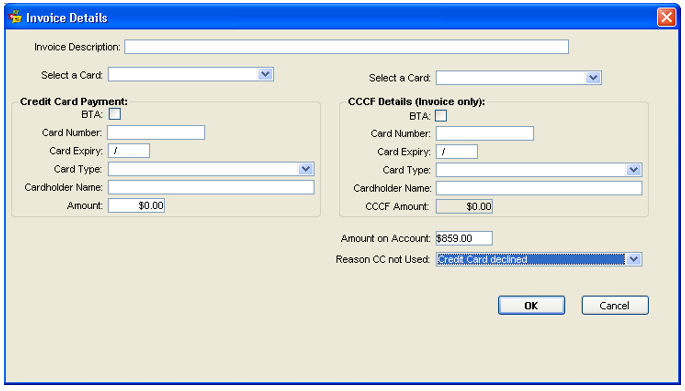
Amount On Account: Populated by Default if the Invoice is Payable (ie. non CCCF) by the Debtor. Reasons must be set up in Tools/Tables/Codes/Amount on Account Reason.
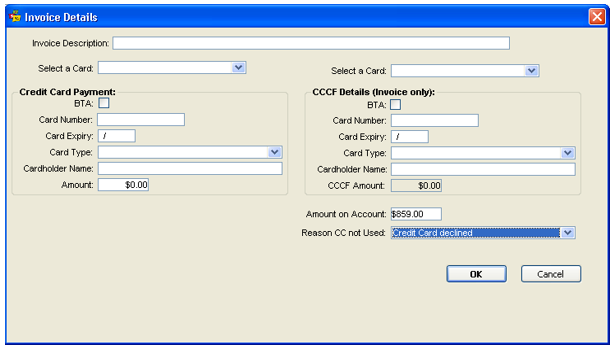
On Invoice Details, Trip Receipt, Trip Refund and Trip Refund to Passenger screens the credit card number can be entered manually and it will automatically be masked.
On an Invoice from a downloaded PNR, the Credit Card Number cannot be manually updated and the number will be masked.
When selecting a card from a Dropdown, the credit card number will display as masked and cannot be updated.

FOP screen can be reviewed at any time from the Invoice.
If you do not wish to complete FOP screen you may cancel and Invoice will still be produced but without history of FOP.
Invoiced can be created as PDF, and emailed to Debtors as and when required.
PDF is saved in C:\ProgramFiles\CCTE\Documents\Accounting Documents – a shortcut to this location may be created on your Desktop.
FOP button can be reviewed to see how the Debtor has paid, or is going to pay for an Invoice by double clicking on this button and the FOP screen will appear.
Reprinting Invoices
There are a couple of options available:
- Print to PDF and then pick up the PDF copy from the PDF folder as an attachment
- Create the invoice and say NO to print. Re-open the invoice and then select PDF Invoice. The Invoice will show as the original copy and can be emailed. (Best option)
- PDF Email direct to Debtor
Accounting Tab
The Accounting tab shows the new transaction with details displayed in the reference field. Within a Trip accounting tab, any ticket or cheque requisitions that have been invoiced are shown with a Y in the Inv column (also displayable under the Debtor Accounting tab).
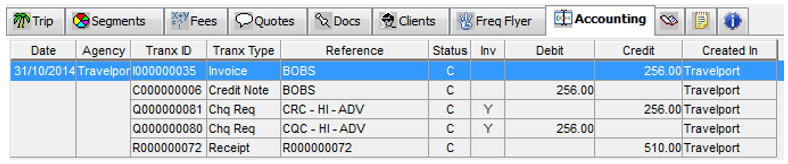
Once an Invoice has had a Receipt allocated against it, it will appear with a $ sign to show it has been allocated against. If an Invoice is showing a C status it remains to be Receipted and Allocated against
– see CCTE Finance User Guide.

Unallocation
See CCTE Security Guide and Debtor Unallocation in CCTE Finance User Guide.
Invoices from Quotes
Creating invoices from quotes allows an invoice to be produced using Cost to Client details stored on the Quotes tab of the Trip file. This option allows an invoice to be raised prior to the completion of a Ticket or Cheque Requisition or where the debtor is not being invoiced for the full value of the ticket or cheque requisition (i.e. partial payment has already been received on the trip file from the client).
- Open the Trip file, select the Accounting tab and click New (or Ctrl+N) to display the New Trip Accounting Transaction.
- Select Invoice Quote.
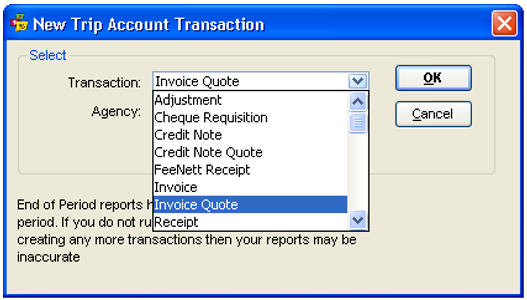
- Click on OK to open an input screen.
- As with other invoice types, the Invoice Quote details are provided with a system generated invoice number, date of invoice, due date and debtor details. The Amount field is system generated as a total of all items selected from the Invoice Quote Items ticked for inclusion.
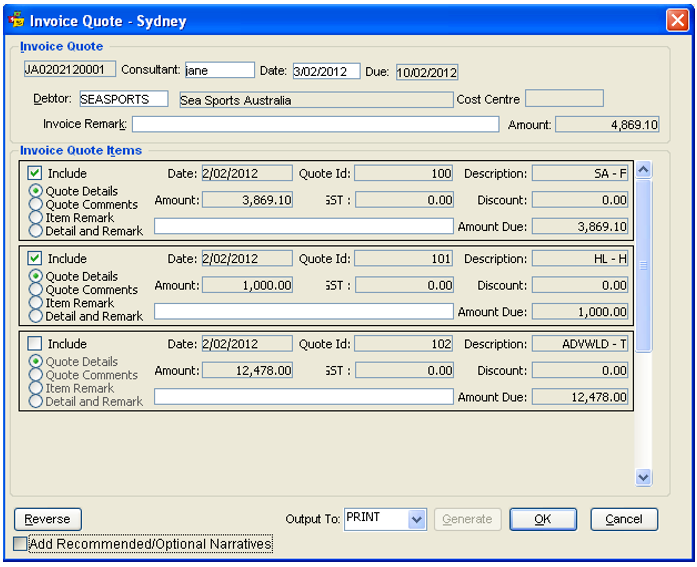
- Use the mouse to tick the Include check box for all items to be invoiced and select an appropriate radio button for details to be included on the invoice.
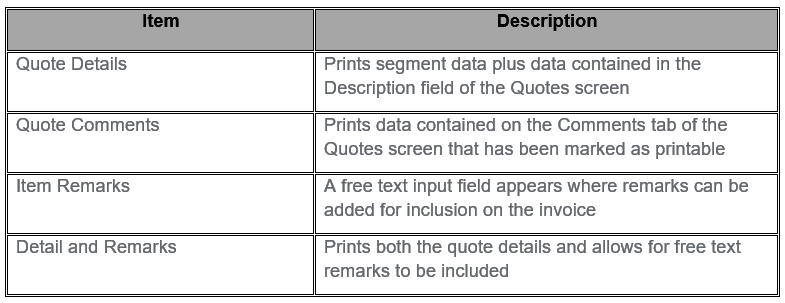
- Once all selections have been made, click OK to save the invoice quote in CCTE, and either print or save (if printing is set as output to Word or PDF) a copy of the invoice. This item will be displayed in the Account summary screen in the same way as a normal invoice.
Reversing Invoices
Please Note: If using PRISM Reporting, Invoices should not be reversed – see PRISM Reporting Guide, Answer 41709 in Ask Travelport. Invoices can be reversed only when they have a C (for confirmed) in the status column.
To reverse an invoice
- Double click the invoice from the Accounting tab of the trip file to redisplay the invoice.
- Click the Reverse button from the bottom of the window.
- When a confirmation prompt appears, click Yes to proceed with the reversal.
- Click Yes again if printing of the reversal is required.
- This process results in a Credit Note being raised against the debtor.
Note: All reversed invoices print on Debtor statements.
