
There are several refund types that can be processed in CCTE.
Ticket Refunds – standard ticket or Net remit ticket
Non Air Credit Card refunds – trip refund and non-air refund
Skip to:
The methods used to generate the refunds include Ticket and Cheque requisitions and specialised Creditor and Passenger refund screens.
Ticket Refunds
The type of Ticket refund used is governed by the original requisition type raised.
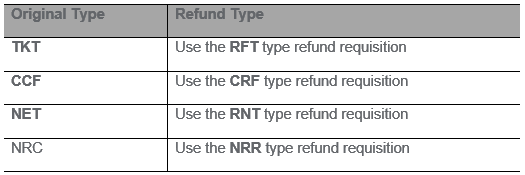
Special care must be taken to ensure the correct type of Ticket Requisition Type code is used for the circumstances surrounding the refund.
Refunding a Standard Ticket
Take the following steps:
- If a ticket window exists, repeat the existing (paid) transaction and change the Type field to RFT. Alternatively, open a Ticket Requisition and select RFT in the Type field.
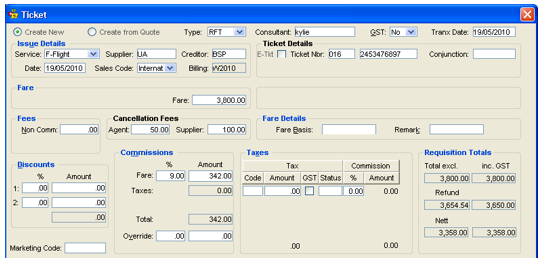
- Select Create New or Create from Quote.
- Choose the correct GST setting and complete the Issue Details. The Date should reflect the Date of ticket issue (defaults to today).
- Enter the Ticket Nbr in the Ticket Details section.
- The Fare should reflect the refund fare (inclusive of GST) excluding any non-commissionable fees and taxes.
- Enter any non-commissionable Fees applied to the original ticket to be refunded.
- Cancellation fees imposed by the Agent or Supplier must be entered as dollar amounts in the Cancellation Fees section.
- Enter the Commission and Discount fields matching the original ticket.
- Add any Taxes amounts already paid that are to be refunded (including GST if applicable).
- Select a Passenger name and the appropriate Segments and click OK to save the transaction.
This process credits the refund amount back to the Trip file.
To refund the Passenger, see "Refund to Passenger" in Module 8: Trip Accounting Part 2.
For a debtor account, a Credit Note should be raised. See "Proforma Invoice/Credit Note" in Module 6: Trip Accounting Part 1.
Refunding a Net Remit Ticket
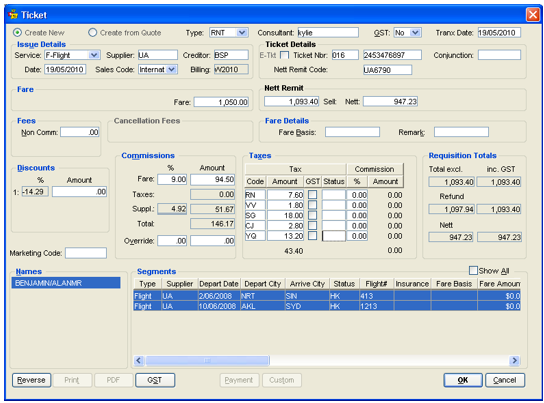
Completing a Refund of a Net Remit ticket (type RNT) is similar to a standard ticket with the following exceptions:
- RNT must be selected from the Type drop-down options.
- The Net Remit Code must be entered in the Ticket Details section.
- The refund amount, including taxes, must be entered into the Net Remit section in the Sell field.
- The Net refund including taxes must be entered into the Net Remit section in the Net field.
- There are no Cancellation Fee fields available on RNT type ticket requisitions.
Refunding a CCF Ticket
When refunding a ticket which was originally issued against a CCF, it will be necessary to complete a Credit Card Refund Notice and forward all documents directly to the carrier. The carrier then processes the refund and forwards an ADM back to the agency to reclaim the commission.
It is important to note that although an ADM is received, it must be entered in CCTE using the CRF ticket requisition type and not the ADM type, to ensure the office sales figures can be adjusted to reverse the sale value of the ticket.
- Open a Ticket Requisition and select CRF in the Type field.
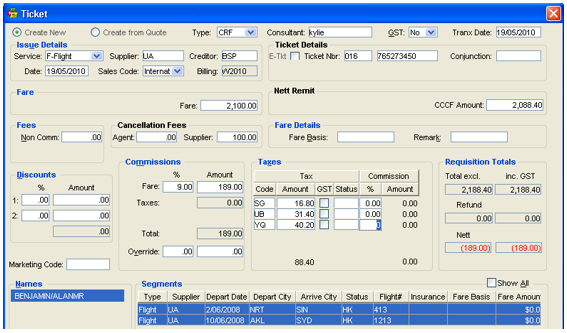
- Select either Create New or Create from Quote.
- Select the correct GST option and complete the Issue Details.
- Enter the Ticket Nbr in the Ticket Details area.
- Enter the applicable refund fare, excluding any non-commissionable fees and taxes in the Fare field.
- Enter the total amount to be refunded to the passenger’s Credit Card in the CCCF Amount field.
- Enter any Fees in dollar amounts. The agent cancellation fee will appear as a debit on the Trip file.
- Complete all other fields, select the passenger Names and Segments and click OK.
Trip Refund CCCF
A Trip Refund CCCF is similar to a receipt CCCF in that it is for customers’ records only. The entry has no impact on the file balance but it does appear on the Statement of Account. A Trip Refund CCCF is used to document the transfer from the Creditor back to the Client’s Credit Card, without any money exchanging hands through the agency.
The Refund CCCF CANNOT be reversed or deleted.
- Create a new Refund CCCF by opening the appropriate Trip file, selecting the Accounting tab and clicking New button on the toolbar (or press Ctrl+N).
- Select Refund CCCF from the New Trip Account Transaction window.
- Click on OK to open an input screen.
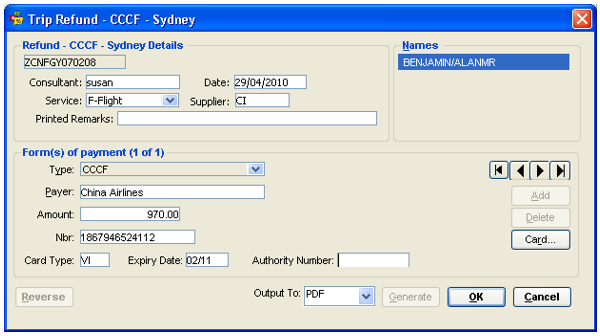
- Enter the appropriate Service type and Supplier code.
- Enter Printed Remarks in a free text format.
- The Form(s) of payment defaults to CCCF and is unable to be adjusted.
- Enter the Payer name and Amount of refund.
- Fill in the passenger’s credit card details and click OK.
Non Air Credit Card Refunds
A cheque requisition type RCC must be completed when a Credit Card Charge Form has been used to pay a creditor and the arrangements have been cancelled. It is used to refund QCC & CQC type Cheque Requisitions. This process results in a reclaim of commission by the creditor.
To process a Non Air Credit Card refund
- Open a new Cheque Requisition from the Accounting tab in the Trip file (Ctrl+N).
- Select Create New or Create from Quote.
- Select RCC in the Type field.
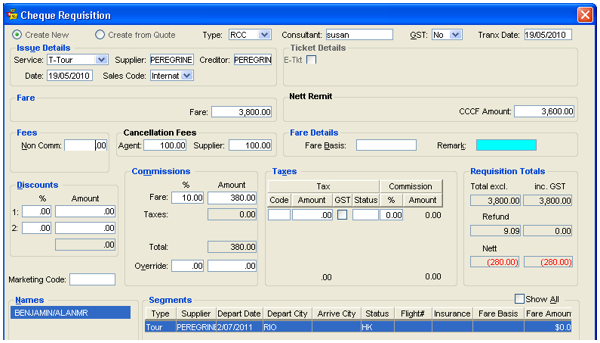
- Select the correct GST option and complete the Issue Details.
- Enter the gross amount originally paid into the Fare field.
- Enter the amount to be refunded to the passenger’s Credit Card in the CCCF Amount field.
- Enter any non-commissionable Fees that were applied to the original cheque requisition and are now being refunded.
- Enter any Agency or Supplier Cancellation Fees as dollar amounts.
- Complete all other fields as required.
- Highlight the name of the passenger and the applicable segments and click OK.
Refunds from Creditor
The Refund from Creditor screen is used to record refund payments from a Creditor and can include service fees. A Creditor Refund screen should be completed whenever payments are received from a Creditor, regardless of the method of payment. The refund from Creditor is a receipt.
Note: This type of transaction is usually used for cheque requisitions where money has been received by an agency. Ticket requisitions all have opposite transactions for refund, eg. TKT/RFT - CCF/CRF, NET/RNT, NRC/NRR.
- Open the relevant Trip file and select the Accounting tab.
- Select Refund from Creditor from the New Trip Account Transaction window.
- Click on OK to open an input screen.
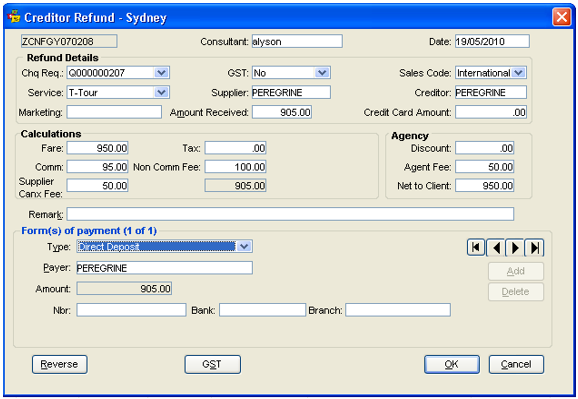
- Open the scroll on the Chq Req field and select from the list of paid cheque requisitions relating to this file.
- Once selected the cheque requisition will populate the following fields:
- GST
- Sales Code
- Service
- Supplier
- Creditor
- If there is no related cheque requisition these fields must be completed manually.
- Enter a Marketing code if required.
- The Amount Received should equal the amount of the refund received from the Creditor. Enter any amount to be refunded to a credit card in the Credit Card Amount field.
- The Calculations fields are mostly system generated with data extracted from the original Cheque Requisition. These values can be overtyped if required.
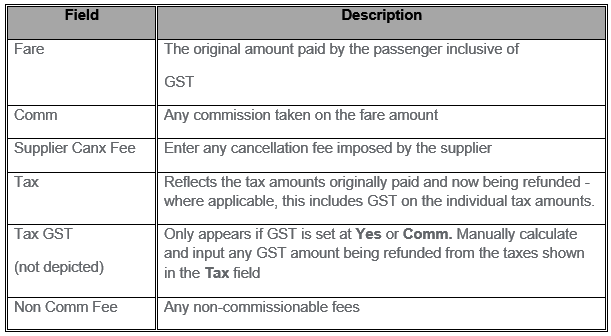
- The Agency fields should be completed, with any Discounts to be reclaimed and any Cancellation or service fees imposed. The Net to Client field is system generated. The Amount Received field must match the greyed out total supplied in the Calculations area or the transaction is unable to be saved. If the totals are not equal, double check the commissions, taxes and fees.
- A free text Remarks field is provided for any additional notes or comments to be added to the Refund.
- Complete the Form(s) of Payment details by selecting the appropriate Type from the drop-down. list, entering the Payer details (pre-populated from Creditor) supply the Nbr, Bank and Branch details, and click OK.
For more complex examples of Creditor refunds and commission payments, see CCTE Finance User Guide.
Refund to Passenger
The Refund to Passenger screen is specifically to record such transactions.
- The screen is accessed from the Accounting tab of the Trip file. Click the New toolbar button and select Refund to Passenger from the Trip Accounting Transaction window.
- Click on OK to open an input screen.
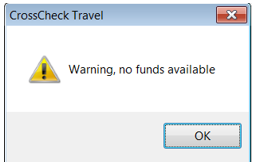
- CCTE may display a warning prompt to say no funds are available – this occurs if the file has no credit available. Click OK to close the warning.
- When your file has a credit available, the screen below will open automatically.
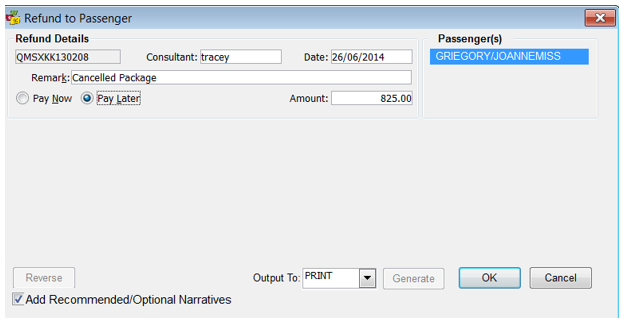
- Enter any Remarks, and choose to Pay Now or Pay Later. The Pay Later option will send the funds to the PAXREFUND creditor for payment by a Supervisor or Manager.
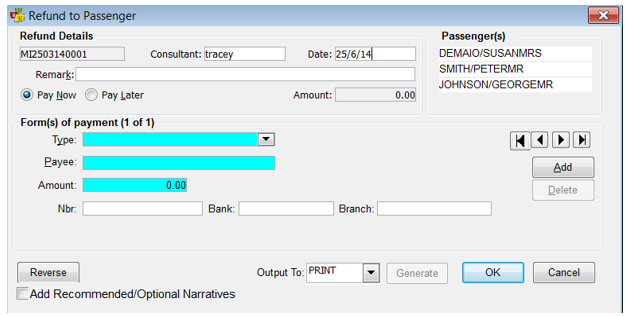
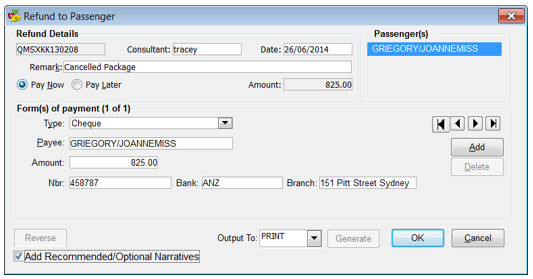
- Complete the Form(s) of Payment and click OK.
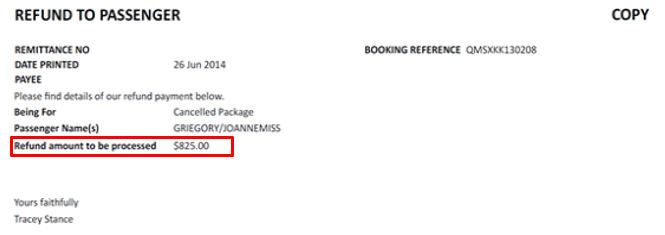
When the “Pay Later” option is selected, the text “Refund amount to be processed” is printed along with the refund amount both in the print copy and the PDF.
When payment is made from the creditor PAXREFUND, the forms of payment also includes Electronic Transfer, Credit Card and Non-Bankable Credit Card in addition to the existing Cheque and Direct Debit forms of payment.
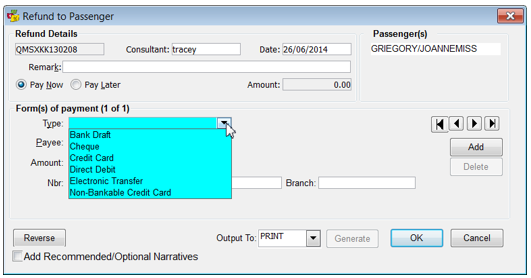
When a refund is paid using a Form of Payment such as Electronic Transfer or Credit Card, the transaction appears in the deposit as a negative amount, similar to a “Pay Now” transaction.
Payments made using a Non-Bankable Credit Card credits the Debtor associated with the Credit Card with the payment amount less the applicable merchant fees as per the Credit Card setup.
Select “Refund to Passenger” as the trip accounting transaction type and select the “Pay Later” option as shown in the screen below:
When the document is generated, the text “Refund amount to be processed” along with the amount to be refunded is displayed:
Process refunds from the creditor PAXREFUND using the Credit Card, Electronic Transfer and Non-Bankable Credit Card options
- Payments made using a Non-Bankable Credit Card credit the Debtor associated with the Credit Card with the payment amount less the applicable merchant fees as per the Credit Card setup
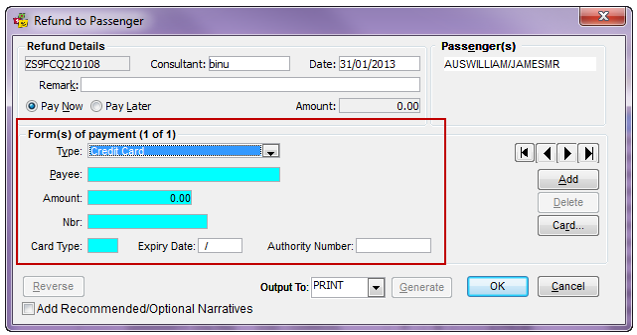
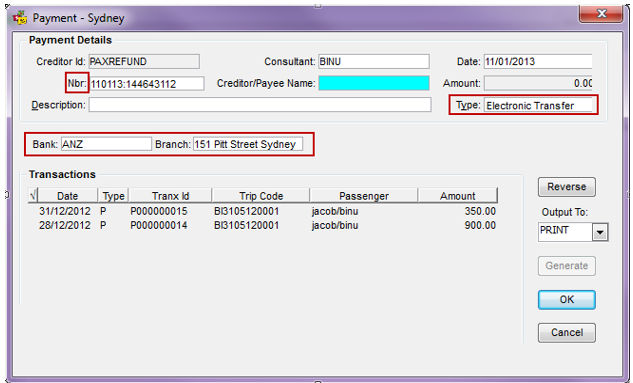
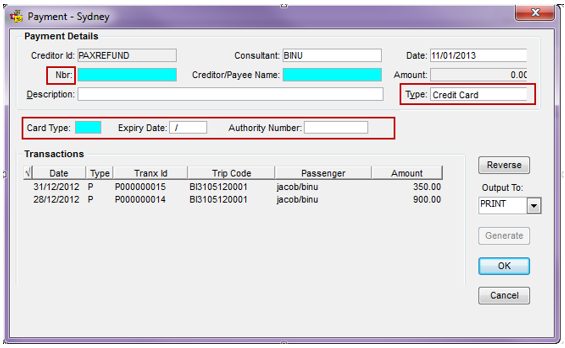
- On selecting Credit Card or Electronic Transfer as form of payment, the fields related to capturing Credit Card information will be displayed on the screen. The “Reference” label will be renamed to Nbr. This field will be renamed back to “Reference” when the user chooses Cheque or Direct Debit as the form of payment.
- On processing the refund, in addition to the payment transaction, a credit note is also generated to the debtor set up for the non-Bankable Credit Card. For example, if American Express is chosen as the Non-Bankable Credit Card, a credit note is generated for Debtor “AMEX” excluding the applicable merchant fees (as per the Credit Card Setup). This is similar to the credit note generated for debtor “AMEX” if “Pay Now” option is chosen from a Trip file. Please see the screenshot below (“Refund through Non-Bankable Credit Card”)
- The payment transaction made through Credit Card, Electronic Transfer or Non-Bankable Credit Cards can also be reversed similar to a payment transaction made through cheque or direct debit.
- Note: The reference/nbr shall be set blank each time the user change the form of payment type
- The mandatory fields required for a Credit Card refund from the Creditor PAXREFUND is the same as those on the “Pay Now” option from the trip file. The Card Type field is linked to the Credit Card table
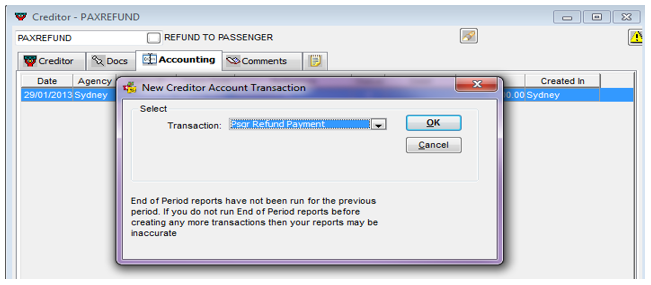
In the Creditor module, select “PAXREFUND” as the creditor and create a creditor account transaction “Psgr Refund Payment” as shown below:
Where the FOP Electronic Transfer is selected the data required is the same as the fields used in the "Pay Now" Option. The NBR field should be populated with the Date: time (to the milli second) 010213:171920086. The bank and branch details are populated from the bank Account ID.
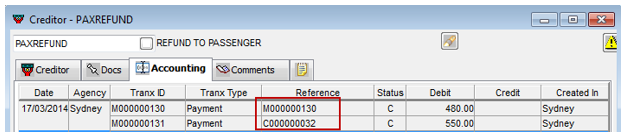
The reference column name logic for PAXREFUND creditor Accounting tab is as below:
- Non-Bankable credit card : The reference will be the Credit note number.
- Credit Card and Electronic transfer: The reference will be the same as the transaction id.
The system behavior on clicking of the reverse button is as below:
- Reverse a credit card or Electronic transfer based refund: The system reverses the transaction similar to reversing the transaction for “Refund to Pax” from Trip. However if the bank account has been changed after the refund is generated, the Reverse functionality is disabled and when mouse hovers over tooltip text “Historical bank transaction cannot be reversed” for all users.
- Reverse a non-bankable credit card: The system will disable the reverse button for a non-bankable credit card.
Adjustments
The adjustment screen is used to transfer funds from one trip to another, load opening balances for a financial Take Up, enter Journals between the cashbook and the Trip file or manipulate commission.
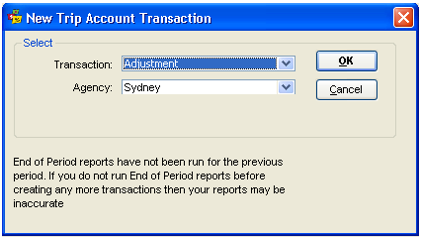
Adjustments are unable to be reversed and should never be attempted prior to receiving thorough training in this area.
Statement of Account will also show Adjustments between Trip files should this apply, access has been given to a particular user group for this feature, and this option is ticked on creation of this document,
see CCTE Security Guide (available to Management only) and CCTE Finance User Guide.