
The Action Items folders in MyCCT are like the Queue system in the host application. The Action Items also have pop up reminders which can have the time of the reminder set as required.
Each user will have a folder. Items can be placed in the user’s own folder or in any other user’s folders. Action Items can be attached to any file type, i.e. Debtor, Creditor, Trip or Client making this function more useful than e-mail, as the user has the file they need with the message attached.
Settings set up by Supervisor will determine whether some filters are available to a particular user group, and whether Reminders or Emails will be sent to the user.
There are two categories of reminders – one pertaining to Trips and another for clients.
Action Items - the filters when available to a user group are:
- My Open Items
- Everyone Overdue
- Everyone Today
- My Completed items
- Created by me – 90 days
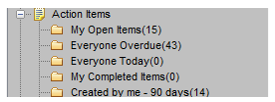
When the Consultant has selected a particular folder the view will show the Trip Files listed in alphabetical order (by Client Name).
A count is displayed for all folders and appears next to each folder and shows the number of open Reminders within each folder.
The count for My Out of Balance and My Travel Completed is also included in the Everyone Overdue and Everyone Today folders.
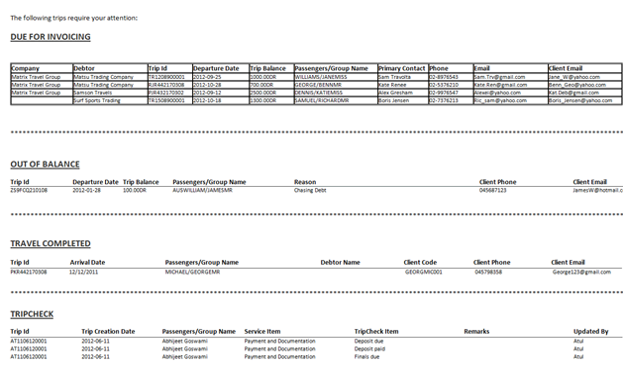
Sample of My Out of Balance, My Travel Completed and TripCheck Reminder filters:
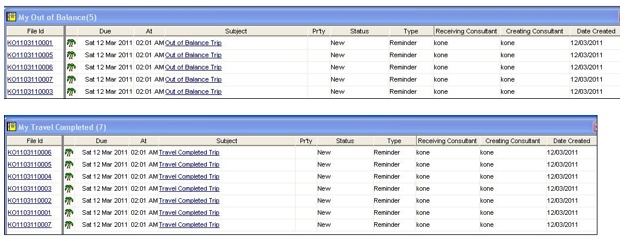
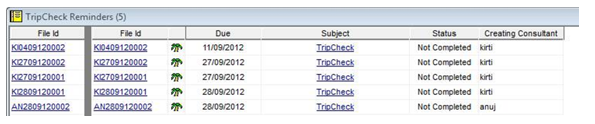
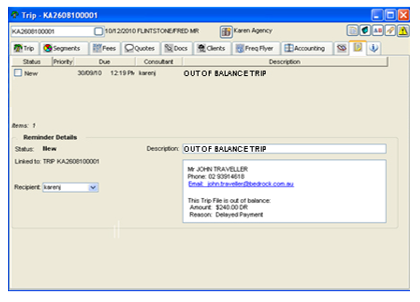
The Reminder will only be automatically generated from the processing configured in Auto Reminder configuration. It is not possible for a consultant to manually create a Reminder. When the Reminder is generated it will have a status of New.
When the Reminder is complete it will be removed from the relevant folder, and no longer be included in the count for the individual folder or the Everyone Overdue and Everyone Today folder.
The completed reminder will be added to the My Completed Items folder. This folder will automatically be purged after 90 days.
Points to Note:
- The consultant can view the Reminder from the Workflow Action Item tab on the Trip File
- The Reminder will not have a priority field or an alarm date and time. There will be no visual or audible pop ups generated from Reminders (unlike Workflow Action Items).
- The Reminder will not be editable. The only actions available from the Reminder will be:
- Mark the reminder as complete
- Select the hyperlinked email address from the Reminder
- An email can be sent from the Reminder (if an email address has been found on the Trip File). The email address will be hyperlinked from the Reminder screen.
Note: A copy of the email sent from the hyperlinked email address is not kept within CCTE as this has been generated from the Consultant’s email client (not CCTE).
The Reminder can be actioned by retrieving it from hyperlinked Subject field in the MyCCT/Action Items/My reminders/xxxxxx folder. Once actioned the Reminder needs to be set to Completed by selecting the tick box on the status column.
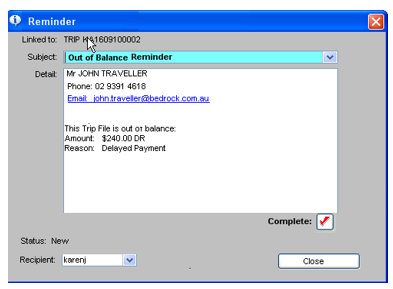
- When working from the Reminder folders then the list will have to be refreshed (using right click Refresh) in order to view the new list of reminders (with completed reminder removed).
- A reminder will only appear once in the MyCCT/Action Items/My reminders/xxxxx folder. If the reminder remains unactioned then the system will not add a duplicate reminder the next day.
- The Reminder will not have a priority field or an alarm date and time. There will be no visual or audible pop ups generated from Reminders (unlike Workflow Action Items).
- The Reminder will be shown in the Workflow Action Item area on the Trip File
- The consultant can potentially expect 2 emails (if the reminder option chosen is email) - one for trip on a daily basis and another for client to be generated on a daily or weekly basis depending on the data.
All reminders are generated by the system at 2:00 am every day. The reminders are generated for items that are due for that day only. If the Reminder is not actioned, it will continue to remain in the folder.