
Trip Balance Summary
When configured in Supervisor, this button will become available as per the set up. Clicking on the Trip Balance button opens a pop up with the following summary information:
- Summary of the Statement of Account
- Transaction Summary
- Trips commission component
- Reason for the trip being out of balance
The Trip Balance button options are configurable via Supervisor in the Set Up Tab, see CCTE Finance User Guide , Trip Balance Summary.

The Trip Balance can be viewed from within the Trip tab of the Trip File.
Set up will be at Branch level:
- The default setting for “Display Trip Balance Summary” will be unchecked.
- Check boxes for “Display Statement of Account Component” and “Display Commission Component” will only become active once the user has ticked “Display Trip Balance Summary”.
- When “Display Trip Balance Summary” is ticked – check boxes for the two components will become active, and ticked by default.
When the Trip Balance button is clicked a Pop Up opens the components that display are dependent upon what has been configured in Branch Set up.
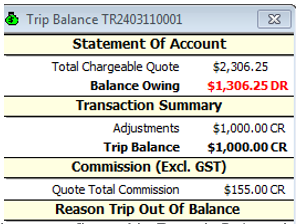
In addition they are dependent upon the following:
- Where no transactions exist for a component grouping, the grouping will not display.
- Where transactions exist and the balance is zero, the applicable component grouping will display how the balance comes to $0.00.
- Where transactions have been reversed and the balance for all transactions is zero, the component grouping should also show how it comes to $0.00.
- Statement of account component will only show where quotes are present in the Trip File. (This is even if it has been configured to display via Branch Set up).
- Transaction Summary component will always display as this advises how the Trip Balance is derived. Where no accounting transactions exist for a Trip File, the Transaction Summary component will simply display the Trip Balance grouping as $0.00.
- Quote Total Commission will only show where quotes are present in the Trip File.
- Actual Commission and Actual % profit will only show if their value is not zero. This figure can be a DR or CR amount and percentage respectively (DR amounts and percentages will show in red).
- Where the Trip Balance is a debit (DR) value, this will be in red font.