
Without Quotes
If there are no quotes attached to the Trip file, selecting OK deletes all previously downloaded segment data and replaces them with the new downloaded itinerary. Any details that were manually added to the previous segments are lost.
With Quotes
If quotes were attached to the Trip file, any new / changed segments are added to the existing segments. The original segments are shown in red and need to be removed through the Quotes screen. Once the download has been completed, a reminder will be displayed.
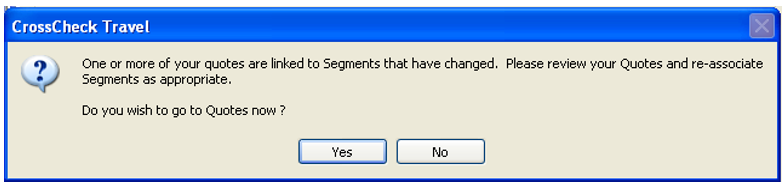
Select Yes to move directly to the Trip Quotes screen. Open the quote for the deleted segment and select the Segments tab to see the changes, indicated by a line through the redundant segment.
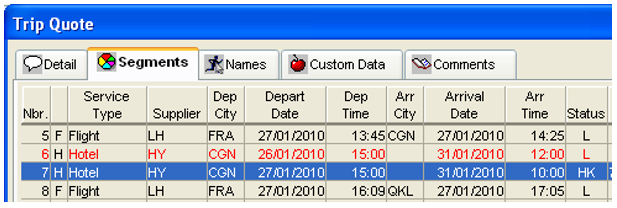
Deselect the changed segment (it turns red); highlight the new segment to be included and click OK. Return to the Details tab and overtype the old quote with any new information. Click OK to save the updated quote data. For further details on adjusting and deleting quote information, see "Working with Quotes" in Module 5: Trip File
Note: For information on downloading a filed fare contained in a host booking, see Downloading a Quote from a Filed Fare.
Re-downloading a Cancelled Booking
If a booking was initially downloaded into CCTE and has since been cancelled in Travelport+ Host, the booking can still be re-downloaded into CCTE to update the Trip file status to Cancelled.
When the booking file is found, a Select Trip to Re-download screen will appear, highlight the file from the list and click Overwrite.
Deleting a Trip File
A Trip file can only be deleted if no accounting transactions have occurred. If any attempt is made to delete a trip file which contains accounting transactions, a warning message will be displayed.
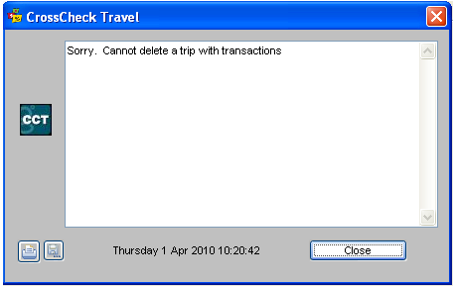
To delete a trip file, ensure the Trip tab is displayed and click within the Trip Code field. Select Delete from the File option on the menu bar or press Ctrl+D.
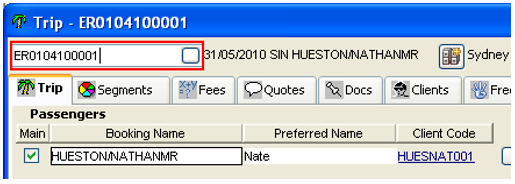
A confirmation dialogue box, with the Trip Code, will be displayed:
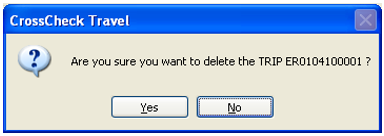
Click on Yes to perform the deletion