
Segment Defaults
Segment Defaults are used to store frequently used segment information, such as hotel name and address details. There are two methods for a user to create segment defaults:
- From Tools/Segment defaults
- From a Segment using Default Wizard
This function saves time when documents such as hotel vouchers are produced. Once stored, segment default data is automatically transferred to each new Trip segment after nominated key data has been entered.

Creating Segment Defaults from Tools on Menu Bar
- Select Segment Defaults from Tools on the menu bar.
- The screen may open with previously entered defaults.
- Click on the New button, and the new mandatory fields will be displayed.

- Click on the Segment Type to open the scroll and select the type of default you wish to create.
- Type in a title which uniquely identifies this Segment Default in the blue coloured line under the Segment heading (e.g. Hotel Name).
- The heading Conditions means the conditions for retrieval of your default entry. To add Conditions, click the Add button.
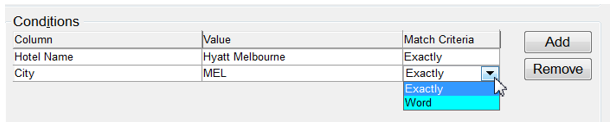
- Select a field from the Column This scroll displays a list of field labels from a Segment screen.
- Enter the text to be matched under the Value heading. This text is matched by CCTE and activates the Default Segment transfer.
- Select the Match Criteria to specify the constraints of pattern matching:
- Exactly - value must be same and complete spelling
- Word - the value specified must be found somewhere within the field for the match to be true
- Additional Conditions can be created by clicking the Add button.
- Conditions can be removed by highlighting the required item and clicking the Remove button. Answer Yes to the confirmation prompt for the deletion of the record.
- Information specified in the Field Defaults is used to pre-fill the fields on the segment screens and vouchers.
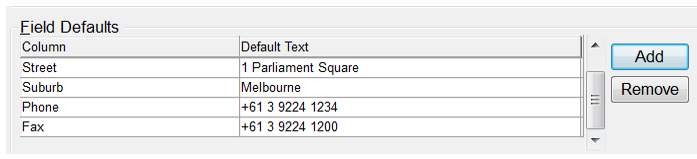
- Click the Add button.
- Select a heading from the Column area.
- Type your entry under the Default Text heading.
- Click on the Add button to start a new line.

-
Comments can be added and removed in the same manner as Conditions and Field defaults.
-
When satisfied with your entries DO NOT click on ADD.
- Click on the Save button then on the Exit button.
Creating Segment Defaults from Segment using Default Wizard
The Segment Screen has a button named “Default Wizard” as shown in the screenshot below:
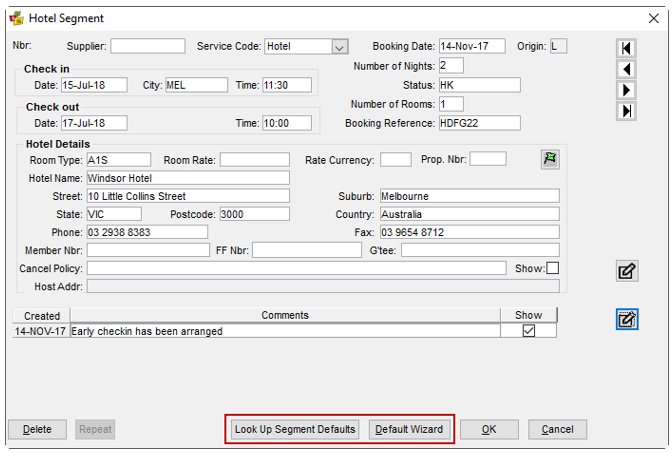
If the segment name entered is an existing segment name, the system will prompt an error message:
“The segment default name already exists. Please provide a different name.”
Clicking on the Look Up Segment Defaults will launch the screen as below:


The user is able to select the segment type and build the query criteria similar to the segment defaults screen.
If no segment defaults exist for the criteria, the system will notify the user with a message: “No segment defaults exist for the selected conditions”.
Clicking on the Clear button will clear all the contents of the screen including conditions, results and the information text.
Clicking on the OK button will select the chosen segment defaults, close the look up screen and populate the segment screen with the default values corresponding to the selected segment defaults.
Clicking on Cancel button will close the screen and bring the user back to the segment screen.
Please note that the columns for conditions must display user friendly names exactly like the field names from the Segment screen.
The Add button adds a new row to the grid for the user to provide the conditions.
The Remove button removes the row that has the current focus.
A user may have the requirement to create a Segment default for frequently used hotels
- Hotels may be sold and downloaded from host
- Or manually created
When a hotel is sold via host and the booking is downloaded a segment is automatically created and will contain the Supplier Id for that particular hotel property as per the example below:
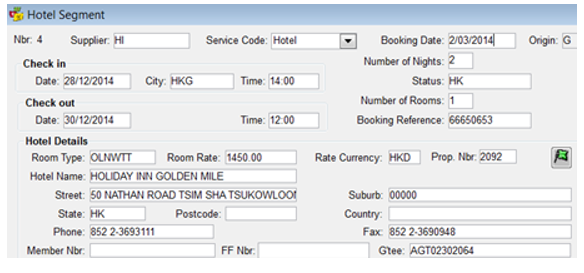
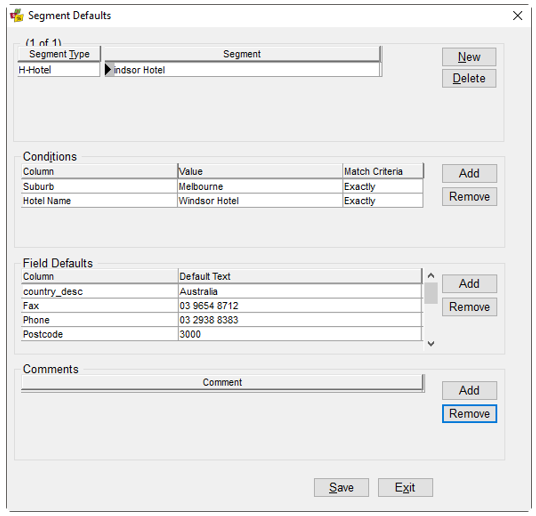
Clicking on the Default Wizard saves the existing values on the segment screen and launches the Wizard screen as illustrated below.
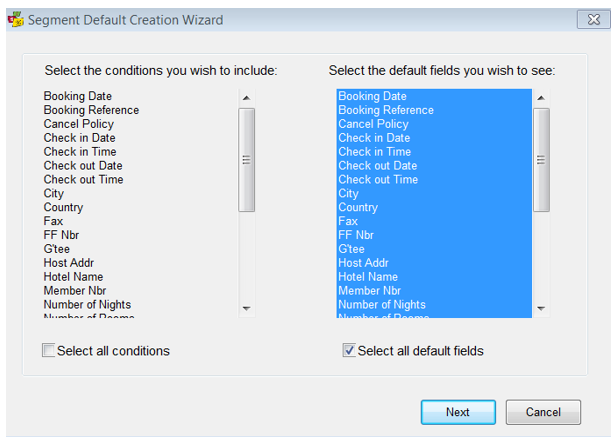
The columns for conditions and Field defaults display user friendly names, exactly like the field names from the Segment screen.
The conditions and default fields are prepopulated with the appropriate values corresponding to the segment type of the segment screen. This is similar to the conditions and default fields that are available for selection in the Segment Defaults screen.
The user is able to
- Select and deselect the values in the condition and default field list boxes.
- Multi-select the values in the conditions and default fields list boxes.
- Select all the conditions by checking off the “Select all conditions” checkbox or default fields list +box by checking off the “Select all default fields” checkbox. By default the “Select all conditions” check boxes must be unchecked and the “Select all default fields” are checked off.
Note: It is suggested that Select all default fields is unticked, and only those that are required are selected, the same applies for the Conditions, as fields may vary per hotel and segment default requirement.
The segment defaults screen allows for comments so that the user is able to add / remove or edit comments.
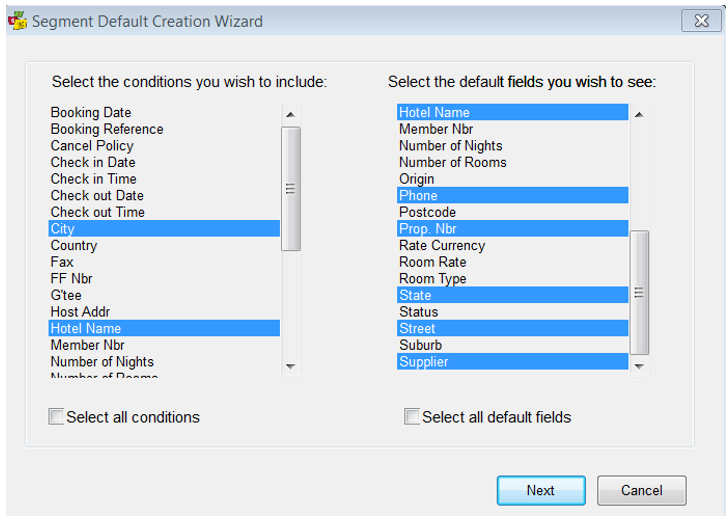
Clicking on the cancel button will exit the screen and bring the user back to the Trip->Segments tab.
Clicking on the Next button will retrieve the Segment defaults screen with the prepopulated conditions and default fields as shown below:
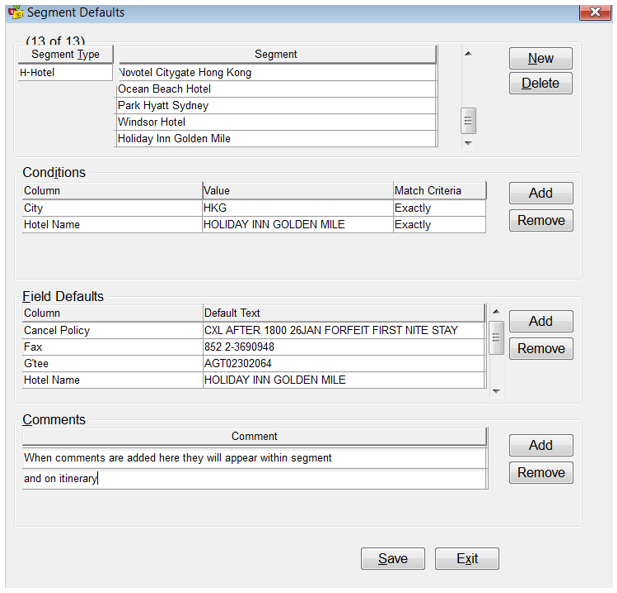
The conditions and field defaults are prepopulated based on the criteria selected
The conditions are populated from the condition section of the previous screen and the values for conditions are based on the values in the segment screen
The fields for which the values for field defaults are prepopulated are based on the values from the segment screen. Blank values from the segment screen are not displayed in the Field Defaults section. The match criteria is set to Exactly by default.
The conditions and default values can be added and removed as required. The values can be edited as required as well. Please note that empty values in the segment screen will also be displayed as blank values in the segment defaults screen.
All the comments in the segment screen are pre-populated in the segment defaults screen. These comments can be edited, added or removed.
The user is able to update the new Segment default name and save the entries. If all the conditions and field default values match, the system will prompt a warning error message: “The segment default already exists. Please modify your condition or default values for updating a new segment default.”
If a segment default already exists within the database, an error will be received so the user can investigate further, and update as necessary.
There are two possible error messages may appear:
“The segment default already exists. Please modify your condition or default values for updating a new segment default.” OR “The segment default name already exists. Please provide a different name.”
Look Up Segment Defaults
Searching for Segment Defaults for same Hotel for a different stay.
Create a new Hotel segment Ctrl + N, select Hotel segment and click OK.

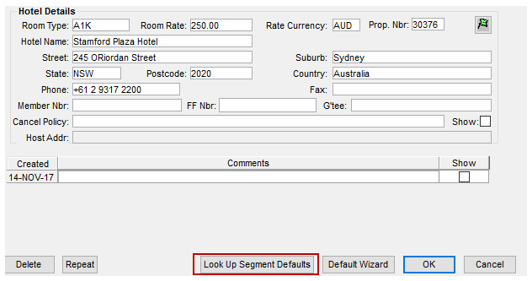
Click on Look Up Segment Defaults button allows user to Search for Segment Defaults and validate by deleting fields that are not required. Then Select Conditions and Value for the Hotel.
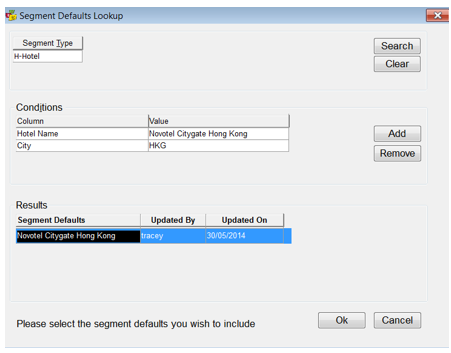
Click on the Search button will display the Segment Defaults available for the conditions chosen. The screen will also include an information text –“Please select the segment defaults you wish to include” after the segment defaults are populated.
Click OK after selecting the Segment Default from the Results field – this screen will show when the Segment was last updated and by whom.
A Hotel segment is then created retrieving the fields that have been previously set up for the Segment Default.
Complete any other fields which may be required for this segment, particularly Check in Date and Check out Date details, etc.
If searching for a different Hotel, do not complete conditions, and click on Search and all Segment Defaults will appear to be selected, as required.
Note: Repeating a segment does not repeat the segment default. Segment defaults are still available to use through the Tools menu.