
Skip To:
My Reminders
My Reminders when available:
- Due for Invoicing
- Out of Balance
- Travel Completed
- TripCheck Reminders
- Deposit Payments
- Final Payments
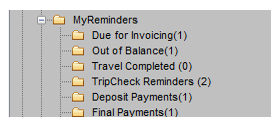
Trip reminders can be set for incorporating trips Due for Invoicing. The email reminder for Trips consists of Trips Due for Invoicing sorted by Debtors which is then followed by Trips Out of balance, Travel Completed and TripCheck items. The trips selected for ‘Due for Invoicing’ will not appear again under ‘Out of Balance’.
Trip type can be configured to filter “Out of balance” trips based on Trip Type, i.e. Leisure, Group or Corporate.
Travel Completed reminders are available and these can be configures to filter Sales Code, ie. Domestic, International and Trans-Tasman, as well as Trip Type.
Quote – Deposit and Final Payments can be set to filter for both Sales Code and Trip Type
Automated reminders will prompt users either by email or Reminder. When email is the chosen form of reminder then a copy of the email may also be sent to the office manager (or other recipients – up to three, as set by Supervisor).
Any Trips that hold the specified ‘Out of Balance Reasons’ codes set will not have reminders generated for them. Automated Reminders can be set to generate a daily Reminder (1 per trip) to the consultant.
The Reminders are placed in a set of folders under the My Reminders subfolder within MyCCT/Action Items.
TripCheck Reminders
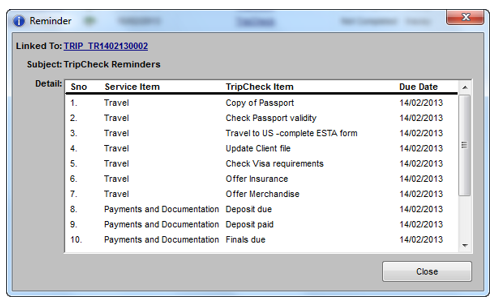
TripCheck Reminders are generated for Active and incomplete trips. The system checks the status of the Trip before generating a Reminder. If status is cancelled then no reminder is created.
When a TripCheck list item is due a Reminder is generated for the Trip and when the next item is due the system checks if a reminder for that Trip already exists. If not found, then a Reminder is created. If a reminder exists it will be overwritten with the latest Reminders. The TripCheck items is a consolidated list of all the TripCheck items which are due for that trip.
By selecting the TripCheck subject the Reminder is launched and gives a consolidated view of the TripCheck items which are currently due for a trip. This is linked to the Trip File via a hyperlink. Clicking on the Close button closes the screen.
Behaviour of TripCheck for existing Trips
The default reminder date as setup by the supervisor through the TripCheck Setup is applicable only for trips created after the configuration of the TripCheck option. Existing trips prior the TripCheck configuration will have the reminder date set to none. Consultants can however update the reminders dates of these trips as required.
TripCheck email reminders are generated according to the supervisor settings. Where the email option is selected an email reminder is generated for a Trip File when one or more Trip Check items are due. The default reminder date as defined in the TripCheck setup is only applicable for trips created after activation or where for existing trips the consultant has manually set a date against the TripCheck Item.
Email reminders are generated by the system at 2:00 am each day. Reminders are generated for TripCheck items that are due for that day only.
Reminders are generated for Active and incomplete trips. The system checks the status of the Trip before generating an email reminder. If status is cancelled then no reminder is sent.
TripCheck reminders are consolidated with other Auto Reminders via email
No reminders or emails will be generated for inactive consultants or inactive clients. Reminders or emails will still be generated for inactive Debtors.
Email:
If the Auto Reminder is set to email then the system will process the email as follows:
- The data from each Trip File will be retrieved for each consultant in the branch
- The email will be delivered daily to the consultant’s email address (found in the Consultant Maintenance Screen)
- The email will be delivered to the recipients whose email addresses have been configured in the Auto Reminder screen on the Setup tab for the Branch
- The subject of the email will be ‘Trip File Reminders’
The retrieved trip data will then be grouped under the relevant headings. The Trip Files are listed in alphabetical order (by Client Name) showing the following details for each trip:
- Trip Id
- Client Name
- Client Code
Reminder:
Automated Reminders that have been set to Reminder generate (daily) a Reminder (1 per trip) to the consultant. The system l retrieves Trip File data that meet the reminder criteria set in the Auto Reminder Tab (in Supervisor Module).
The Reminders are placed in a set of folders under the MyReminders subfolder within MyCCT/ActionItems. The folders are named with relevant headings (eg. Due for Invoicing/Deposit Payment/Final Payment)
When the Consultant has selected a particular folder the view shows the Trip Files listed in alphabetical order (by Trip Code).
The Reminder appears in the Trip File in the Workflow Action Item area. The following rules apply:
- The Reminder does not have a priority field or an alarm date and time. There is no visual or audible pop up generated from Reminders (unlike Workflow Action Items)
- The Reminder is shown in the Workflow Action Item area on the Trip File
- The Reminder will not be editable. The only actions available from the Reminder are:
- Mark the reminder as complete
- Select the hyperlinked email address from the Reminder
- The Consultant can update the Reminder to Completed from the Trip File by selecting the tick box on the status column.
- The Consultant can generate an email from the Reminder (if an email address has been found on the Trip File). The email address will be hyperlinked from the Reminder screen.
Note: A copy of the email sent from the hyperlinked email address is not kept within CCTE as this has been generated from the Consultant’s email client (not CCTE).
- The Consultant may choose to action the Reminder by retrieving it from the Trip File (Workflow Action Item tab). When the Reminder is complete then it will be removed from the
MyCCT/Action Item/MyReminders folder and the Everyone Due and Everyone Today folders and added to the My Completed Items folder. - When the Reminder is complete then it will not be stored on the Trip File. The consultant can view completed Reminders in MyCCT/ActionItems/MyCompleted Items folder.
- A reminder will only appear once on the Trip File. If the reminder remains unactioned then the system will not add a duplicate reminder the next day.
Quote Payment Reminders
These reminders will be triggered by the deposit and final payment fields on the Quote screen and will allow users to monitor when payments are due from clients and to Suppliers. See Module 5: Trip/Quote /Quote Payments tab.
CCTE allows the ability to set automated reminders to consultants once configured for specific trip automated reminders including:
- Email and Trip Reminder for Deposit Due Date
- Email and Trip Reminder for Final Payment Due Date
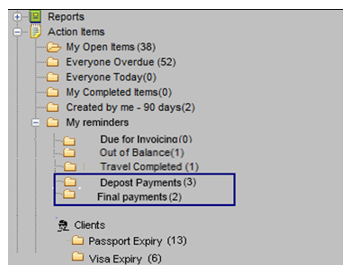
- ‘Deposit Due Date not paid’ means there is no tick on the ‘Deposit Payment Complete in the quotes screen
- ‘Final Due Date not paid’ means there is no tick on the ‘Final Payment Complete’ in the quotes screen
- The reminders will be generated for all active and chargeable quotes. It is therefore possible to have a trip with multiple reminders for the deposit and final payments associated with all the active and chargeable quotes.
The reminders generated automatically reflect on the trip workflow action items. The default setting of auto reminders for Quote Payments will be that the Deposit and Final payment options are deselected and must be configured by Supervisor.
Client Reminders
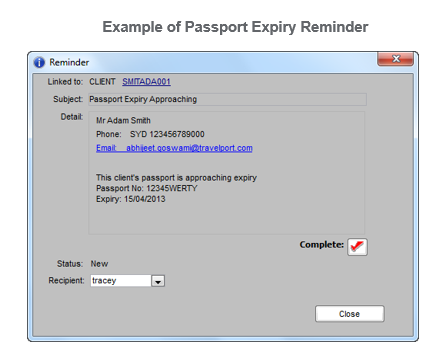
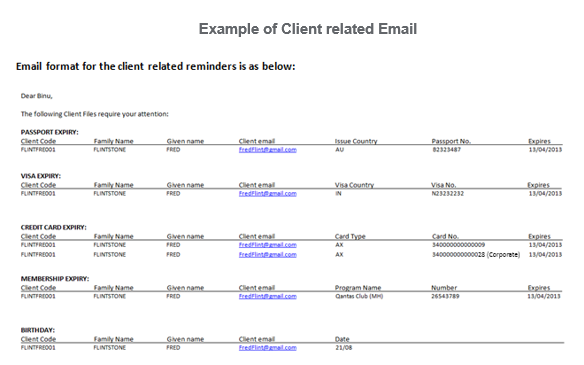
Client Reminders that are available for setup are:
- Passport Expiry
- Visa Expiry
- Credit Card Expiry
- Membership Expiry
- Birthdays
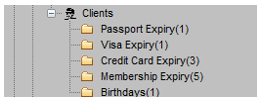
CCTE has the ability to set automated reminders to consultants for Client file events including expiry dates for passport, visa, credit card and membership as well as notification of birthdays.
Client reminders will be generated on a daily or weekly basis for a specific event for a specific client. This will be applicable for both trip and email reminders. The default value is weekly.
A client who is attached to a debtor is considered to be a Corporate Client and conversely any client who is not attached to a Debtor would be treated as a Leisure Client.
Any credit card which is associated with a client is picked up for notification when it is due, this includes personal, corporate and any credit cards associated through the debtor of the client regardless of the type of debtor.
The signed in user's folder will be first on the list for their Branch and then all other consultants will be in alphabetical order.
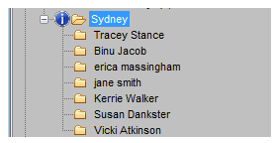
When an  icon appears, this means that an Action item is Due!, or overdue and needs to be actioned.

All Actions Items can be viewed in the folders as well as be set up to display an alert at specific dates and times, and vary in style according to the urgency of the message.
