
Hotel Commission Tracking
The commission due back to an agency when a client pays a hotel direct can be tracked by clicking on the green flag icon in the accommodation segment input screen.
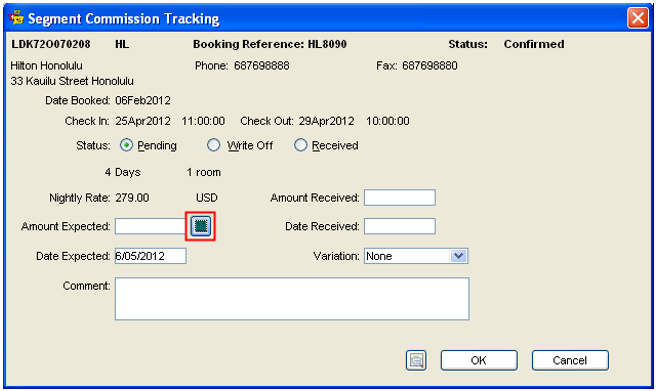
The status of the commission tracking is initially set to Pending. The Write Off and Received are used to update the status once commission has been banked, or if the commission is unlikely to be received.
Enter the commission Amount Expected or select the Calculate button to work out the commission:
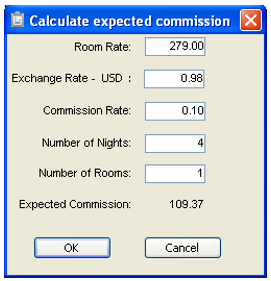
If the Room Rate, Number of Rooms and Number of Nights fields were entered into the Hotel Segment screen the details are automatically filled in.
The Exchange Rate defaults to 1.00 and the Commission to 10%. However both fields can be overtyped. The system will automatically calculate the commission in AUD if the amount per night has been entered in another currency and the Currency tables have been updated with current exchange rates.
Click OK to close the screen and update the Amount Expected field in the Segment Commission Tracking window.
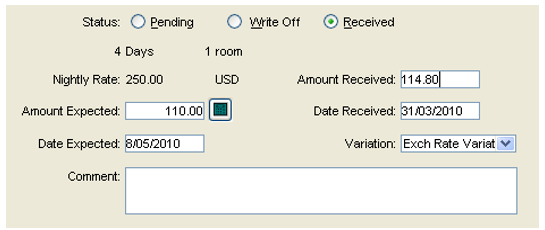
The Date Expected field defaults to thirty (30) days after the check-out date. This default period can be set by the supervisor. For more information, please see CCTE Finance User Guide If required, this date can be overtyped to suit the booking. The Comment field is a free text area.
Click OK to save the commission tracking details.
Commission Received
When the commission is received and a Commission Receipt-Other window completed in the Creditor file, the status of Commission Tracking is automatically changed to Received and the details are transposed into the following fields:
- Amount Received
- Date Received
- Variation
These fields can also be updated manually. Unpaid hotel commission can be tracked and reminders sent.
See "Hotel Commission” in Module 3: MyCCT.
Inserting a Segment
Each time a new segment is created it is added as the last line, which would produce an out of sequence itinerary. Using the Insert Segment function means new segments can be entered in chronological order.
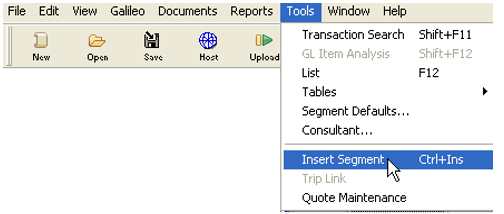
- Highlight the segment that the new segment is to be inserted above
- Select Insert Segment from the Options menu.
- The New Segment Type selection box will be displayed.
- Choose the Segment type required and complete the screen as normal.
- When complete, click OK and the new segment will be inserted as requested.
Re-ordering Segments
If segments have been added and the itinerary is not in date order, it can be manually re-sorted by using Drag and Drop procedures. Highlight the segment to be moved and, using the mouse, drag it to the new position on the segments list. Alternatively, highlight the segment to be moved and press Ctrl+ up arrow or down arrow depending on the movement required. Then click on the Save icon to commit the changes.
Deleting a Segment
To delete a segment, open the Segment input screen by double clicking anywhere on the summary line.
Auto Ordering of Segments
Where this functionality has been configured by the Supervisor, segments for service types Flight, Hotel, Car, Coach, Rail, Cruise, Tour and Surface will automatically sort into a date and time order for both manually created and downloaded segments.
Where departure date and time has been entered into the segment information, segments will be ordered by date and time. Segments types for which Auto Order is not active will follow.
Where departure date has been entered, but no departure time, segments will be ordered following segments containing both departure date and time. Segments for which Auto Order is not active will follow.
Where a segment for which Auto Order is active is entered without a departure date or time, these segments will be ordered following segments with departure date and time, then segments with departure date only; and will precede segments for which Auto Order is not active.
For further information on setting up Auto-ordering of segments, see CCTE Finance User Guide, Answer 27134 in Ask Travelport.
- Auto ordering is checked for all download service types - Flight, Hotel, Car and Tour segments and cannot be unchecked.
- Auto ordering is checked by default for Coach, Rail, Cruise and Surface segments and can be unchecked if required. A Supervisor/Manager should be responsible for this functionality.
- The auto ordering for Manual service types: Transaction Fee, Merchant Fee, Amendment Fee, Service Fee, Management Fee, Cancellation Fee, Insurance, Miscellaneous, Travellers Cheque, Web and Air Taxi are unchecked by default and can be checked or unchecked by the user.
- Service types for which auto order is not checked are moved to the bottom of the trip segments.
- The auto order on demand functionality is available for all users and is applicable for all segments for which auto order is checked.
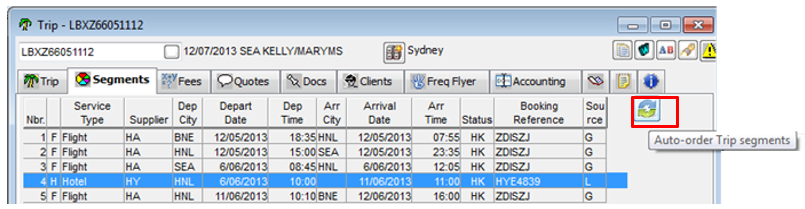
- Manual shifting of Trip segments by the consultant is as per the current functionality. However the user can restore the order of Trip segments back at any time by clicking on the sort button
- The segment order after manually shifting the segments is preserved for the trip if this has been saved. Redownload or clicking on the on demand sort button will order the segments based on the auto ordering logic
It is recommended that the segments are created in departure date and time sequence to avoid unnecessary manual re-ordering. Where the check in time is prior to the actual entry on the segment the comments tab can be used to store this information.
Where a PNR is downloaded and there are changes to the GDS segments:
- GDS Segments: GDS segments will be reordered
- GDS & Manual: GDS segments will be reordered and manual segments will be reordered based on departure date and time.
Download of Change of Gauge flights
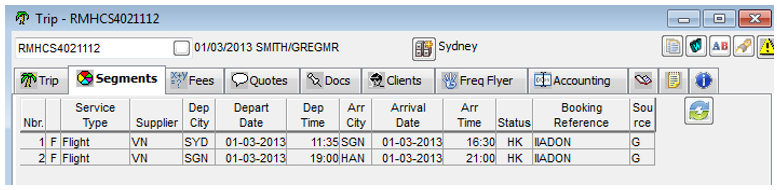
In some instances the departure information for change of gauge flights is not available. GDS ordering logic is applied.
Manual segments (all auto-order checked) with departure date but no departure time
Manual segments without a departure date or time will be sorted to the end of the sequence, in no particular order.
Segment without a Quote attached
Click on the Delete button in the bottom left hand corner of the segment screen and answer Yes to the confirmation prompt to remove the segment.
Segment with a Quote attached
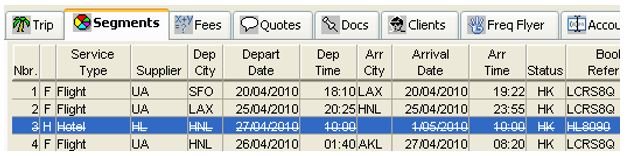
Click on the Delete button in the bottom left hand corner of the segment screen and answer Yes to the confirmation prompt. The Segment tab is redisplayed and shows the deleted segment as crossed out, if selected, or in red if not selected.
Opening a trip file where segments have been deleted and the quote has not been updated displays a warning message.

Select Yes to move straight to the Quotes tab and update accordingly. For further details,
see "Working with Quotes" in Module 5: Trip File
Repeat segments
Service types allow the user to repeat service types by clicking on the “Repeat” button for all service types.
- A “Repeat” button is displayed on pages of all service types. The user is able to repeat all the data except for DATE and TIME (as this is the most likely data to be changed) by clicking on the “Repeat” button.
- DATE and TIME fields will remain blank on the repeated segment, and available for the user to enter new dates and time.
- Before save a check for duplicate Date and Time is performed. If duplicate data is found then a warning message will be shown as per the screen shot below. When OK is selected the user is returned to the segment screen where date and/or time can be amended:

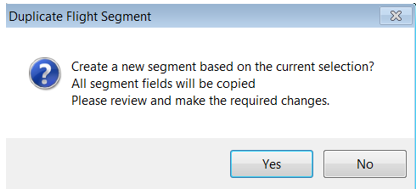
The user is able to repeat all the following service types:
- Transaction Fee
- Merchant Fee
- Amendment Fee
- Service Fee
- Management Fee
- Cancellation Fee
- Coach
- Car Hire
- Insurance
- Miscellaneous
- Travellers Cheque
- Rail
- Cruise
- Tour
- Surface
- Web
- Air Taxi
Flight Segment
All the data for flight segment is repeated once the user clicks on the repeat button. The data for “Transits/Meals/SSR” is also repeated.
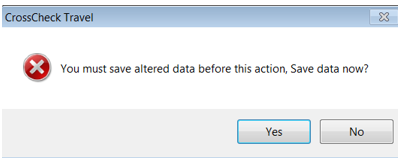
Note: If Transit/Meals/SSR is clicked on prior to updating changes a warning message will appear.
Hotel Segment
All the data for hotel segment is repeated once the user clicks on the repeat button
Service Fee
All the data for service fee is repeated once the user clicks on the repeat button.