
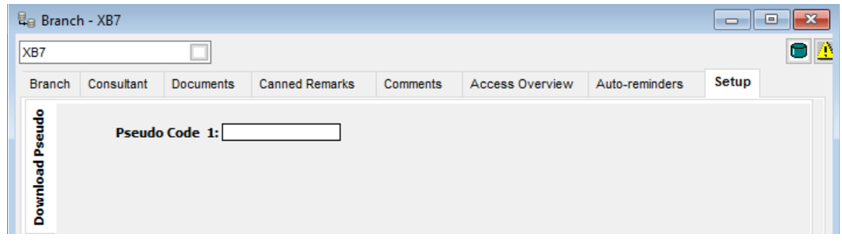
Within Branch setup three tabs are available to the left:
- Download Pseudo
- BPay
- General
- TripCheck
- Workflow
Download Pseudo Tab
This screen stores the Pseudo City Codes that your agency can download bookings from Travelport Host into the CrossCheck Travel Enterprise database.
Enter the Pseudo City Codes as required.
BPAY
CCTE provides BPAY functionality where users can include BPAY payment information on selected documents generated from CCTE.
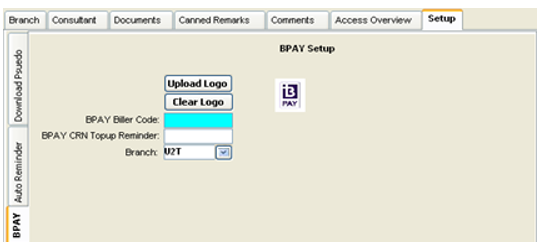
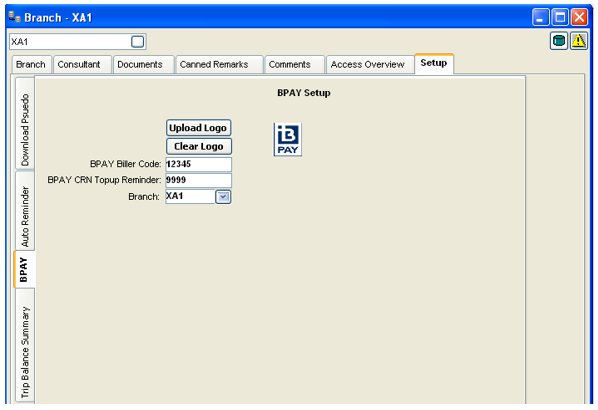
CCTE Agency Set up and Branch allows configuration for BPAY usage. CCTE trip, client, debtor and company modules have BPAY specific fields added. MyCCT and Reports also have BPAY specific search options added.
An agency has the ability to offer BPAY form of payment to a client so the client can make payment directly to an agent from a client’s personal bank account, online at anytime.
The BPAY logo can be configured to display on accounting documents at the Agency level, or Branch level, See CCTE Accounts Management Multi Branch Guide.
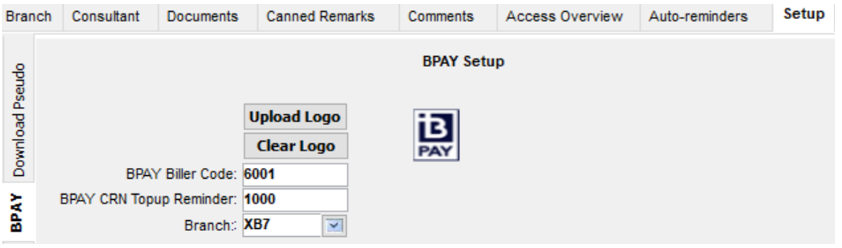
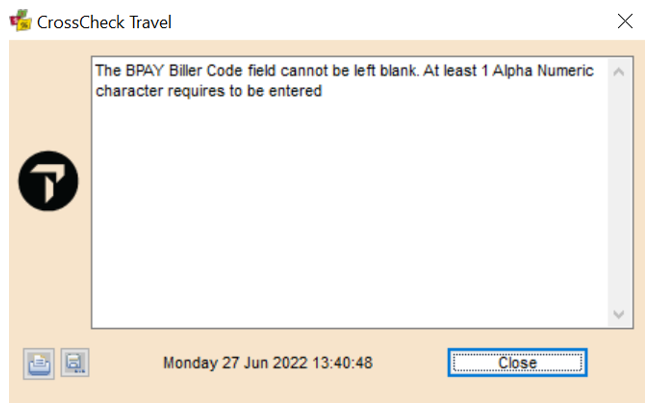
Should a user try to save the above without having entered a BPAY Biller code, an error message will appear:
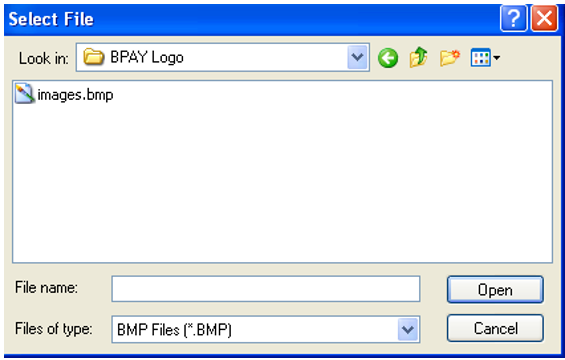
When the BPAY logo is searched for in the network directory the following will appear:
Successful upload will add the BPAY logo to this screen:
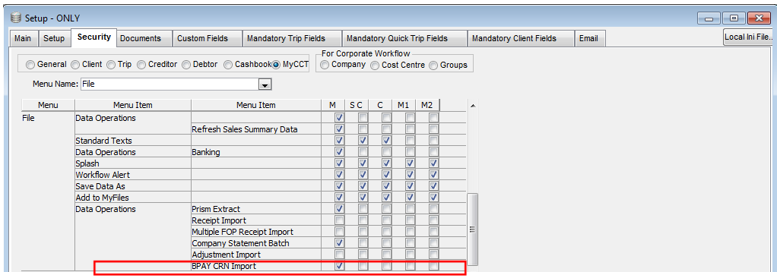
BPAY is available in the Supervisor module, default setting is off. This setting controls the display of the BPAY Import menu and the import of BPAY CRNs within CCTE.
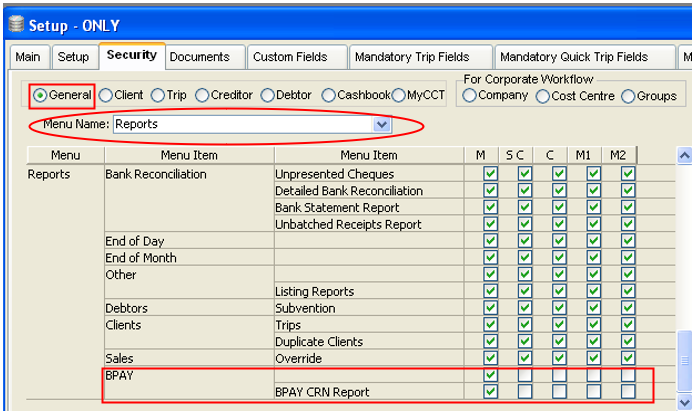
Security can be set to allow user Groups to produce a BPAY CRN Report. It is available from Setup – ONLY Security Tab, General Module - Reports Menu. Default setting is off.
This setting needs to be configured in Set Up in all modules for the Reports to be accessible, i.e. General, Client, Trip, Creditor, Debtor, Cashbook and MyCCT.
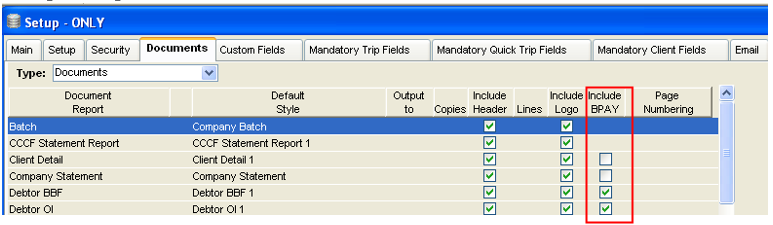
The BPAY logo can be configured to display on documents at the Agency level. When Include BPAY is selected, the BPAY Logo, Biller Code and CRN will be displayed on documentation as selected. Default is off.
Settings for Single Branch can be set from Main - Documents tab
For more information regarding BPAY CRN imports, refer to BPAY CRN Imports in this guide.
General Tab
Trip Balance Summary
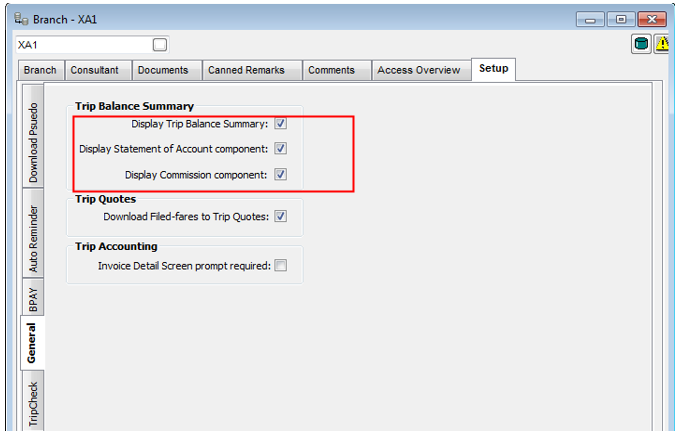
The Trip Balance button options are configurable via Supervisor in the Setup Tab depending on which components Supervisor wishes to display, they are then ticked in this Setup Tab.
Set up will be at Branch level:
- The default setting for “Display Trip Balance Summary” will be unchecked.
- Check boxes for “Display Statement of Account Component” and “Display Commission Component” will only become active once the user has ticked “Display Trip Balance Summary”.
- When “Display Trip Balance Summary” is ticked – check boxes for the two components will become active and ticked by default.
- The Transaction Summary component does not display as a configurable option because it will always appear in the Trip Balance Summary pop up.
A user can view a summary of transactions, quotes and the balance due without generating a Statement of Account document.
A user can view the Trip Balance from a button on the Trip tab. Clicking on the Trip Balance button opens a pop up with the following summary information:
- Summary of the Statement of Account
- Transaction Summary
- Trips commission component
- Reason for the trip being out of balance
A user will not need to navigate to the Quote or Accounting tabs to see the trip balance or the amount due.
The “Reason for The Reason for Trip Out of Balance” component is controlled by the existing CCTE function “Trip Balance Nanny” in Set Up.
The Reason for Trip out of balance will display in the pop up when the Trip Balance Nanny is set to either “Balance always zero, reason requested” or “Balance greater than zero, reason required” and when the “Display Trip Balance Summary” has been ticked to display via CCTE Branch set up.
Once Set Up has been configured, and the user logs into CCTE and opens a trip file, the Trip Balance will display on the front of the Trip file.
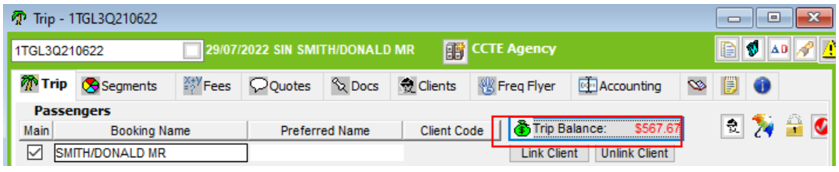
When click on this button it will display a summary.
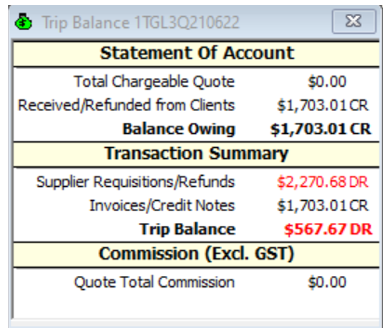
The components that display are dependent upon what has been configured in Branch Set up. In addition, they are dependent upon the following:
- Where no transactions exist for a component grouping, the grouping will not display
- Where transactions exist and the balance is zero, the applicable component grouping will display how the balance comes to $0.00
- Where transactions have been reversed and the balance for all transactions is zero, the component grouping should also show how it comes to $0.00
- Statement of account component will only show where quotes are present in the Trip File. (This is even if this field has been configured to display via Branch Set up)
- Transaction Summary component will always display as this advises how the Trip Balance is derived. Where no accounting transactions exist for a Trip File, the Transaction Summary component will simply display the Trip Balance grouping as $0.00
- Quote Total Commission will only show where quotes are present in the Trip File
- Actual Commission and Actual % profit will only show if their value is not zero. This figure can be a DR or CR amount and percentage respectively (DR amounts and percentages will show in red)
- Where the Trip Balance is a debit (DR) value, this will be in red font
Trip Quotes
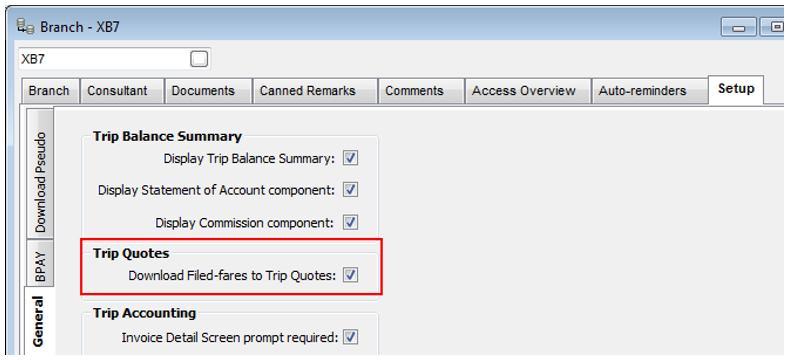
Filed fares are able to download from the Smartpoint PNR to create a CCTE quote within a Trip.
This feature of creating quote upon download is configurable in CCTE as not all the travel agencies require this ability.
- Agencies using Custom Fares should be aware that if both these features are activated then it may lead to the duplication of quotes. The user should delete the duplicate quotes when prompted with the Quote Maintenance screen upon confirmation of the ticket having custom data or not enable the function. As a Corporate they may not require the creation of Quotes in their workflow.
- CCTE downloads filed fares regardless of fare type i.e. Guaranteed, Expired, Invalid, Private fares, etc. The user should either delete the quote or make the quote inactive if the quote is not required.
- Discounts are not added in the quotes upon download and re-download. The user should manually add it to the downloaded quotes. Some user groups may not have access to Discounts as this is set up in Security/Trip/Process, see CCTE Security Guide.
For further details regarding downloading filed fares into CCTE, please see CCTE Consultant User Guide.
Invoicing Detail
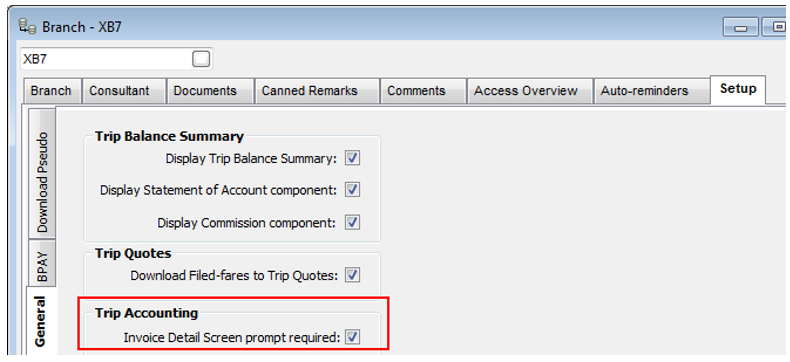
The default setting for the “Invoice Detail Screen prompt required” checkbox in a Leisure or Variable workflow is OFF. This can be activated by the agency supervisor if required. For more information refer to Creating a Debtor Statement from MyCCT.
Note: Activation is available under the Branch Screen>Setup Tab> General Tab. This checkbox is available only under ‘Leisure’ and ‘Variable’ branch setup.
Trip Check
The default option for Enable TripCheck is ‘No”. Tooltip text has been added to the Enable TripCheck option indicating that the reminder option has to be setup through the Auto-reminder tab. If the reminder option is not setup, the system will not generate any automated reminders however, a user would be able to view the reminders through the TripCheck reports.
Default reminder dates are:
- None
- 1 day later
- 1 week later (Default)
- 2 weeks later
TripCheck gives users the ability to setup checklists for a single branch or multiple branches from the same screen.
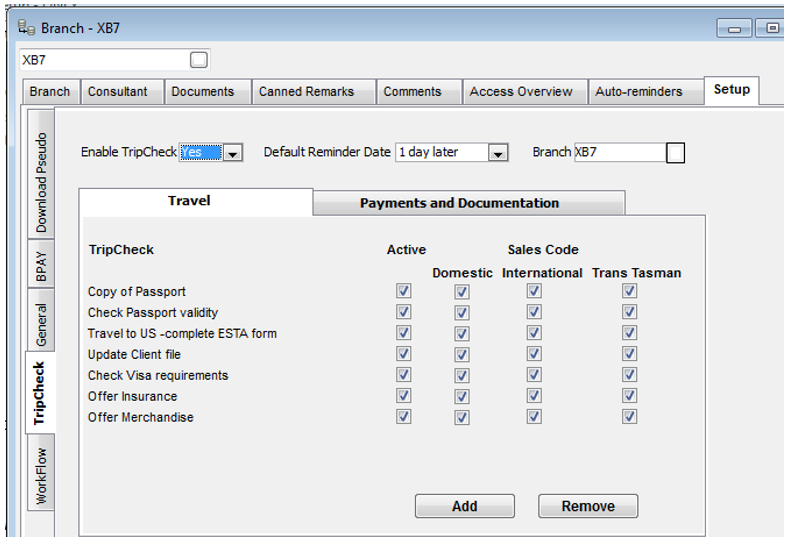
A predefined TripCheck list is available from which the supervisor can add or remove TripCheck items from the list.
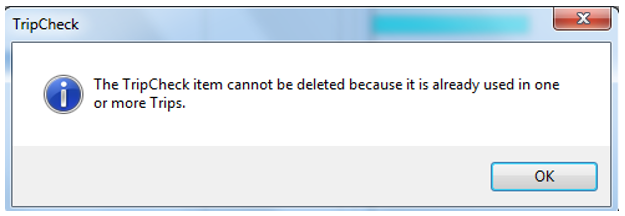
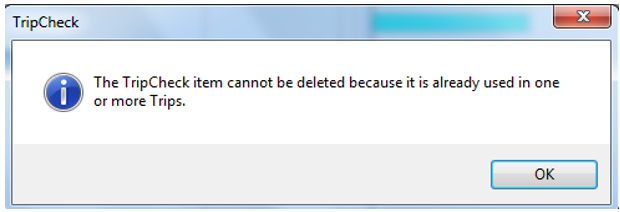
Once an item has been used in CCTE it cannot be deleted. The system will display a warning message notifying the user that the particular TripCheck item cannot be deleted because it is already used. New items can be added to the list of available options.
The supervisor can make TripCheck items Active or Inactive from the configuration screen. If a particular TripCheck is not Active (checked) it would not be displayed on the Trip File TripCheck. If the item has been used and is then made Inactive it will be available on pre-existing trips.
Each item can also be set against particular Sales Codes. This means that when a Trip file is created only the TripCheck items that match the predefined Sales Code/s set in Supervisor will be active.
All Travel related TripCheck items are listed under one tab and Payments and Documentation related items in a separate tab. This will be limited to a maximum of 25 items for a tab.
To add a new field within either Travel or Payments and Documentation tabs, click on ADD button and a new line will appear. A TripCheck line can be made Inactive by unticking this field then it will not be an option to update within a Trip file.
Note: This will only apply to new Trips, not to existing Trip files.
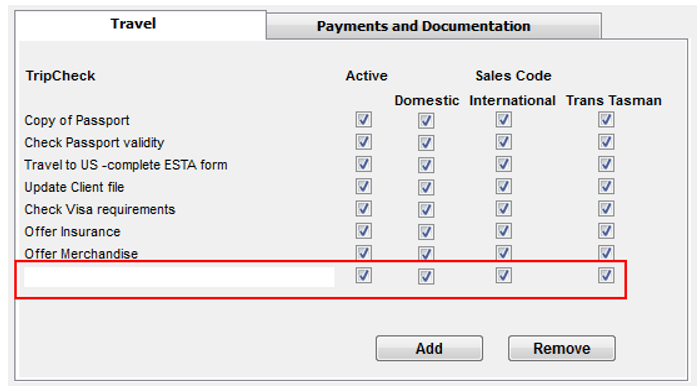
To remove a line, click the REMOVE button.
Note: If the selected item has already been used within the database, a prompt will appear to advise it is unable to be deleted, but it could then be made Inactive.
TripCheck Icon
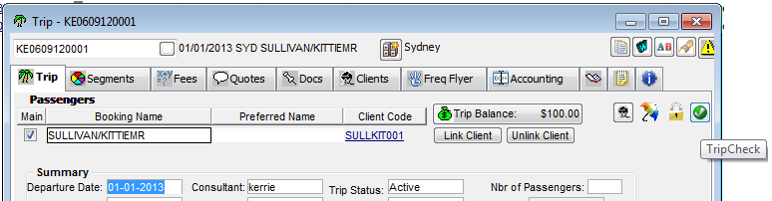
TripCheck is launched from a tick icon on the trip file. When selected the TripCheck screen is launched displaying a list of items that the consultant is required to action on the Trip File. See CCTE Consultant User Guide.
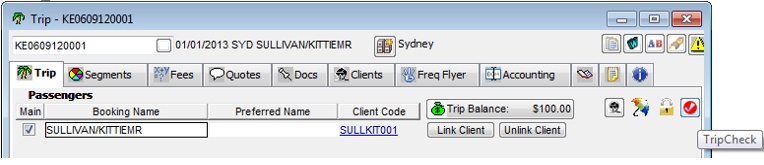
When all the TripCheck items are complete the icon is green and if one or more TripCheck items are pending to be actioned (either by setting a reminder date or marking off as completed), then the tick icon is red indicating that there are items to be actioned on the trip file.
Whenever a trip is updated with additional segments and if at least one of the TripCheck items have become due or past the earlier reminder date, then the tick icon will be set to a red to alert the consultant to action off the TripCheck items with a new reminder date.
If a trip is saved without actioning the checklist items in the TripCheck screen, the system prompts a message notifying the consultant that this activity is still pending, the system will continue to save the trip.
Trips created after TripCheck has been enabled will show reminder dates for each TripCheck item as per the reminder notification period that has been set in the Supervisor module.
For existing Trips: The TripCheck function will appear on Trip Files that existed prior to the TripCheck function being enabled. For these trips, the default reminder dates must be set to “None” and the TripCheck icon will be set to green. The reminder dates can be changed by the Consultant. Once these dates have been set then Reminders will be generated for these Trips if the auto-reminder option has been setup.
TripCheck activity once activities are completed 
TripCheck activity remains red until agent marks as complete 
Workflow
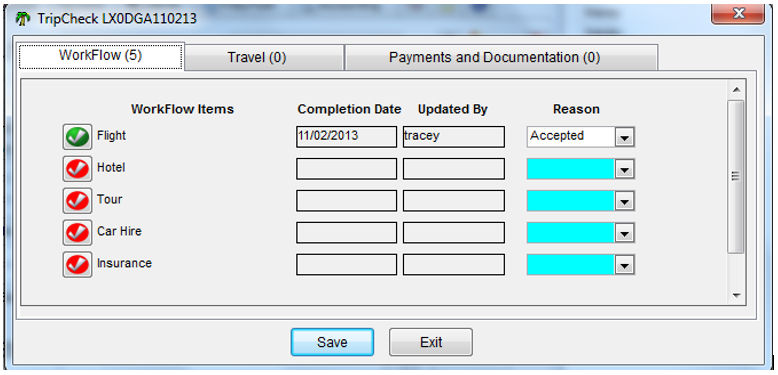
A pre-configured Workflow window can be used to prompt consultants to take action on activities following this Workflow. The cues in the Workflow Tab act as a reminder for consultants to make use of opportunities to generate additional revenue or to enforce administrative tasks required by the agency. Additionally, the Consultant Sales Ratio Report will provide valuable information on the selling patterns of the consultants in an agency.
The Consultant Sales Ratio report is similar to the behavior of Trip Status Ratio report and gives useful information on the selling patterns of consultants in the agency.
The services types in the TripCheck Workflow setup are picked up from the available service types in the system. If a new service type is added after the initial TripCheck Workflow setup, it would be available for selection in the subsequent TripCheck Workflow setups.
By default, the system will display the service types Flight, Hotel, Tour, Car hire and Insurance with Mandatory Reason Code as “No” and the Active check box will be unchecked.
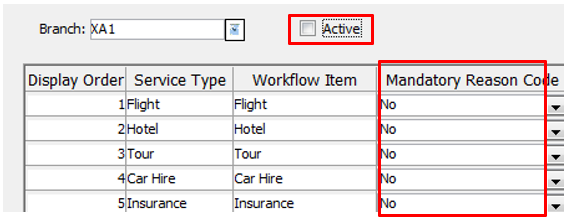
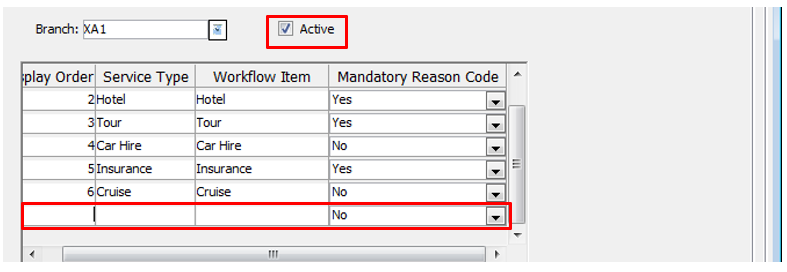
To add a new service type from the Workflow tab in Branch, CTRL+N will allow another line to be added.
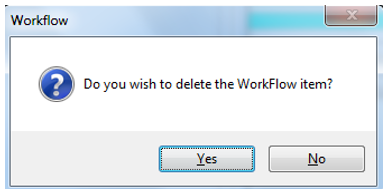
To delete a line, CTRL+D, a prompt will appear as below.
The Workflow Configuration Screen provides the ability for a supervisor to set an order for the workflow items, configure the service types for the workflows and to set a mandatory reason code.

The display order numbers indicate the order in which the workflow items would be visible in TripCheck WorkFlow tab . Duplicate numbers will be validated at the time of saving and will not be allowed.
Once made Active and Reason Codes are made Mandatory, these items will appear in Trip files since Trip
Check was configured.
The configuration can be applied to one or more agency branches from the same screen and can be made Active or Inactive as required. If the configuration is set to Inactive, the workflow tab in TripCheck would not be visible for that selected branch. It would be possible to configure a maximum of 10 work flow items.
The behavior of Branch field in workflow tab shall be as per the behavior of branch field in TripCheck.
The order of Workflows, the Workflow description names and visibility of mandatory reason codes determines the configuration of the work flow items in the WorkFlow tab under TripCheck.
The association of service types with a work flow item determines whether the system has to check if the trip segments booked for a trip qualify as a completed workflow item, which would then be displayed with a green tick icon in work flow tab under TripCheck. If the service type chosen is “None”, the system would not be able to validate the trip with any service segment.
If an existing work flow item is not to be displayed in TripCheck (Workflow tab), the user can delete the workflow item from the Supervisor module by pressing Ctrl+D. This will not physically delete the existing association of Trip records with the Workflow item but the system would not display this workflow item in the TripCheck WorkFlow tab. At any time, this can be restored by adding the service item again.