
Skip To:
- View documents and files linked to the Trip and Client files
- Delete hyperlink from the Trip or Client file

The Document tab provides a record of all documents issued for a Client file. Each item is automatically stamped with the date and time of creation and the consultant ID. The re-issue of a document does not override a previously stored item.
CCTE will save the document at the location when it is saved or emailed as WORD, EXCEL or PDF. It will also record the history of the documents which were saved, printed or emailed. The history will display in the DOCS tab page on TRIP profiles for its documents. The saved document can be viewed by clicking on the hyperlink.
An external document (e.g. a pdf, a .doc file, a scanned image etc.) is able to be linked to a Trip File or to a Client File within CCTE. This is done via a link to a default folder, the path of which can be setup in the Supervisor module. Documents are not uploaded to the database, CCTE will store a hyperlink which points to the file in the user’s chosen folder or shared path.
- The default location for storing documents is C:\Program Files\CCTE\Attachments. However this can be changed to another available path if required the system will validate and prompt an error message if the path is not available.
- The supervisor can change the path of the document attachment at any time. The path for the documents that has been saved to this point would still point to the earlier location in the documents tab and would be accessible if the path exists. Any new document attachment will be saved in the new location path.
- If the document is deleted from the saved location, the hyperlink to the document in the documents tab of the client or trip file will be deleted and if the user still tries to access it, the system will validate and prompt an appropriate error message.
- The user can delete the document from the documents tab in client or trip by pressing CTRL+D. The system will prompt a message notifying that the document will be deleted but the entry will be preserved for audit trail should the user wish to continue with the operation.
Link Documents or Files to the Trip and Client Files
When clicking on the documents tab in the trip or client file the system displays a tooltip message when the moves over the visible area of the documents tab.
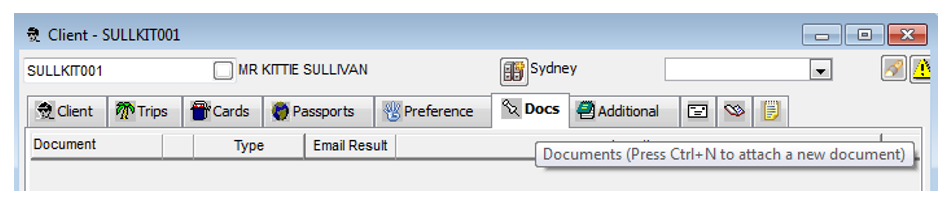
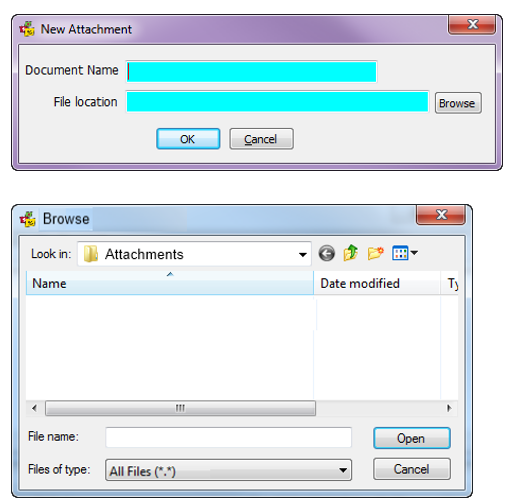
Selecting Ctrl + N will open a new popup window where the user can browse to the document save location. The document name must be an alphanumeric character and is limited to a maximum of 30 characters.
The file can be selected from any available location on the network. When OK is selected the system copies the file from the selected location to the default folder and saves the link to the file attachment in CCTE on the Documents Tab.
- The file type is identified by an icon next to the hyperlink
- Document name and file location are mandatory fields
View Documents and Files Linked to the Trip and Client Files
The documents tab of the Trip and Client files displays the hyperlink to attached documents. When a user clicks on the hyperlink of a record with an attachment icon, the system opens the attached document or file.

If the document or file has been deleted the user will receive a warning message.
Delete Hyperlink From the Trip or Client File
A user can delete a document attachment in both the trip and client files by pressing CTRL+D or through the File menu /Delete for the selected record in the document tab. On deleting the document, the system prompts a message as below.
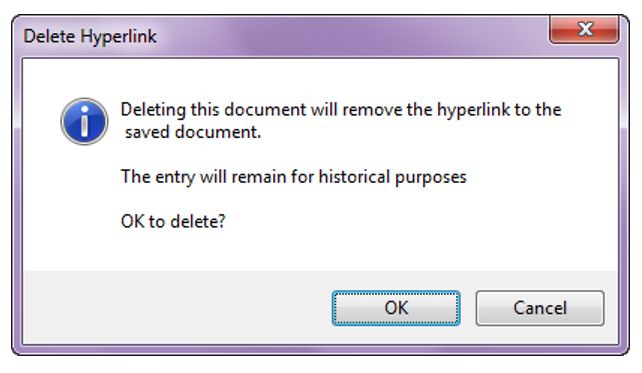
The system removes the hyperlink and deletes the document from the location; however the entry remains in the document tab for purpose of an audit trail.