
Client files can be created from Trip files and all identical fields will be transposed.
Before creating a Client file from a Trip file check to see that a file does not already exist.
Open the relevant Trip file and selecting the Link Client button to retrieve a list of client files with matching surnames. This will ensure that duplicate client files are not accidentally created. If a match is found, follow the procedures: see "Trip File and Client File Linkage" in Module 5: Trip File.
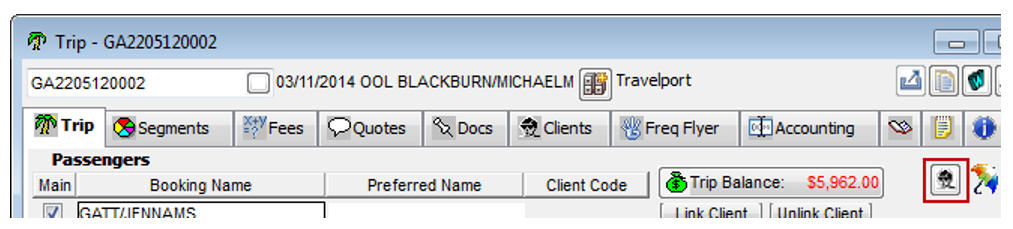
If no matches are found, click the Create Client File Wizard button on the Trip tab in the Trip file.
The Client Creation Wizard screen offers 3 options:
- If the Client file contains multiple passengers, a new client file can be created for each by clicking All Passengers
- To create a client file for the Main Passenger Only
- To choose which passengers, click on Let me select passengers
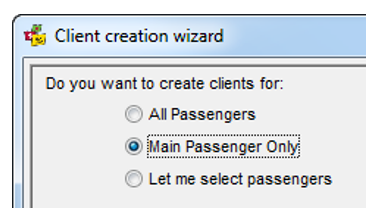
- Click Next to continue
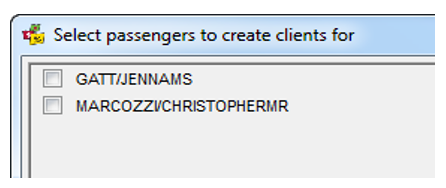
- If “Let me select passengers” is chosen, a new screen lists all passengers in that Trip file.
Tick the passengers to have Client files created and click Next
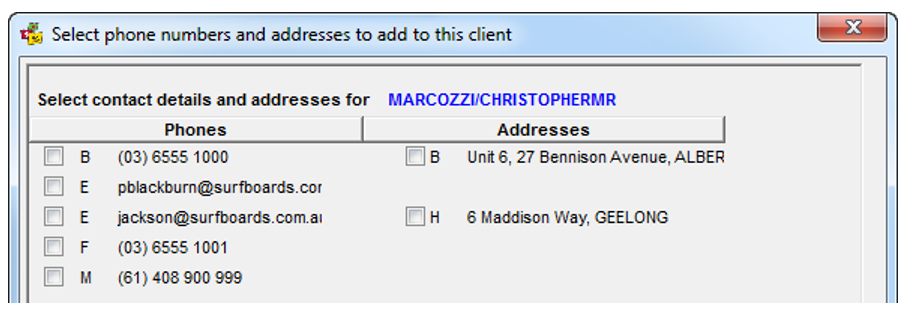
- All Phone and Address details on the Trip file will be displayed so that they can be selected for inclusion in the new Client files. The passenger’s name is shown in each screen so that the correct contact details can be attached. This screen is repeated for each passenger selected
- Click the Finish button to complete the creation of the Client file(s)
- The Trip file will be re-displayed showing the newly created Client Codes
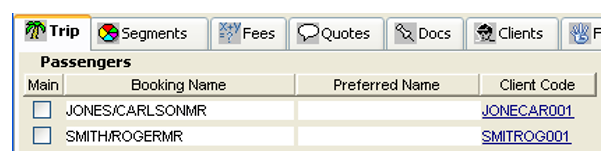
You can move to the attached Client file by clicking on the hyperlink.