Skip To:
- Passenger Contact Tracing Information
- Destination Address / DOCA (SSR) Name and Fields
- DOCA (SSR) Mandatory Items
- Country Codes
- Contact Tracing – Multiple Clients
Passenger’s information can be uploaded by opening the Client file and selecting the Smartpoint> Preference/Upload menu option or by clicking on the upload button.

The Upload screen will open with all the data pre-populated from the Client file. Once the Upload button is clicked, all the checked information will be uploaded to the PNR. Multiple client files can be uploaded if clients are associated.
Once the Clients are selected and the required information is on the Upload screen, select the data to be uploaded to the PNR. Only the Items that are checked will be uploaded. In cases where the Client file has already been uploaded to a PNR, and new information is contained in the Client file which was not transferred upon the initial upload, it is possible to re-upload (i.e., upload a second time) in order to transfer the new information held in CCTE to Smartpoint.
Note: When the “Upload” button is clicked, Passport or Visa information will not be sent to the carrier unless segments are booked first.
The upload will:
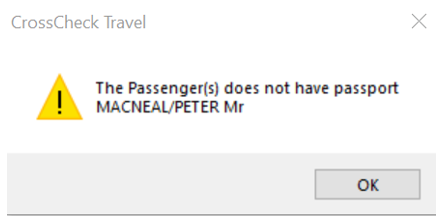
- Automatically upload first Passport and Visa information when the International tick box is selected. If a Client does not have a Passport loaded in their Client File, a message will appear as per below:
- A consultant is able to select/deselect the Client’s middle name in the Client Upload process. This gives the Consultant the option of uploading the full name for the passenger (to match passport for international travel) or first and last name only (for domestic travel).
- Upload duplicate passenger name data i.e. same surname is allowed
- Add phone number comments to Client Upload screen and upload
- Meet Australian Government Requirements for Passenger Contact Information if Client(s) Mobile Phone Number, Email Address and Postcode of Residence has been correctly entered into the Client File(s)
If duplicate phone type, area code and phone numbers exist then only one instance of the phone number will be uploaded to the Smartpoint PNR.
Note: There will be no checks on the PNR to see if the data has previously been uploaded.
Passenger Contact Tracing Information
To meet Government Requirements in Australia, a mandate was introduced for all domestic airlines to collect particular contact information within each booking. This is explained by AFTA on their web site and is outlined by Qantas as to what entries are required from bookings made through each GDS. Here are the relevant links:
Passenger Contact Tracing | Australian Federation of Travel Agents (afta.com.au)
Passenger Contact Tracing (qantas.com)
To assist Travel Consultants in providing this passenger information, the CCTE Client Upload screen has been enhanced to provide fields applicable to the required Contact Tracing entries and to prompt for data to be entered in these fields.
The actual Client Screen has not been changed but the Preference/Upload screen has various changes — detailed below.
Destination Address / DOCA (SSR) Name and Fields
Prior to v22.5, the Address box within the Client Preference/Upload screen had a field labelled Destination Address (SSR) which provides a means to enter the Passenger’s Residential (Home) Address or to provide a Destination address so as to upload into Booking Files.

The field has been renamed to DOCA (SSR) and the selection of (R)esidential or (D)estination is from a drop-down selection, with the default option being Destination primarily for the purpose of providing the airline Passenger Contact information.

Note: The “D” Type and “R” Type DOCA SSR entries are still unable to be uploaded simultaneously into Smartpoint — in situations where both are required in a Booking File, the advice is to upload the Residential Address information, then manually add the Destination information.
DOCA (SSR) Mandatory Items
Client Profile Example:
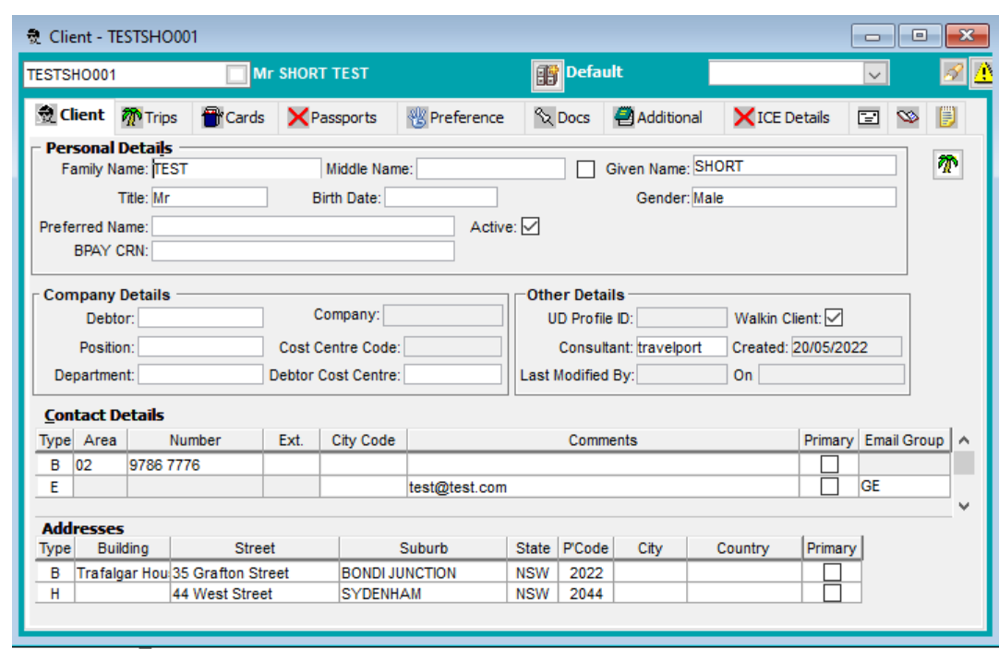
All available data from a Client Profile will be placed into the Preference/Upload screen.
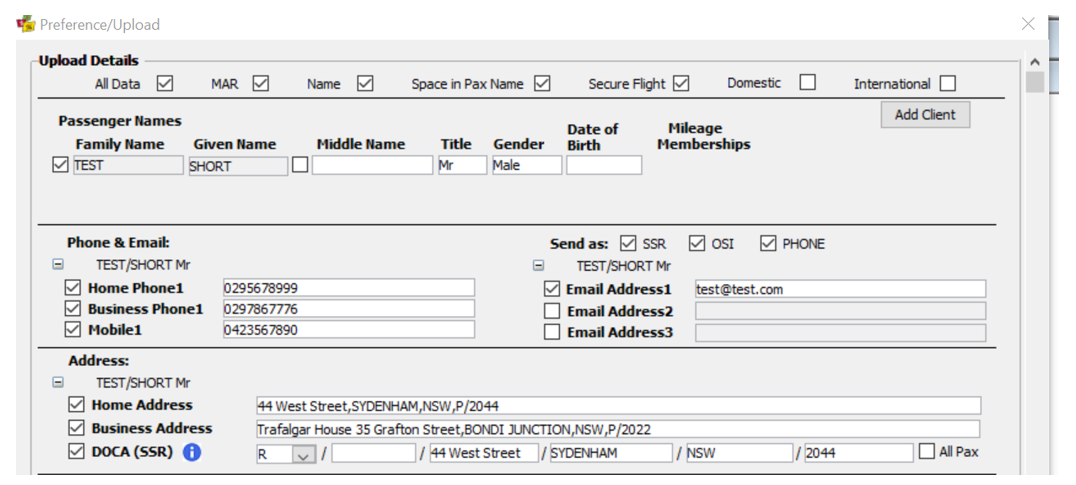
Passenger information fields requiring Contact Information such as Phone & Email, and the DOCA Address Details will display as highlighted in Orange if there is no text in these fields.
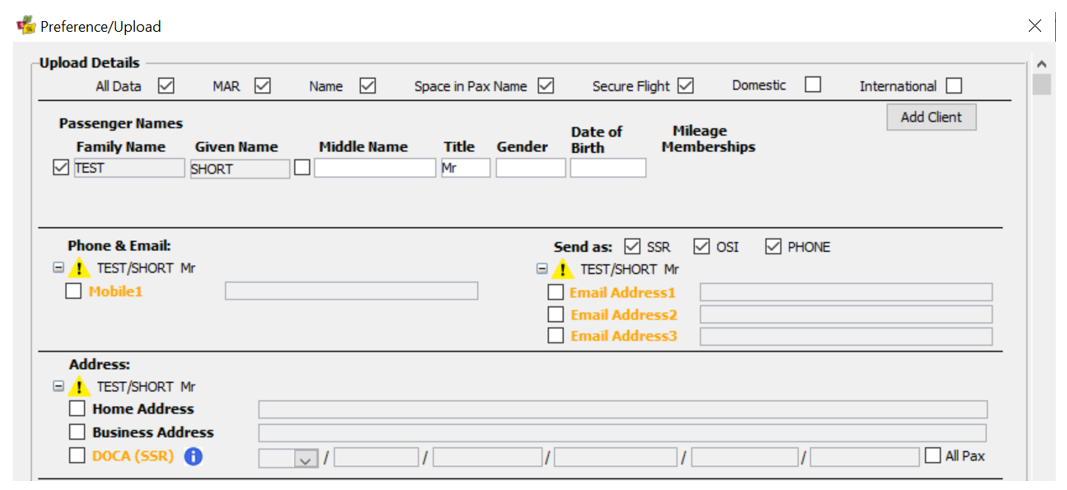 All these fields can be manually updated from within the Preference/Upload screen, or can be added to the Client Profile screen in CCTE, so that these items are permanently available for uploading into Booking Files.
Country Codes
A necessary component of the DOCA SSR entry for the Passenger’s Residential address is the two letter Country Code which should be present in the first field on screen for the DOCA (SSR) “R” entry. If this data isn’t entered in the Preference/Upload screen, the DOCA SSR entry will not be generated into Smartpoint and CCTE will display the below illustrated alert message after the upload process has been completed.
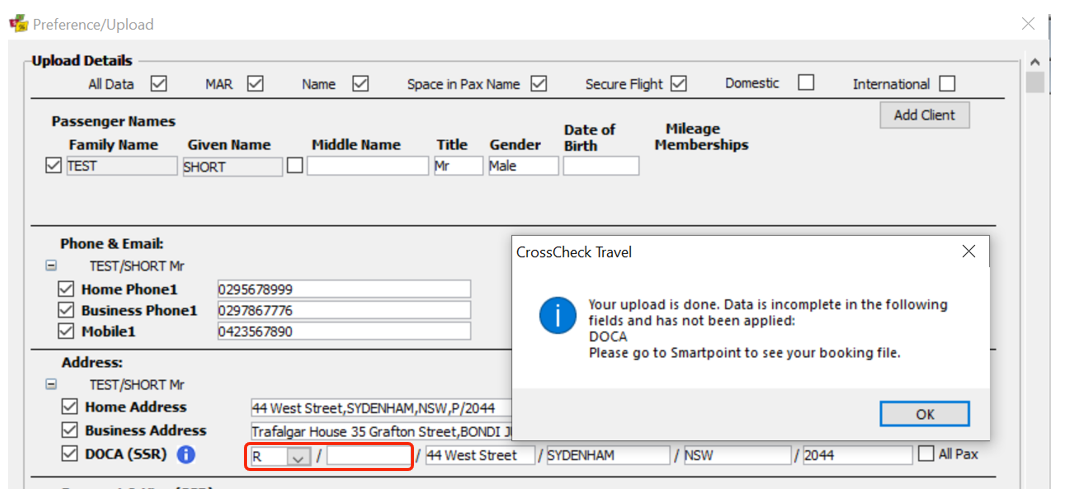
This problem can be avoided by adding the Passenger’s Country info within the Client Profile Home Address screen — by selecting the Passenger’s home country from the available list.
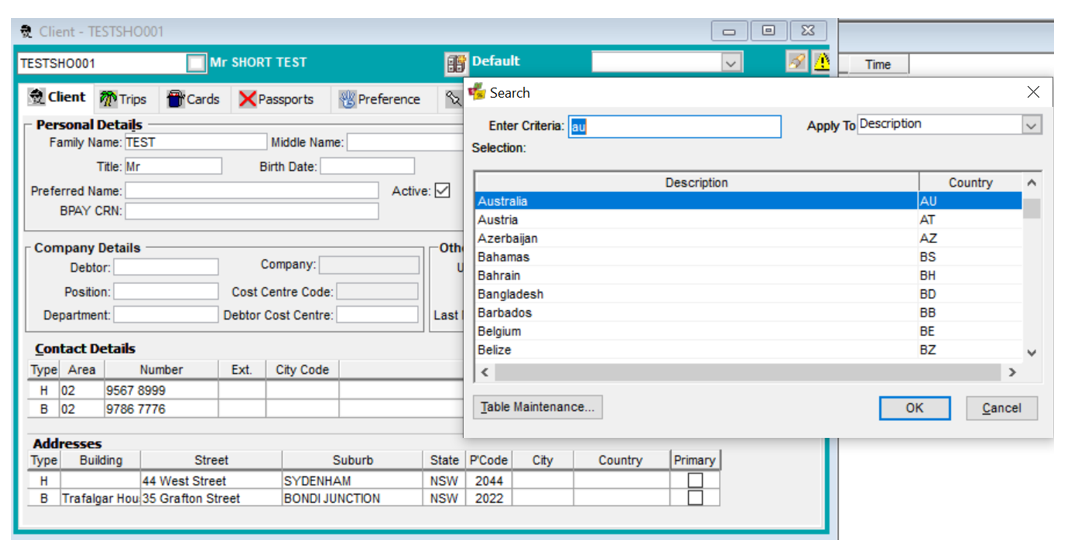

When saved into the Client Profile, the Preference/Upload for this client will then permanently display the applicable two letter Country Code in the DOCA (SSR) entry.

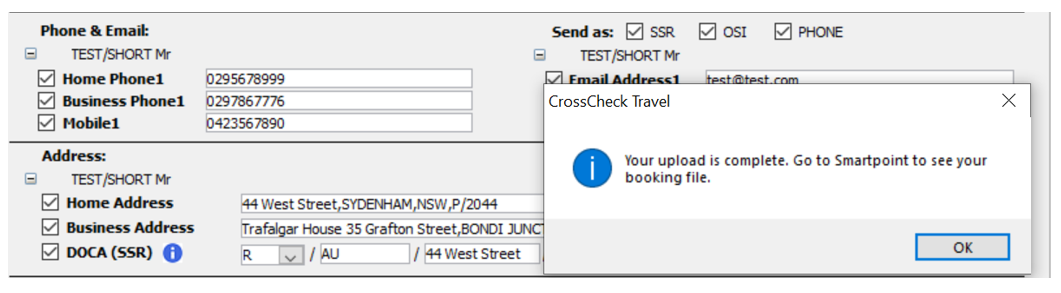
If all mandatory Contact Tracing information has been auto generated or manually entered into the Preference/Upload screen, this message will display at completion of the Client Upload process — with all generated entries visible in Smartpoint.
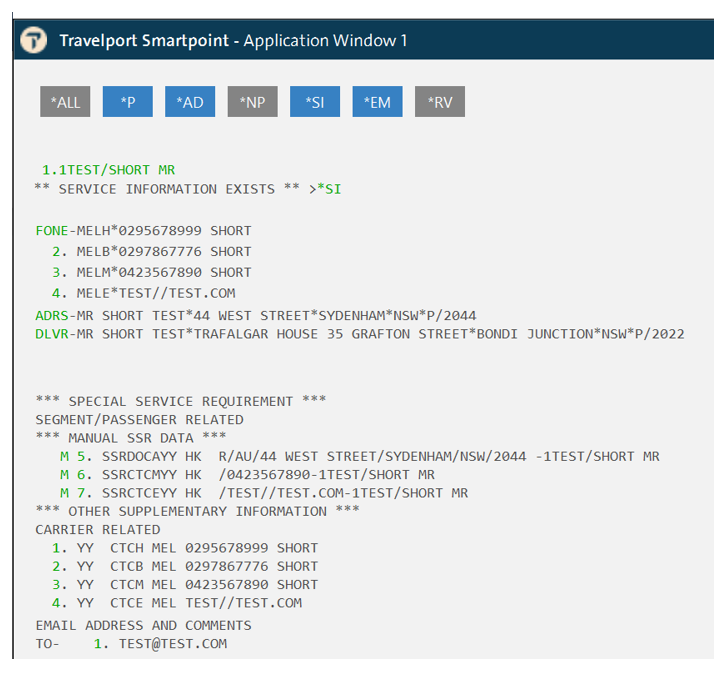
Contact Tracing - Multiple Clients
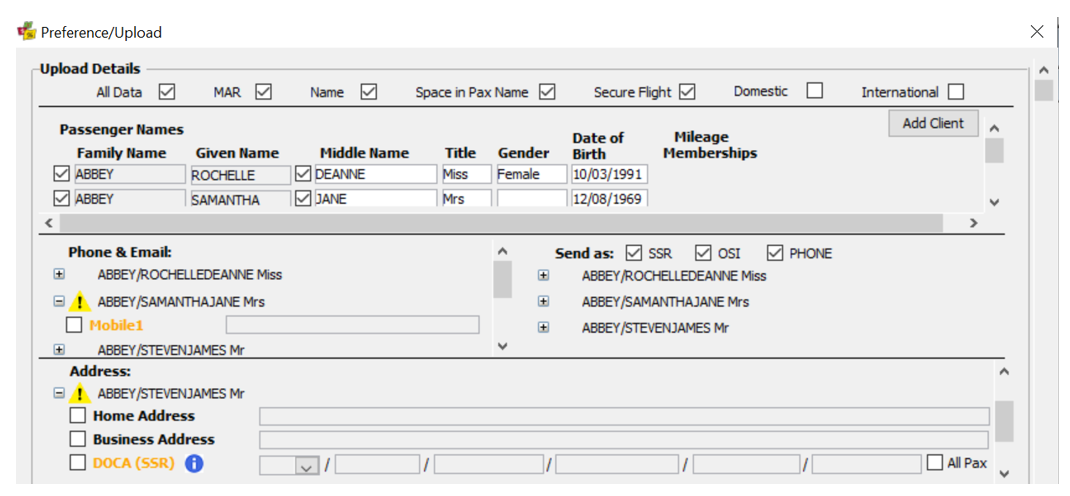
When the Client Upload is for more than one Passenger, the Preference/Upload screen will display alerts for any Client Profiles that do not contain the necessary Contact Tracing information.
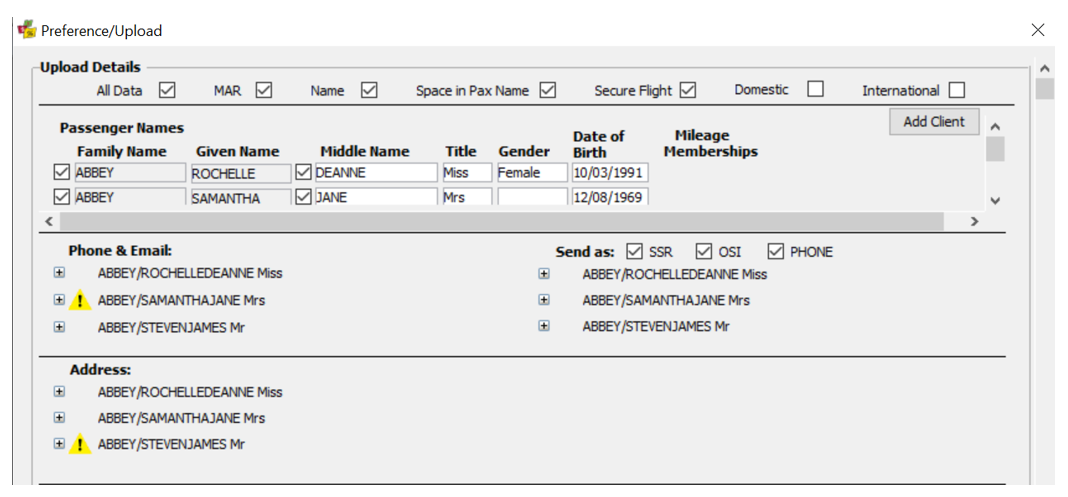
Accessing these fields within the Preference/Upload screen allows for the data to be input per Client, or the missing information could be added into the individual Client Profiles prior to the upload process being performed.