
Skip To:
- Consultant
- MAR
- Passenger Name
- Debtor Information
- Mileage membership
- Phone & Email
- Address Information
- Passport information
- Visa information
- Credit Card information
- Other Upload Info
- Company Code and Cost Centre Code
- Preferences
Consultant
The consultant field will default to the logged in user.
The All Data field -indicates that the Agency MAR, Passenger Name(s) and both Home and Business address are sent to Smartpoint.
MAR
The default setting All Data includes moving the MAR and assumes that you are uploading to a booking file before Ending and Retrieving the booking file. The MAR is generated from CCTE, not Smartpoint.
Passenger Name
If this field is checked on the “Upload Screen”; the following data will be uploaded from the client file to the PNR:
Given Name
Family Name
Middle Name (optional – can be deselected)
Title
Multiple passengers with the same name (for example, a husband and wife sharing a surname) can be uploaded simultaneously. All relevant names that are to be uploaded need to be selected in the Upload screen.
Debtor Information
If this field is checked on the “Upload Screen”; the “Company” and “Cost Centre Code” data will be uploaded from the Client file to the PNR.
If it is a leisure client, then the Company Code and Cost Centre Code boxes will be disabled.
- For a corporate client the Company Code and Cost Centre will be enabled only for the first Passenger and disabled for subsequent passengers.
Mileage membership
Up to ten Mileage membership numbers can be uploaded to the host. A live flight segment must exist to correctly upload the Mileage details.
The Mileage membership number will be a combination of the Supplier ID and Membership Number.
If this field is checked, data will be uploaded from the client file to the PNR. Supplier ID and Membership Number values will be concatenated and displayed on the Upload screen. E.g. Supplier ID is QF and Membership Number is 2654811 so the final Mileage Membership Number that will be uploaded will be QF2654811.

Phone & Email
The radio buttons in the ‘Send as’ area provide options to upload the Client phone numbers and/or Email Addresses into the SSR,OSI, Phone fields or to All.

The Client Upload in CCTE will check whether the phone numbers being uploaded are present in Host. If the number, type and comments of the phone fields match, the Client Upload will only create one entry for matching details, preventing duplicate phone fields.
Multiple phone fields of the same type with different phone numbers can be added and uploaded. Any comments attached to a phone number (up to fifty characters in length) will be transmitted to Host with the phone number the comment is attached to. Thus, if a client has a personal mobile and a work mobile it is possible to upload both numbers. Alternately if uploading multiple passengers, it is possible to add a home or work number for each passenger in the PNR.
By default the Primary email address will be checked on the upload Screen and the user will be able to change this if required.
Address Information
The “Destination Address” must be manually entered to the “Address” section on “Upload Screen”.
If this field is checked; for the selected passenger the Home address and Business address data will be uploaded from the client file and the Destination address from the “Upload Screen”.
If any of the field in the destination address is blank then the destination address will not be uploaded and the upload process will continue.

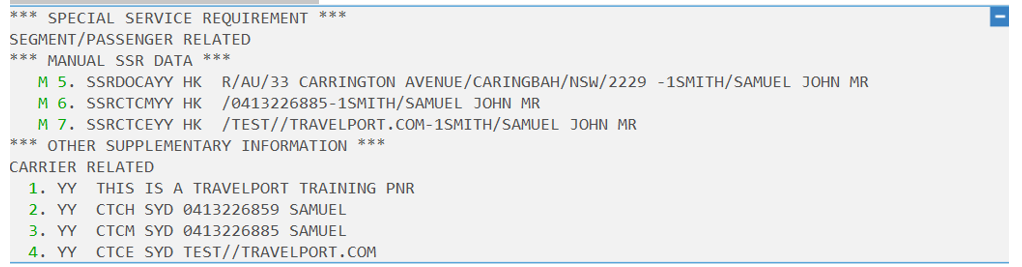
Destination address will be uploaded as an SSR for a Secure flight.
|
Field |
Number of Characters |
|
*R means residential |
maximum length character 1 |
|
*D meaning destination address |
maximum length character 1 |
|
Country |
maximum length Character 2 |
|
Street Address |
Building (Length character 35), Street(Length character 35), Suburb(Length character 35) |
|
Town/City |
maximum length Character 35 |
|
State |
maximum length character 15 |
|
Postcode |
maximum length character 15 |
In the booking - *SI – Special Service Information this will display as follows, including Passport information, as detailed below.
Passport information
If International field is selected in the Upload screen, the Passport and any attached Visa information will be automatically be selected for uploaded to a PNR.
Below information will be picked from Passport Tab
- Issue Country
- Passport number
- Nationality
- Expires
“Gender” and “Birth Date” will be uploaded from the Client Tab on client file.

Visa Information
If any of the visas are checked on the Upload screen; the following data will be picked from Passport tab on Client file and uploaded to a PNR. Visas will automatically be selected for upload if International is ticked.
- Visa Country
- Visa Number
- Issue Country
- Issue Date
- Expires
- Redress Number
- Issue Country
- Unknown Traveler Number
- Issue Country

Credit Card information
If this field is checked on the upload screen; the Credit Card will be picked from the Client file and will be uploaded to a PNR.
The user will be able to select only one credit card. If one Credit card is checked then the rest of the cards will be disabled.

A credit card can be linked with Service type and also captures whether the Credit Card is for Personal or Corporate use. The Type field drop down is a Mandatory field, and it is only possible to select one value at a time. The Service type is available from a drop-down list and multiple values are able to be selected.
Other Upload Information
If a client file contains Seating and Special Service Requests recorded under the Additional tab, the recommended procedure is to book all flight segments prior to performing the upload. CCTE only transmits this information when live flights already exist in the Smartpoint Booking File.
Credit Card and Passport details are not transposed in the upload process. If you wish to include these items you can enter them as Note Pad entries under the Additional tab.

Company Code and Cost Centre Code
These fields only apply when using a Corporate workflow. The Company Code and Cost Centre Code will automatically populate if the client file has been linked to a Debtor.
Preferences
Preference details are displayed for reference and do not upload. You can view Personal or Company Preferences.
It is recommended that prior to clicking on Upload button, flights have been sold in Smartpoint in order for the extracted data below to attach to the flight segments.
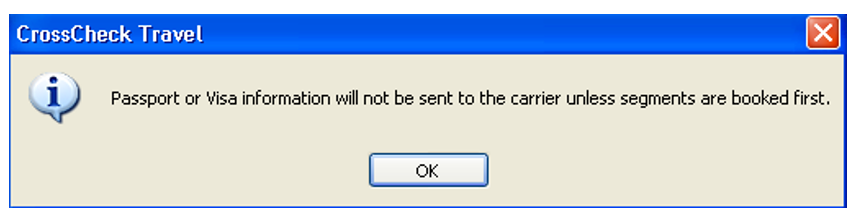
If flights have not been sold prior to Upload a message may appear advising passport or visa information will not be sent unless segments are booked first.
Note: For passport information to Upload, flights must be sold first, and International must be ticked in Upload screen.
Note: If a booking is open in Smartpoint and an attempt is made to upload, a message will appear similar to below, it will be necessary to either finish or ignore the live booking or it may be that your Upload has already been processed. Display the booking (*R in host) and check. This message will also appear if an item is ticked but it is left blank.
Upload has already been processed. Display the booking (*R in host) and check. This message will also appear if an item is ticked but it is left blank.
If an unsaved PNR is open in Host, then upon upload CCTE will check the first 16 characters of the passenger names to be uploaded. If CCTE finds a match, it will display the following message:
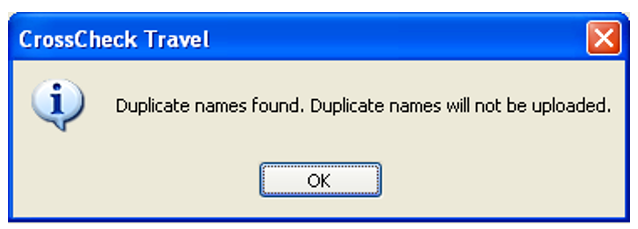
In cases of updated Client file information needing to be transferred to Smartpoint, it is possible to deselect the name field and upload the remaining data from the Client file. All updated and selected information (excepting address fields, of which there can only be one entry of each type of address field in a PNR) will be uploaded to Host.
Note: Multiple passengers with the same name (For example, members of the same family) can be uploaded together.
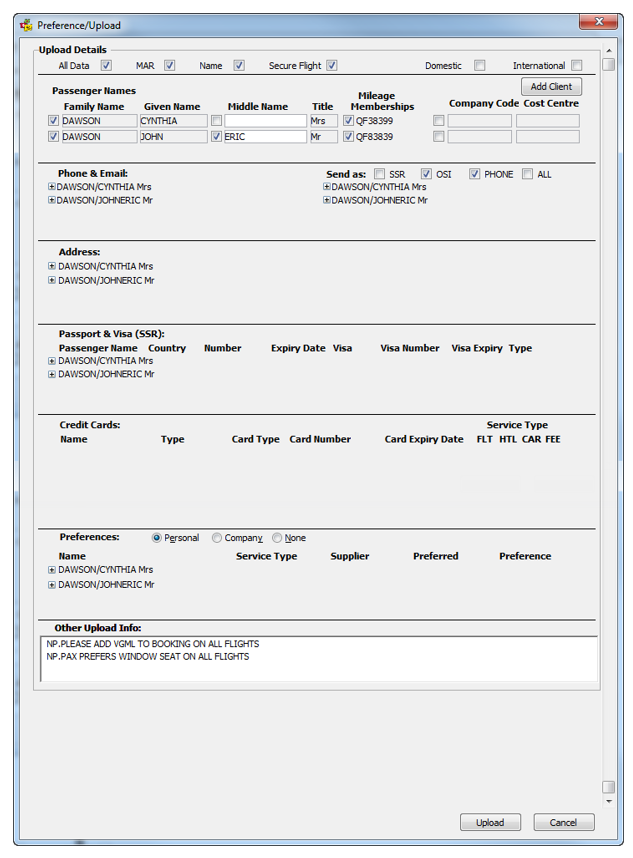
Once required data has been selected, click on Upload button to extract the data into your Smartpoint booking.